
Python Hello World Program – Create & Run Your First Python Program in PyCharm
Master Python with 70+ Hands-on Projects and Get Job-ready - Learn Python
Python Hello World Program – Your first step towards Python world.
When we learn any programming language, hello world is our first program. We run this simple program to verify our development as well as deployment environment.
In this tutorial, we’ll learn how to create the first python program ie hello world in PyCharm. Before building our very first python project PyCharm, let’s first get a little background check on PyCharm.
PyCharm is yet another Integrated development environment (IDE) available for Python. Well, it’s one of the most popular IDEs and is in the good books of many Python programmers. Here, the interpreter hooks into graphical debuggers for step-through control.
You don’t really need to ponder on which IDE to choose if you’re a complete Python newbie. The choice of IDE becomes important when your projects become larger and complex. This is where the extra tools and features of PyCharm prove to be effective.
Check out the latest Python Tutorial Series with 270+ Tutorials, Practicals, Projects, and many more!!
What is PyCharm?
Developed by JetBrains, PyCharm is a Python IDE for Professional Python Developers. PyCharm comes with tons of different features, as follows:
- Smart code completion: It suggests code automatically and helps in writing the code faster by reducing errors.
- Code debugging: It is a step-by-step process of finding and fixing errors easily.
- Testing: It helps you to run the command directly from the IDE.
- Version control: It makes it easier to track and manage the changes made in the code.
It also offers framework support for web development. It is a cross-technology IDE and supports Python, JavaScript, SQL, HTML/CSS, Node.js, and more.
PyCharm is famous for its flexibility and productivity. This makes it a popular choice for both web development and data science projects.
Enough praises! Let’s install PyCharm!!
PyCharm Installation
PyCharm is available for Windows, Mac, and Linux. You can download the latest version from the official JetBrains website. The Community edition is free and open-source. The Professional PyCharm edition is paid but available for free 30-days trial.
After downloading the setup file from the website, run it, and finish the installation process. While launching PyCharm for the first time, it will ask you to choose a dark or light theme.
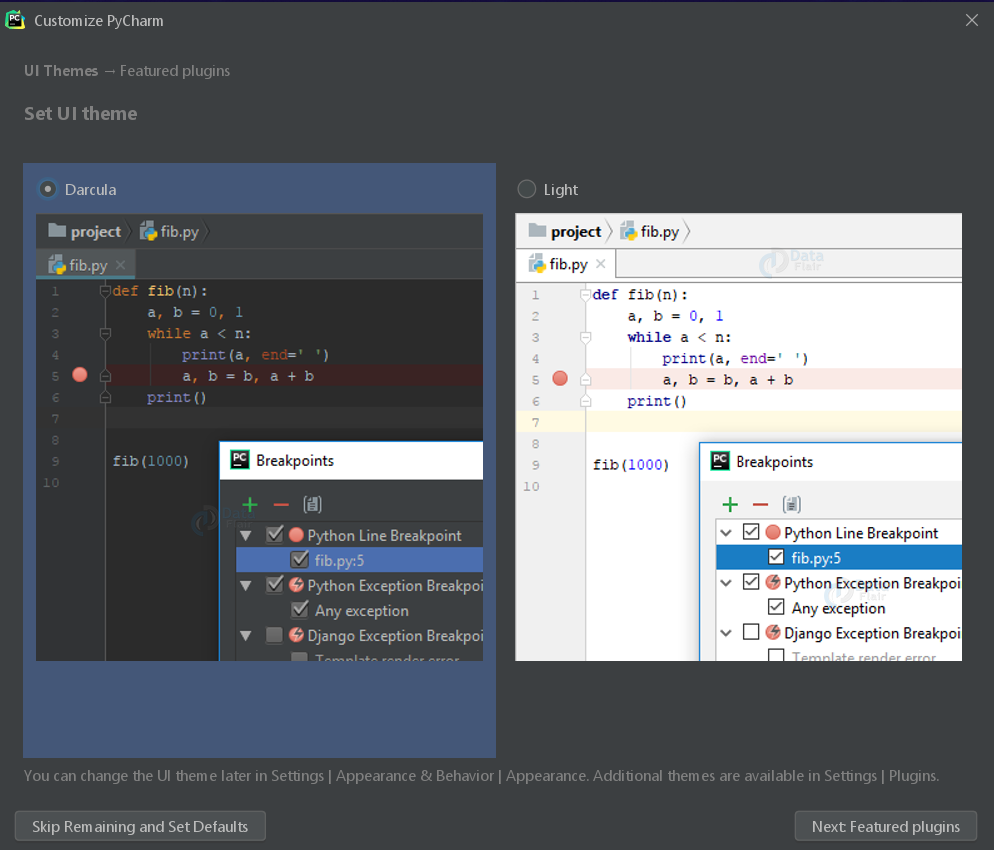
You can skip the installation of other plugins.
Now that our setup is complete, let’s do some coding.
Create a New Python Project – Hello World Application
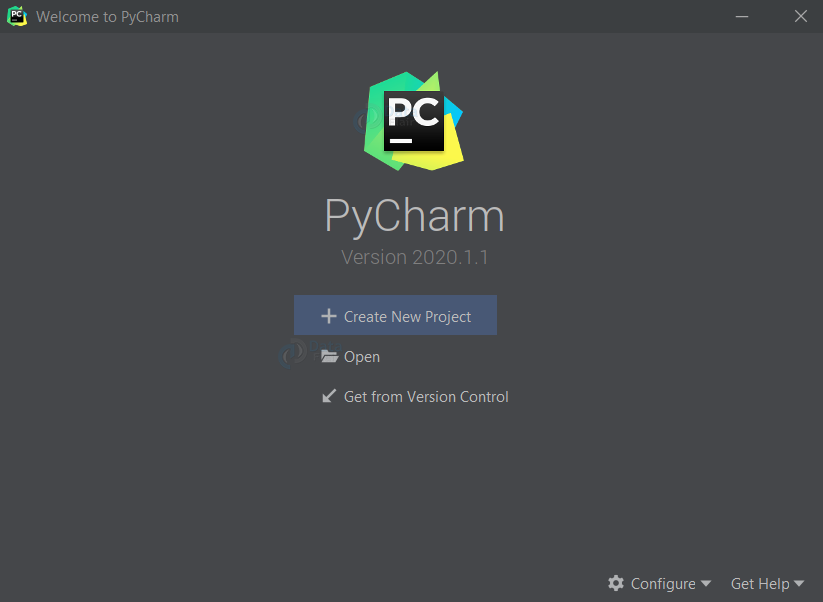
On the ‘Welcome to PyCharm’ window, you’ll find a ‘Create New Project’ option. Select this option.
Next, choose an appropriate name for your first project. I’ve named it “myFirstProject”. You can now choose the location where you want your project to live on the disk. I’ve left the default path.
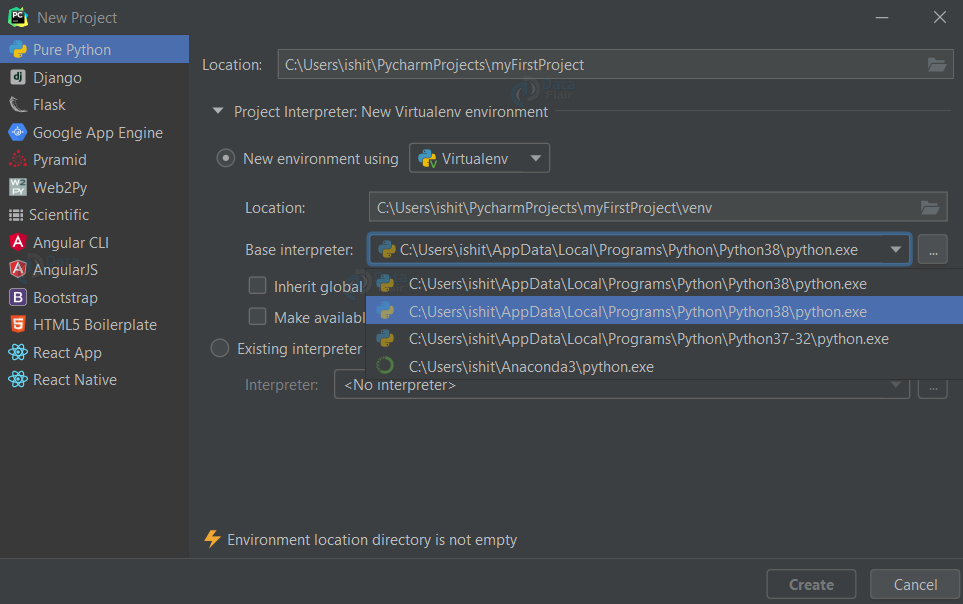
PyCharm recognizes any existing Python installations. You can choose any one of the underlying options as your base interpreter for the project.
Click on the create option at the bottom right corner.
Create a Python File and run it
On the top left side of the Project window, you’ll see the name of your project. Right-click on the name and create a new Python file, in this file we will write the code to print hello world
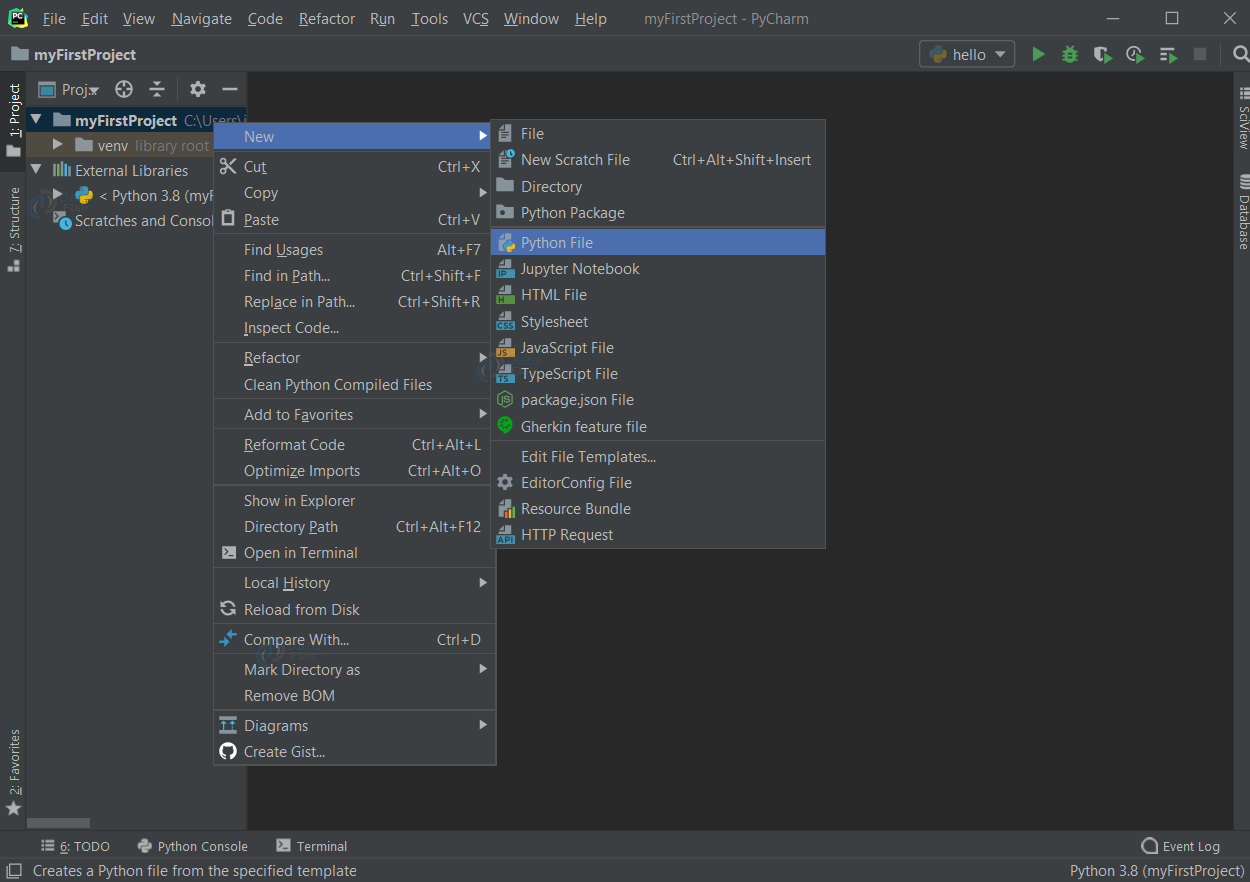
To mark the beginning of our first python project in PyCharm, we’ll write our very “original” Hello World program!! It’s a tradition, you can’t escape it!
Choose an appropriate name for your file. I’ve named it “hello.py”.
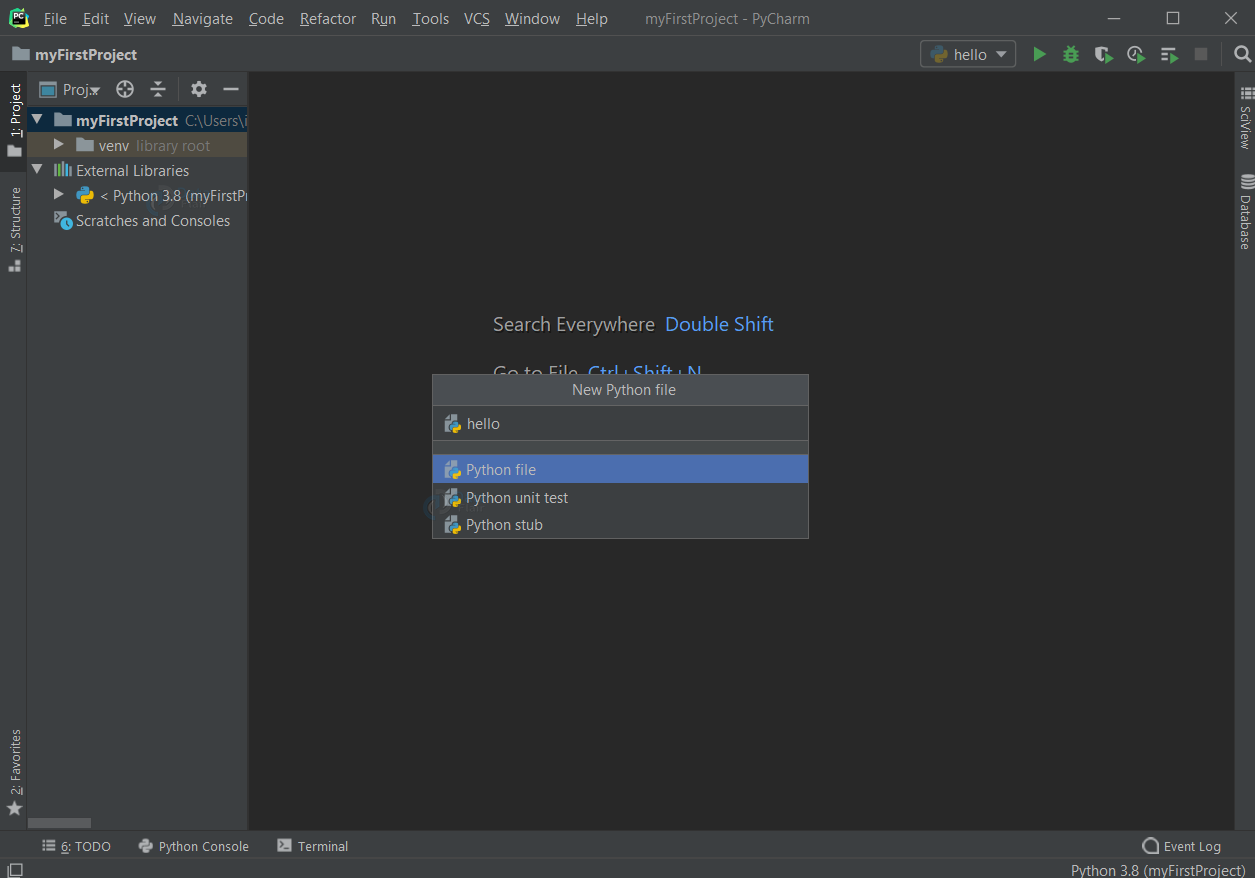
Start writing the python program to print “Hello World” in this file.
print("Hello world! - from DataFlair")Execute the Python Hello World Program
To run the file, click on the green play button at the top right side of the UI. Or press CTRL+SHIFT+F10 (or just SHIFT+F10, depending on the version).
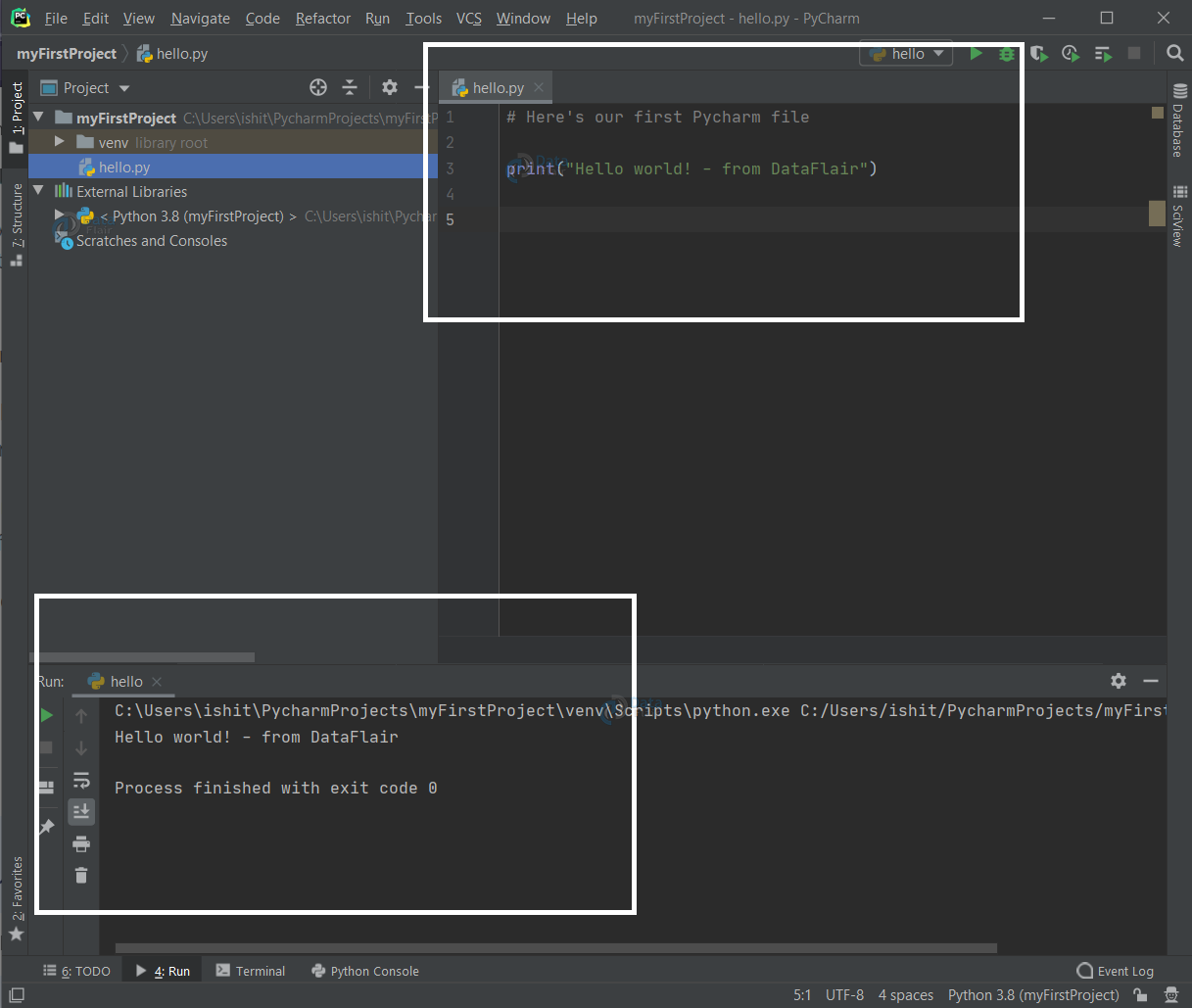
The top box shows the code to print hello world and the bottom one shows the output for that code.
This Hello World program is really dull, right? Let’s customize it.
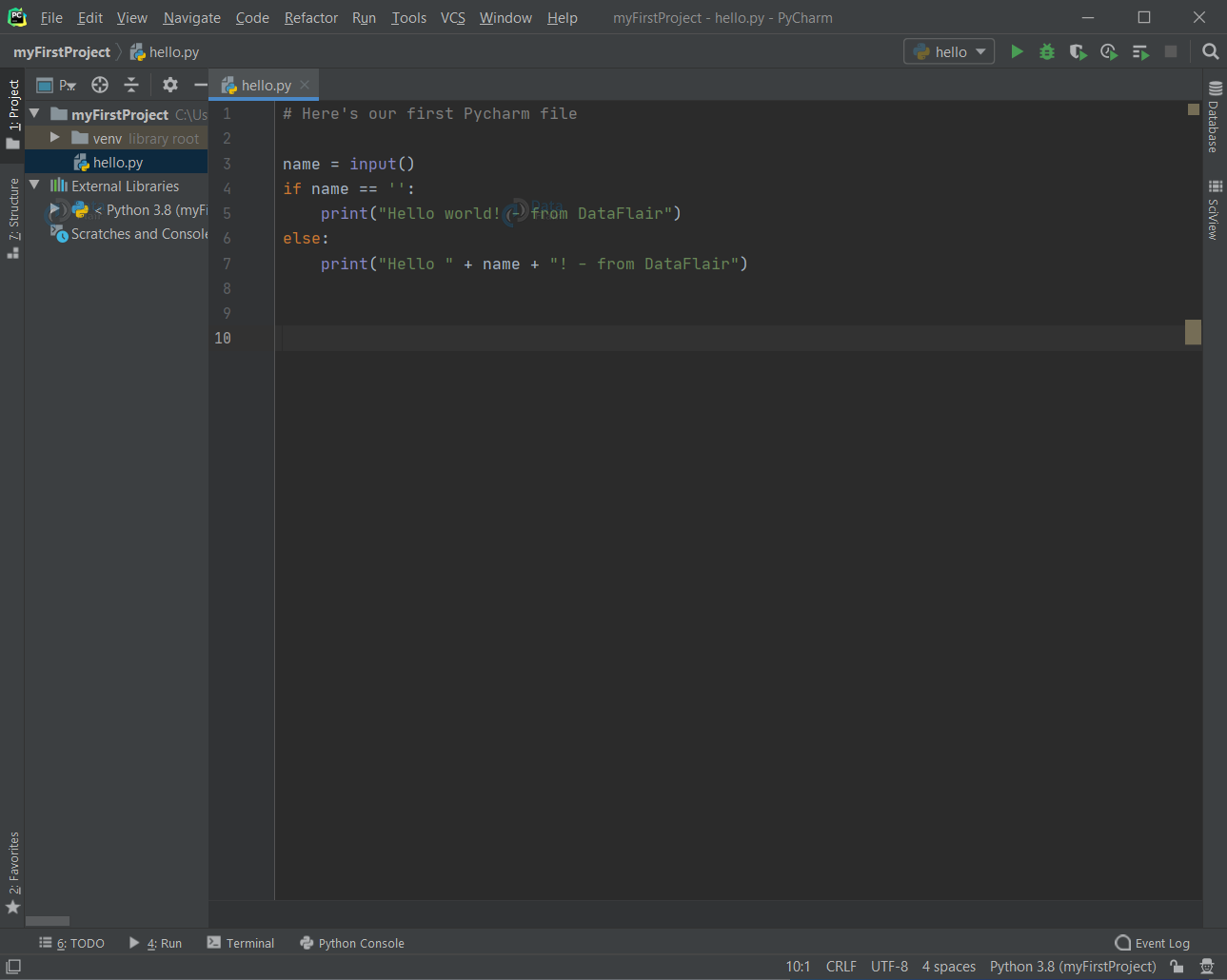
name = input()
if name == '':
    print("Hello world! - from DataFlair")
else
    print("Hello " + name + "! - from DataFlair")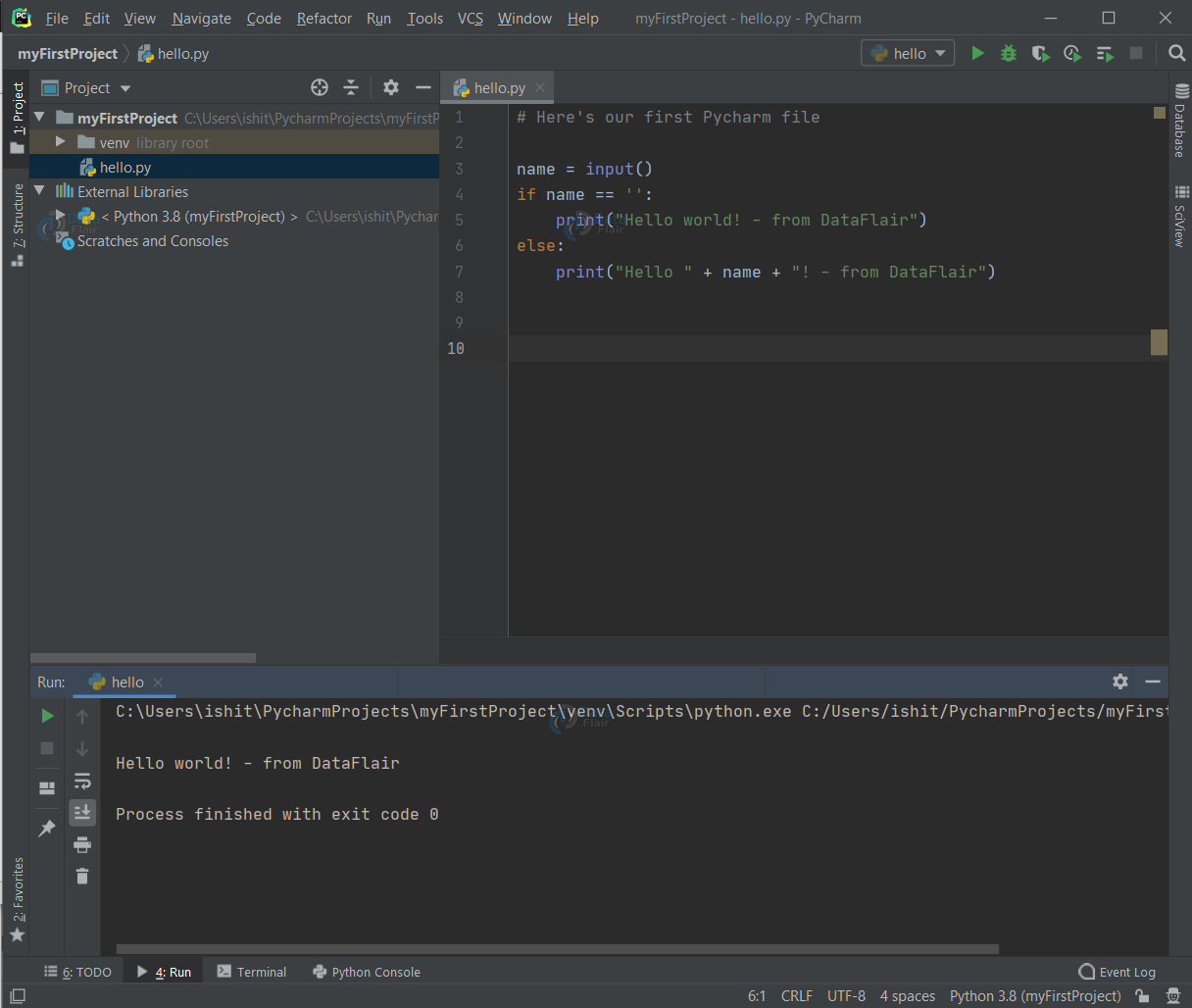
Here, we ask a name as input and say hello to the name. If the user doesn’t input any name, we simply print hello world. Let’s run it.
Output when you don’t provide any input:
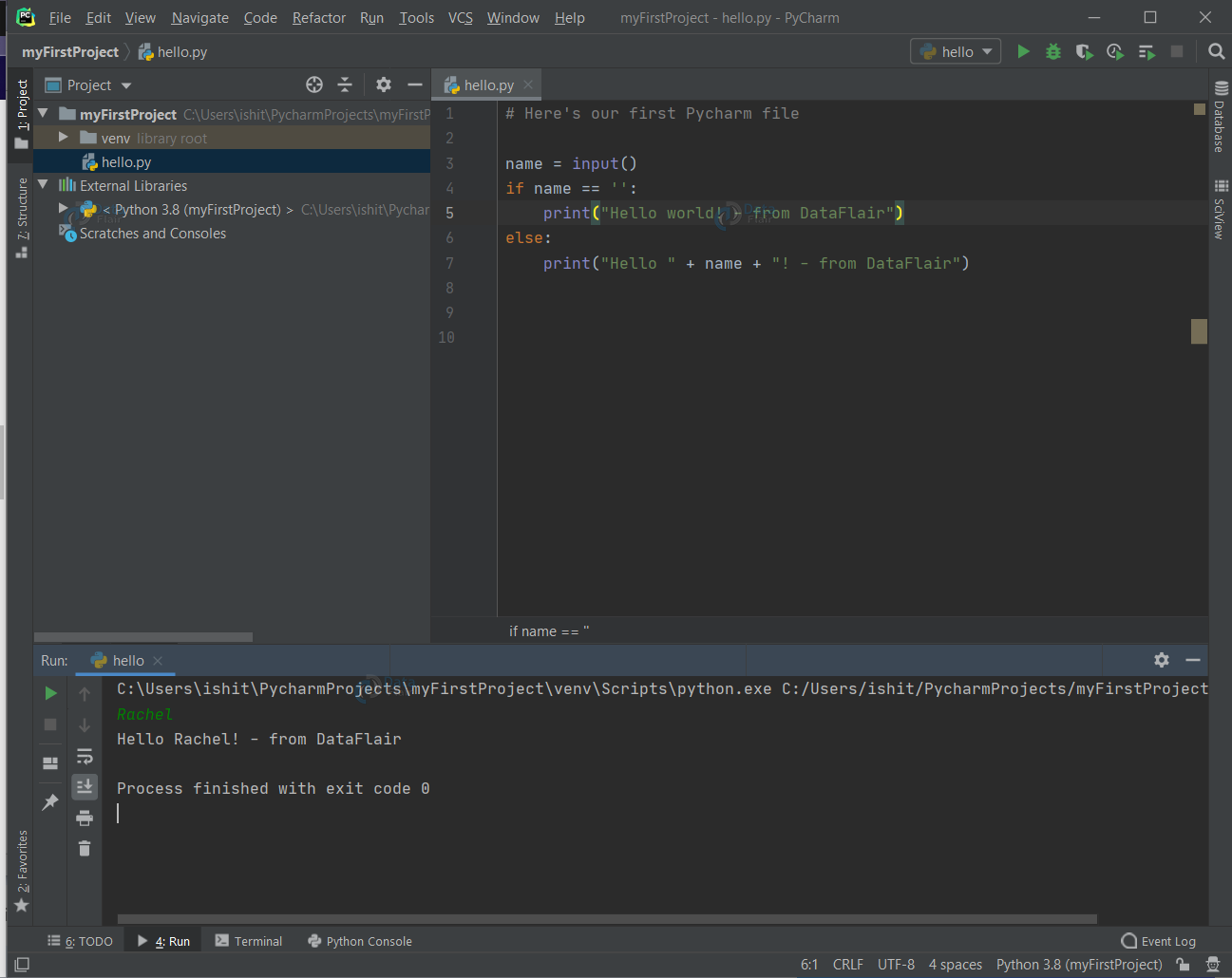
Output when you give a name as input:
There you go! You have now created a simple yet fully functional PyCharm Project.
Summary
In this python tutorial, we created our first python program that is hello world program using PyCharm.
PyCharm, and IDEs in general, tend to shine on larger projects. You’ll see many powerful features of PyCharm at work while writing heavy and complex code.
Did we exceed your expectations?
If Yes, share your valuable feedback on Google





