
Internet Speed Test using Python
Master Python with 70+ Hands-on Projects and Get Job-ready - Learn Python
We all use the internet for multiple purposes ranging from learning to entertainment. And it is common for us to face the internet issue when we start relying on the applications to know the speed? Wouldn’t it be helpful and also interesting to build an application yourself for checking internet speed? So, let’s make python project to do internet speed test!
What is Internet Speed Test?
Internet Speed Tester is an application that measures internet quality or speed for the connected device. It is used by us when we face any internet issue or when we want to check the bandwidth of the internet.
Internet Speed Test in Python
We will be using the speedtest module to find out the internet speed. Here, we measure the following three speeds:
1. Download Speed
2. Upload Speed
3. Ping
And we use the Tkinter module to build the GUI for taking the choice of the user from the above three options and to display the respective speed.
Download Internet Speed Test Project
Please download the source code for the Internet speed test python project using the link: Internet Speed Test Project
Prerequisites
Prior knowledge of Python and the Tkinter module would help the developer while building the project. You can download the above mentioned modules using the following commands.
pip install tk
pip install speedtest-cli
Steps to build Internet Speed Test Python Project
We will be doing the below simple steps to build the project:
1. First, we import the required modules
2. Then, write a function to calculate any of the three speeds
3. Create a window and add three buttons for the three speeds
4. Writing functions for the three buttons
1. Importing modules
We start by importing the tkinter and the speedtest modules. We use the messagebox to show the speed as a pop up message.
And the option variable stores the one of the three speed options chosen.
import tkinter
from tkinter import *
import speedtest
import tkinter.messagebox

option=''
2. Function to find internet speed
In this function, we take the option variable and check the choice made by the user. And then, we use the Speedtest() method to calculate one of the three speeds.
Then, based on the range of the speed, we convert the value and give the information in the form of a message with units in terms of ‘bps’, ‘Kbps’, ‘Mbps’, and ‘Gbps’.
def showSpeed():
    global option
    st = speedtest.Speedtest()
    if option == 'Download Speed':
        speed=(st.download())

    elif option == 'Upload Speed':

        speed=(st.upload())

    elif option == 'Ping':

        servernames =[]

        st.get_servers(servernames)

        speed=(st.results.ping)
    speedWithUnits=''
    if(speed<1000):
        speedWithUnits=str(round(speed, 3))+" bps"
    elif(speed<1000000):
        speedWithUnits=str(round(speed/1000, 3))+" Kbps"
    elif(speed<1000000000):
        speedWithUnits=str(round(speed/1000000, 3))+" Mbps"
    else:
        speedWithUnits=str(round(speed/1000000000, 3))+" Gbps"

    #print( "Hi! Your" +option+" Speed is:"+speedWithUnits)
    tkinter.messagebox.showinfo("DataFlair Internet Speed Tester",  "Hi! Your " +option+" Speed is:"+speedWithUnits)
3. Creating the window
Here, we create a window, set title, size, color and then add labels along with three buttons to make a choice.
For each button, we then write a function to modify the option variable.
#Creating the main window
wn = tkinter.Tk()
wn.title("DataFlair Internet Speed Tester")
wn.geometry('700x300')
wn.config(bg='azure')

Label(wn, text='DataFlair Internet Speed Tester',bg='azure',
      fg='black', font=('Courier', 15)).place(x=40, y=10)

Label(wn, text='Choose any of the below options',bg='azure',
      fg='black', font=('Courier', 12)).place(x=20, y=40)

#Button to convert Audio to PDF form
Button(wn, text="Check Download Speed", bg='ivory3',font=('Courier', 15),width=20,
       command=downloadSpeed).place(x=230, y=80)

#Button to Check Upload Speed
Button(wn, text="Check Upload Speed", bg='ivory3',font=('Courier', 15),width=20,
       command=uploadSpeed).place(x=230, y=150)

#Button to convert Audio to PDF form
Button(wn, text="Check Ping", bg='ivory3',font=('Courier', 15),width=20,
       command=ping).place(x=230, y=220)

#Runs the window till it is closed
wn.mainloop()
4. Functions for the three buttons
These are the three functions we talked about in the previous step. Each function takes the global option variable. And then change its value and call the showSpeed() function.
def downloadSpeed():
    global option
    option='Download Speed'
    showSpeed()

def uploadSpeed():
    global option
    option='Upload Speed'
    showSpeed()

def ping():
    global option
    option='Ping'
    showSpeed()
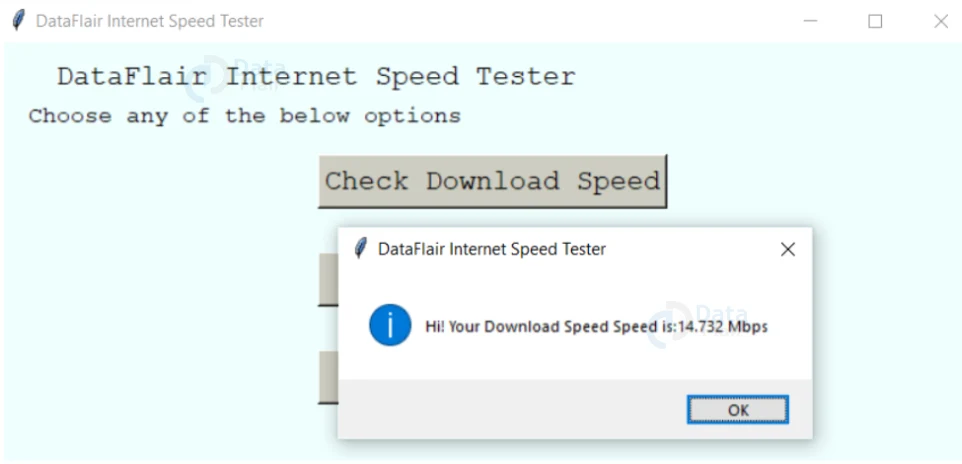
Output of Python Internet SpeedTest Project
Summary
Congratulations! You have successfully completed building the Internet Speed Tester using Python. You got to build a GUI and also check speed using the speedtest module. Hope you enjoyed it and it helps in the future.
Your opinion matters
Please write your valuable feedback about DataFlair on Google





