
OpenCV Erosion and Dilation
Machine Learning courses with 100+ Real-time projects Start Now!!
In the ever-evolving landscape of image processing, mastering the art of enhancing and refining visual data is a necessity. Enter OpenCV’s dilation and erosion operations – two transformative techniques that hold the key to noise reduction, feature enhancement, and more.
By harnessing the power of these fundamental morphological operations, we can unveil hidden patterns, accentuate details, and elevate the quality of our images. Join us on a journey into the realm of OpenCV dilation and erosion, where pixels shift, and structures evolve, breathing new life into the world of digital imagery.
What is Morphological Operations in OpenCV?
Morphological operations in OpenCV are fundamental image-processing techniques that focus on the shape and structure of objects within an image. These operations involve the manipulation of pixel values based on the arrangement of neighboring pixels.
For applications including noise reduction, feature extraction, object detection, and image enhancement, morphological techniques like dilation and erosion are frequently used.
At their core, morphological operations work by applying a structuring element (also known as a kernel) to the input image.
This structuring element defines the neighborhood around each pixel, and the operation’s effect depends on how the pixel values within this neighborhood interact.
The result of a morphological operation is a new image that emphasizes or alters certain features of the original image.
In essence, morphological operations allow us to shape and refine images based on their structural characteristics.
They are valuable tools in the toolkit of image processing, enabling us to extract meaningful information, enhance features, and prepare images for further analysis or visualization.
Dilation in OpenCV: Expanding Visual Horizons
Dilation in OpenCV is a fundamental image-processing operation that brings about a transformative expansion of features within an image. It’s part of the morphological operations toolkit, focusing on shape manipulation rather than pixel-wise modifications.
Imagine dilation as a process where a small “window” called a kernel glides over the image. At each position, the kernel encompasses a group of pixels, and the centre pixel’s value is replaced with the maximum value within the kernel’s coverage. This action leads to the enlargement of brighter regions and the bridging of gaps between objects.
Dilation’s impact is remarkable – objects become more pronounced, faint details are enhanced, and isolated structures connect. It finds use in various scenarios, from noise reduction to preparing images for further analysis or object recognition. Dilation’s ability to amplify and unite features makes it an indispensable tool for shaping images to suit specific processing needs.
Working of Dilation :
1. Dilation operates by sliding a predefined kernel over the image.
2. At each kernel position, the maximum pixel value within the kernel’s coverage is assigned to the centre pixel.
3. This process accentuates bright regions and bolsters object features, causing objects to expand and gaps to close.
Syntax and Parameters
The syntax for cv2.dilate() is as follows:
dilated_image = cv2.dilate(src, kernel, iterations)
- src: The input image, typically a binary or grayscale image.
- Kernel: The structuring element defining the dilation’s behavior.
- Iterations: The number of times the dilation is applied (default is 1).
Code and Explanation :
Here’s an example code snippet illustrating how to perform dilation:
import cv2
import numpy as np

# Read the image in grayscale
image = cv2.imread(r"C:\Users\satchit\OneDrive\Desktop\OpenCV Data Flair\opencv dilation, erosion,\river-rafting.jpg", cv2.IMREAD_GRAYSCALE)

# Apply thresholding to create a binary image
_, binary_image = cv2.threshold(image, 128, 255, cv2.THRESH_BINARY)

# Define a kernel (3x3 square in this case)
kernel = np.ones((3, 3), np.uint8)

# Apply dilation
dilated_image = cv2.dilate(binary_image, kernel, iterations=1)

# Display the original, binary, and dilated images
cv2.imshow('Original Image', image)
cv2.imshow('Binary Image', binary_image)
cv2.imshow('Dilated Image', dilated_image)

# Wait for a key press and close the windows
cv2.waitKey(0)
cv2.destroyAllWindows()
Original Image :

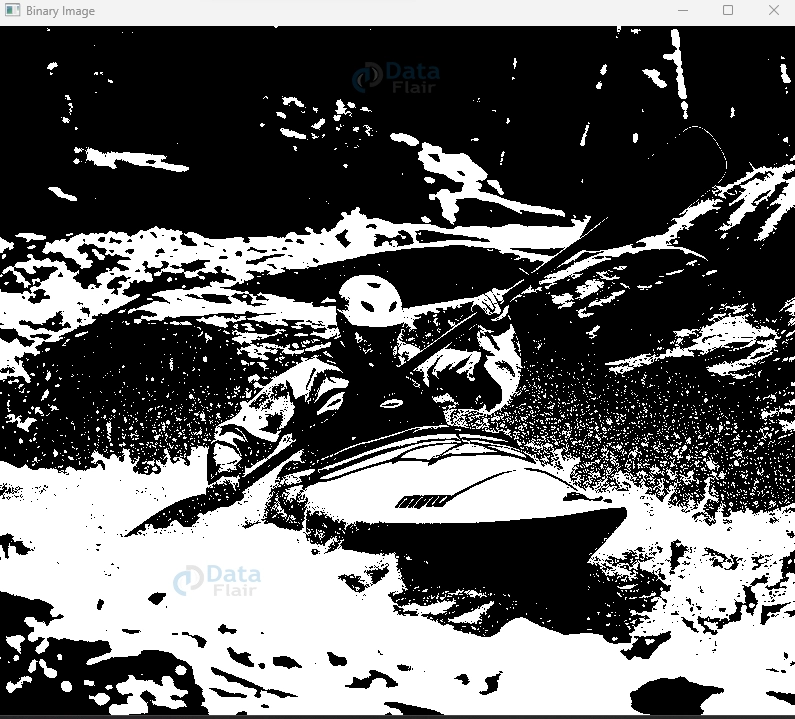
Binary Image :

Dilated Image :
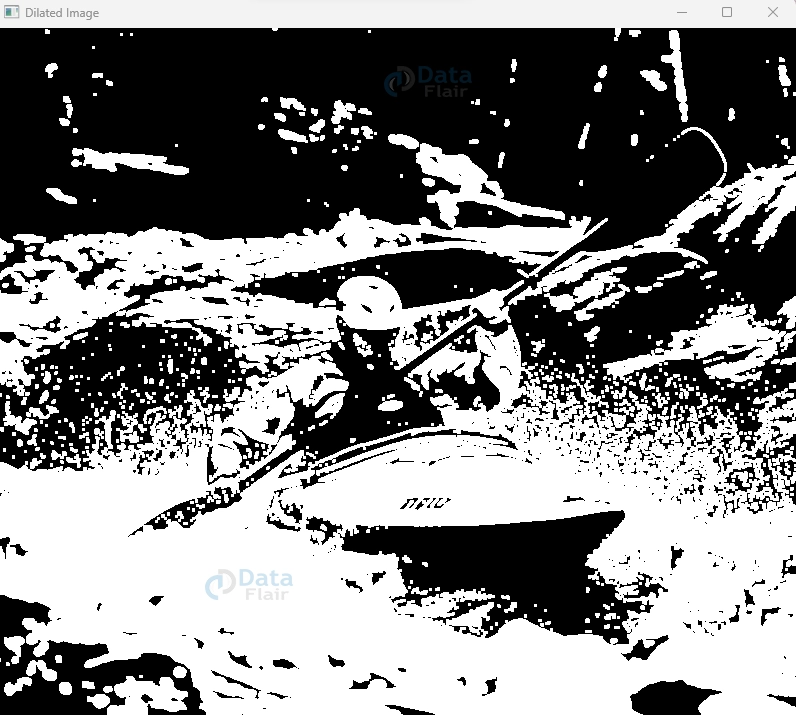
In this code, we read an image, define a kernel (a 3×3 square), and apply dilation using cv2.dilate(). The resulting dilated image showcases enhanced object features and reduced gaps, exemplifying the power of the dilation operation in image manipulation.
Erosion in OpenCV: Sculpting Image Foundations
Erosion in OpenCV is a fundamental morphological operation used to refine and simplify the structures within an image. This technique involves the removal or “erosion” of pixels from the boundaries of objects, resulting in a gradual reduction in the size of object features and the elimination of smaller structures.
Imagine erosion as a process where a predefined kernel moves over the image. At each position, the pixel value at the centre of the kernel is replaced with the minimum value within the kernel’s coverage area. This action gradually erases the outermost layers of object boundaries, causing objects to shrink and small features to vanish.
Erosion finds use in various applications, such as noise reduction, object segmentation, and separating connected objects, by simplifying and streamlining image structures, erosion aids in preparing images for further analysis or feature extraction.
Working of Erosion :
1. Erosion involves sliding a predefined kernel over the image.
2. At each kernel position, the minimum pixel value within the kernel’s coverage is assigned to the center pixel.
3. This process erodes the edges of objects and eliminates small features, thereby simplifying the image structure.
Syntax and Parameters :
The syntax for cv2.erode() is as follows :
eroded_image = cv2.erode(src, kernel, iterations)
- Src: The input image, usually binary or grayscale.
- Kernel: The structuring element that defines the erosion’s behavior.
- Iterations: The number of times the erosion is applied (default is 1).
Code and Explanation :
Here’s an example code snippet illustrating how to perform erosion:
import cv2
import numpy as np

# Read the image in grayscale
image = cv2.imread(r"C:\Users\satchit\OneDrive\Desktop\OpenCV Data Flair\opencv dilation, erosion,\river-rafting.jpg", cv2.IMREAD_GRAYSCALE)

# Apply thresholding to create a binary image
_, binary_image = cv2.threshold(image, 128, 255, cv2.THRESH_BINARY)

# Define a kernel (3x3 square in this case)
kernel = np.ones((3, 3), np.uint8)

# Apply erosion
eroded_image = cv2.erode(binary_image, kernel, iterations=1)

# Display the original, binary, and eroded images
cv2.imshow('Original Image', image)
cv2.imshow('Binary Image', binary_image)
cv2.imshow('Eroded Image', eroded_image)

# Wait for a key press and close the windows
cv2.waitKey(0)
cv2.destroyAllWindows()
Original Image :

Binary Image :
Eroded Image :

In this code, the image is read in grayscale, a kernel is defined, and erosion is applied using cv2.erode(). The resulting eroded image showcases reduced edges and simplified structures, demonstrating the power of the erosion operation in image manipulation.
Summary
In the world of image processing, dilation and erosion stand as indispensable tools for enhancing and refining images. Dilation expands features, filling gaps and highlighting details, while erosion trims edges and reduces noise, simplifying structures.
Together, these operations provide a dynamic duo for sculpting images. Dilation adds impact, while erosion refines. With OpenCV’s capabilities at our fingertips, we can manipulate images, emphasize features, and prepare them for diverse applications.
As we conclude this journey, we’ve harnessed the power of dilation and erosion, equipping ourselves to transform images and extract meaningful insights. These operations, simple yet impactful, underscore the versatility and effectiveness of OpenCV in the realm of image processing.
Did we exceed your expectations?
If Yes, share your valuable feedback on Google





