
Contours in OpenCV
Machine Learning courses with 100+ Real-time projects Start Now!!
Embark on a visual journey through the enchanting world of OpenCV contours, where the language of shapes comes alive. From delineating objects to characterizing patterns, contours in OpenCV unravel the secrets hidden within images.
In this exploration, we delve into the art of capturing forms, lines, and boundaries as we discover how OpenCV contours transform pixels into tales of structure and beauty.
Know what’s contours in image processing
In the realm of image processing, where pixels weave intricate tales of visual information, contours emerge as the silent storytellers. Imagine these contours as the outlines that define objects and shapes, akin to the brushstrokes of an artist on a canvas.
In this captivating journey, we uncover the essence of image contours, how they dance on the edges of pixels, and how they bring life to the realm of pixels and patterns.”
Contours in image processing are akin to the edges of a puzzle piece that define its shape, serving as a roadmap to the boundaries within an image. Think of it as a magical pen tracing the silhouette of objects, whether they are everyday items, natural forms, or intricate designs. Like a fingerprint, each contour is unique, narrating tales of structure, character, and even emotions etched on the canvas of pixels. These contours are the threads connecting pixels and reality, unveiling a world where images whisper their stories through lines and curves.
Just as an artist’s hand adds depth and personality to a painting, contours add depth and context to images. They become the language through which computers understand shapes and patterns, allowing us to transform the visual into the digital. Through the eyes of image contours, the mundane becomes fascinating, the simple becomes profound, and the unseen becomes a masterpiece waiting to be discovered.
Tracing the Unseen: Unraveling Contour Detection in OpenCV
Step into the realm of OpenCV, where the magic of contour detection unfolds. Contours, like hidden treasure maps within images, reveal the boundaries that define shapes and objects. In this exploration, we embark on a journey through the steps of contour detection in OpenCV, illuminating the path that transforms pixels into the language of forms.”
Steps of Contour Detection in OpenCV:
1. Image Preprocessing:
The adventure begins with preparing the image. Convert it to grayscale, as contour detection works better with one channel images. This simplifies the process by focusing on intensity rather than color.
2. Edge Detection:
Enter the world of edges, where the Canny edge detection algorithm is your guide. It identifies abrupt changes in pixel intensity, outlining the boundaries of objects and shapes within the grayscale image.
3. Finding Contours:
Armed with edge information, OpenCV’s findContours() function springs into action. It traverses the image, mapping the continuous curves that encircle objects. These curves, in essence, are the contours, providing insights into the shapes within the image.
4. Hierarchy and Holes:
Contours often weave intricate stories, revealing relationships between objects. OpenCV’s ability to determine the hierarchy of contours unravels these connections. Additionally, contours can contain inner contours, creating a world of enclosed spaces and holes.
5. Drawing Contours:
It’s time to bring the discovered contours to life. OpenCV’s drawContours() function lets you sketch these contours onto a canvas, highlighting the edges and boundaries of objects within the image.
6. Contour Properties:
Delve into the world of contour properties, such as area, perimeter, and centroid. These properties offer insights into the sizes, shapes, and positions of the objects, empowering you to characterize and analyze the detected contour
With the journey through contour detection in OpenCV complete, you’ve unlocked the door to a world of boundaries and shapes. From preprocessing to contour drawing, each step brings you closer to the heart of images, revealing the hidden geometry that defines their essence. The art of contour detection invites you to explore, analyze, and appreciate the intricate stories woven into pixels and patterns.
Discovering Shapes: Navigating findContours and drawContours in OpenCV
In the realm of OpenCV, the tools of findContours() and drawContours() are your guides to uncovering the hidden stories within images. These functions illuminate the path to identifying and outlining shapes, unveiling the contours that define objects. Let’s embark on a journey through the heart of image processing as we unravel the magic of findContours() and drawContours().
cv2.findContours() – Unveiling the Secrets:
Syntax:
contours, hierarchy = cv2.findContours(image, mode, method)
Parameters:
- image: The input image, preferably in grayscale.
- mode: Contour retrieval mode. Options include cv2.RETR_EXTERNAL (only external contours), cv2.RETR_LIST (all contours), and more.
- method: Contour approximation method. Common options are cv2.CHAIN_APPROX_SIMPLE (saves memory by storing only endpoints) and cv2.CHAIN_APPROX_NONE (stores all boundary points).
Code Example for cv2.findContours():
import cv2
import numpy as np

# Load the image in grayscale
image = cv2.imread('input_image.jpg', cv2.IMREAD_GRAYSCALE)

# Apply thresholding to create a binary image
_, binary_image = cv2.threshold(image, 128, 255, cv2.THRESH_BINARY)

# Find contours in the binary image
contours, _ = cv2.findContours(binary_image, cv2.RETR_EXTERNAL, cv2.CHAIN_APPROX_SIMPLE)
The findContours() function becomes your explorer, traversing the image and discovering continuous curves that form the contours of objects. It returns a list of contours found in the image, along with hierarchy information. The contours can be subsequently analyzed, manipulated, or outlined using drawContours().
cv2.drawContours() – Transforming Pixels into Shapes:
Syntax:
cv2.drawContours(image, contours, contourIdx, color, thickness)
Parameters:
- image: The image on which contours will be drawn.
- contours: The list of contours retrieved from findContours().
- contourIdx: Index of the contour within the list to be drawn.
- color: Color of the contour. For BGR images, it’s represented as (blue, green, red).
- thickness: Thickness of the contour lines. Use negative values or cv2.FILLED to fill the area enclosed by the contour.
Code Example for cv2.drawContours():
import cv2
import numpy as np

# Load the image in grayscale
image = cv2.imread('input_image.jpg', cv2.IMREAD_GRAYSCALE)

# Apply thresholding to create a binary image
_, binary_image = cv2.threshold(image, 128, 255, cv2.THRESH_BINARY)

# Find contours in the binary image
contours, _ = cv2.findContours(binary_image, cv2.RETR_EXTERNAL, cv2.CHAIN_APPROX_SIMPLE)

# Create an empty canvas for drawing contours
contour_image = np.zeros_like(image)

# Draw contours on the contour image
cv2.drawContours(contour_image, contours, -1, (255, 255, 255), 2)
The drawContours() function takes the contours found by findContours() and creates a visual representation of them on the image. It can be used to highlight object boundaries, define shapes, and emphasize features.
Here’s the full code:
import cv2
import numpy as np

# Load the image in grayscale
image = cv2.imread(r"C:\Users\satchit\Desktop\DataFlair\opencv Contours\people-on-street.jpg", cv2.IMREAD_GRAYSCALE)

# Apply thresholding to create a binary image
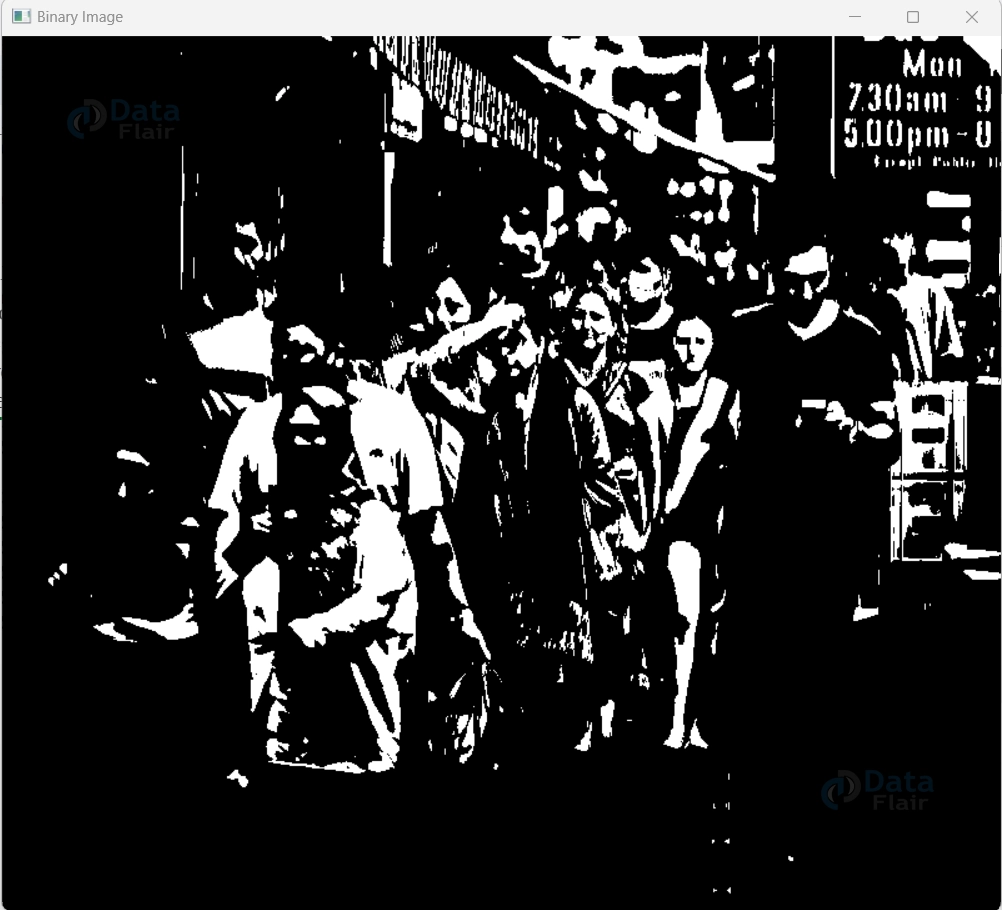
_, binary_image = cv2.threshold(image, 128, 255, cv2.THRESH_BINARY)

# Find contours in the binary image
contours, _ = cv2.findContours(binary_image, cv2.RETR_EXTERNAL, cv2.CHAIN_APPROX_SIMPLE)

# Create an empty canvas for drawing contours
contour_image = np.zeros_like(image)

# Draw contours on the contour image
cv2.drawContours(contour_image, contours, -1, (255, 255, 255), 2)

# Display the original, binary, and contour images
cv2.imshow('Original Image', image)
cv2.imshow('Binary Image', binary_image)
cv2.imshow('Contour Image', contour_image)
cv2.waitKey(0)
cv2.destroyAllWindows()
Original Image:

Binary Image:
Contour Image:
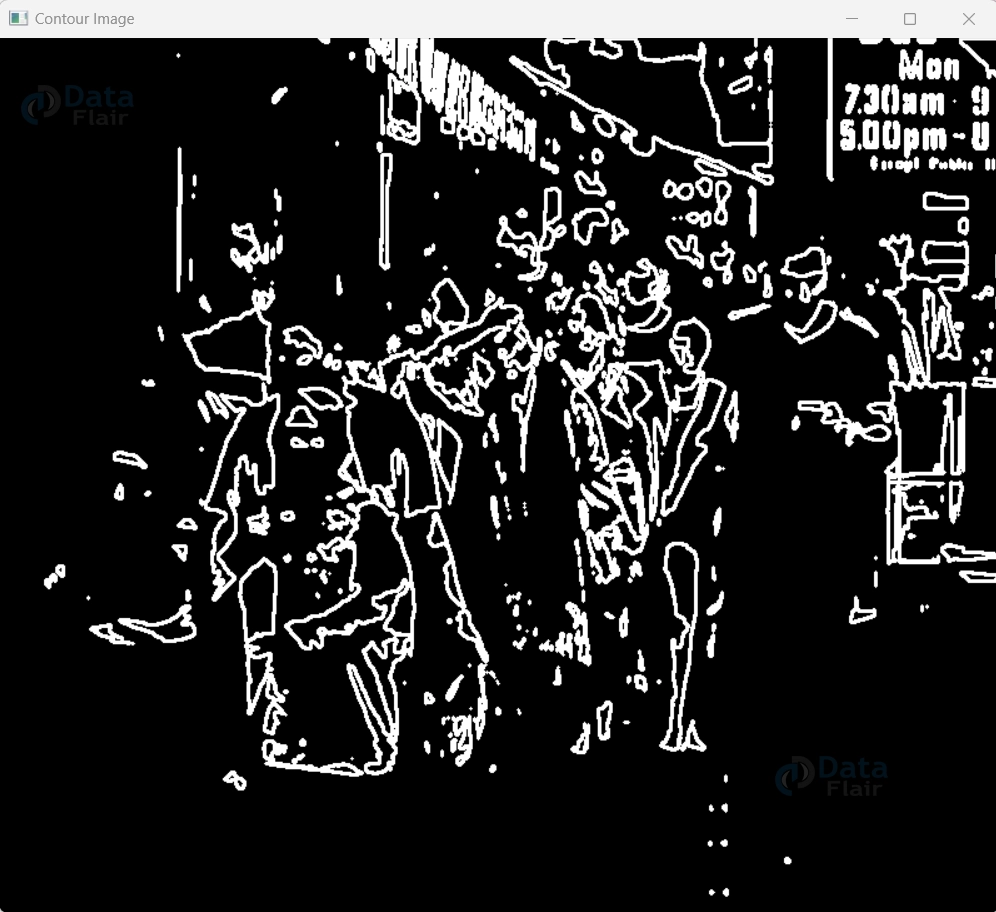
The dynamic duo of findContours() and drawContours() in OpenCV are the key to unlocking the visual language of shapes within images. Armed with these functions, you possess the tools to identify, manipulate, and visualize contours that give life to pixels. As you explore their syntax, parameters, and implementation, you embark on a journey that transforms digital images into realms of structure and beauty.
cv2.CHAIN_APPROX_SIMPLE: Simplifying Contours in OpenCV
In the universe of image processing, details matter. Yet, there are times when simplification is key. Enter cv2.CHAIN_APPROX_SIMPLE, a technique that streamlines the representation of contours while retaining their essence. Let’s embark on a concise exploration of this concept, delving into its syntax, parameters, and the profound impact it has on contour manipulation in OpenCV.
Syntax:
contours, _ = cv2.findContours(image, cv2.RETR_EXTERNAL, cv2.CHAIN_APPROX_SIMPLE)
Parameters:
- Image: The input image, preferably in grayscale.
- cv2.RETR_EXTERNAL: The contour retrieval mode, focusing on external contours.
- cv2.CHAIN_APPROX_SIMPLE: The contour approximation method, which approximates contours using only endpoints.
In the world of contours, cv2.CHAIN_APPROX_SIMPLE is like an artisan chisel, carving away intricate details to leave behind the essence of shapes. When contours are identified using the cv2.findContours() function, the technique approximates these contours by connecting the consecutive points with straight lines. This minimalistic approach greatly reduces memory consumption, making it ideal for situations where precision isn’t paramount.
By employing cv2.CHAIN_APPROX_SIMPLE, you transform the contours into a simplified yet meaningful representation. This not only conserves memory but also paves the way for faster processing and more efficient storage of contour information. It’s a technique that strikes a balance between accuracy and efficiency, allowing you to extract the fundamental characteristics of shapes without drowning in pixel-level minutiae.
import cv2
import numpy as np

# Load the image in grayscale
image = cv2.imread(r"C:\Users\satchit\Desktop\DataFlair\opencv Contours\people-on-street.jpg", cv2.IMREAD_GRAYSCALE)

# Apply thresholding to create a binary image
_, binary_image = cv2.threshold(image, 128, 255, cv2.THRESH_BINARY)

# Find contours using cv2.CHAIN_APPROX_SIMPLE
contours, _ = cv2.findContours(binary_image, cv2.RETR_EXTERNAL, cv2.CHAIN_APPROX_SIMPLE)

# Create an empty canvas for drawing contours
contour_image = np.zeros_like(image)

# Draw contours on the contour image
cv2.drawContours(contour_image, contours, -1, (255, 255, 255), 2)

# Display the original, binary, and contour images
cv2.imshow('Original Image', image)
cv2.imshow('Binary Image', binary_image)
cv2.imshow('Contour Image', contour_image)

cv2.waitKey(0)
cv2.destroyAllWindows()
Contour Image:

In the realm of contour manipulation, cv2.CHAIN_APPROX_SIMPLE stands as a method of balance, an artist’s stroke that simplifies contours while preserving their essence. Through its streamlined approach, it empowers you to navigate contours with efficiency, ultimately unveiling the hidden shapes within images. Whether you seek efficiency in memory usage or a gateway to faster processing, cv2.CHAIN_APPROX_SIMPLE opens the door to contour simplification without compromising on the core message they convey.
Contour Detection over Single-Channel Images: Mastering cv2.drawContours in RGB
In the captivating world of image processing, the power of contours transcends the boundaries of color channels. The ability to detect contours within single-channel images adds a new layer of intrigue to the process. One essential tool in this journey is `cv2.drawContours`, a magic wand that transforms detected contours into visible entities.
Let’s explore the art of drawing contours over single-channel images, specifically in the RGB color space. We’ll dive into the syntax, parameters, and walk through code that reveals the beauty of contours through vibrant red, green, and blue hues.
Syntax:
cv2.drawContours(image, contours, contourIdx, color, thickness)
Parameters:
- Image: The image on which contours will be drawn.
- Contours: The list of contours retrieved from `cv2.findContours()`.
- contourIdx: Index of the contour within the list to be drawn.
- Color: Color of the contour. In the RGB color space, it’s represented as (blue, green, red).
- Thickness: Thickness of the contour lines. Use negative values or cv2.FILLED to fill the area enclosed by the contour.
Code Example – Drawing Contours in RGB:
import cv2
import numpy as np

# Load the image in grayscale
gray_image = cv2.imread(r"C:\Users\satchit\Desktop\DataFlair\opencv Contours\people-on-street.jpg", cv2.IMREAD_GRAYSCALE)


# Convert the single-channel image to an RGB format
image = cv2.cvtColor(gray_image, cv2.COLOR_GRAY2BGR)

# Apply thresholding to create a binary image
_, binary_image = cv2.threshold(gray_image, 128, 255, cv2.THRESH_BINARY)

# Find contours in the binary image
contours, _ = cv2.findContours(binary_image, cv2.RETR_EXTERNAL, cv2.CHAIN_APPROX_SIMPLE)

# Create a canvas for drawing contours in RGB
contour_image_rgb = np.copy(image)

# Draw contours on the RGB contour image using red color (BGR: 0, 0, 255)
cv2.drawContours(contour_image_rgb, contours, -1, (0, 0, 255), 2)

# Display the original single-channel, binary, and contour images in RGB
cv2.imshow('Original Single-Channel Image', image)
cv2.imshow('Binary Image', binary_image)
cv2.imshow('Contour Image (RGB)', contour_image_rgb)

cv2.waitKey(0)
cv2.destroyAllWindows()
Contour Image (RGB):
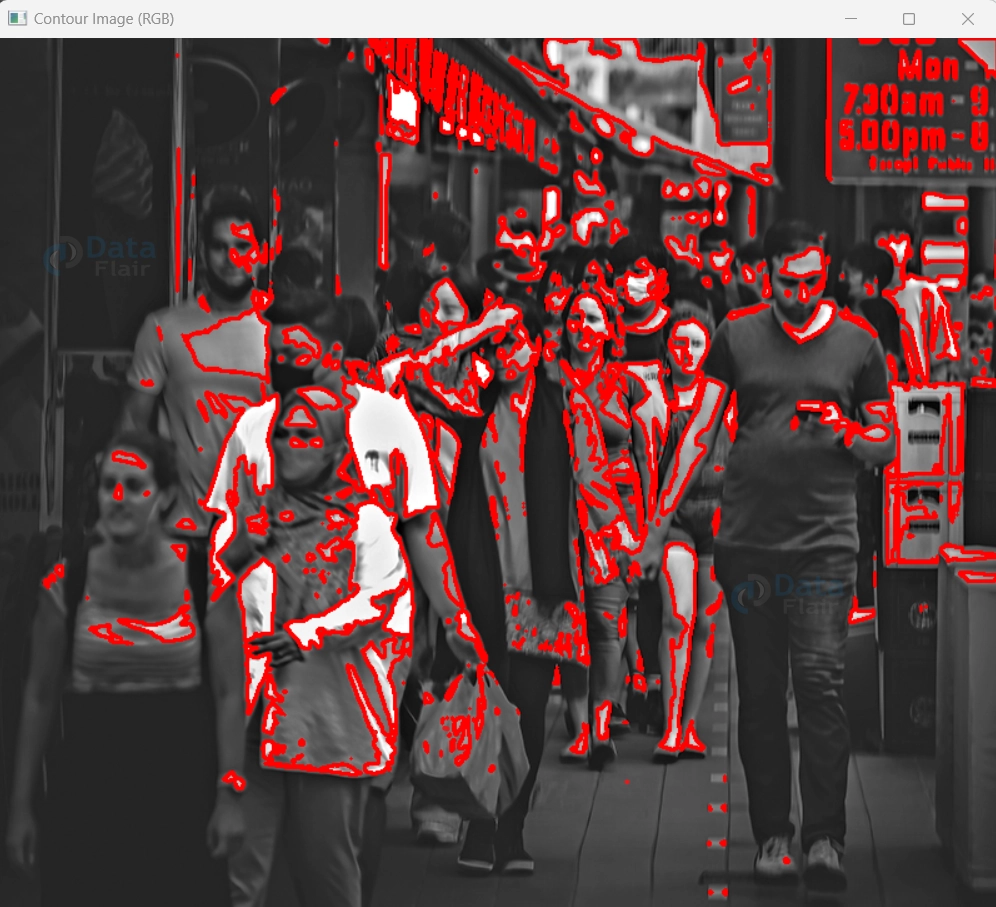
The code takes an RGB image, converts it to grayscale, applies thresholding to create a binary image, detects contours using cv2.findContours(), and then uses cv2.drawContours() to draw these contours on a copy of the original RGB image. The red color (BGR: 0, 0, 255) is used to draw the contours, creating a visual contrast against the original image. This example showcases how cv2.drawContours() operates on a three-channel image, emphasizing the contours’ presence in vibrant hues.
The Contour Hierarchies Concept in OpenCV:
Contour hierarchies are a fundamental concept in image processing that provide information about the relationships between contours in an image. Contours are the outlines of objects or regions within an image, and they can be hierarchical in nature, with some contours containing or being contained by others. Hierarchical information helps in understanding the structure and organization of objects within an image.
In a contour hierarchy, each contour is associated with various properties, such as its parent, its first child, its previous sibling, and its next sibling. These relationships are used to represent how contours are nested or connected. The hierarchy is often represented using a nested structure, where each contour’s information is organized in a specific order.
Here are the key terms and their meanings within the context of contour hierarchies:
1. Contour: A contour is a continuous curve that outlines an object or region within an image.
2. Parent Contour: The parent contour is the immediate larger contour that encloses the current contour. It represents a higher-level object or region.
3. Child Contour: The child contour is a contour enclosed by another contour. It represents a smaller-level object or region contained within the parent contour.
4. First Child Contour: The first child contour is the first contour enclosed by the parent contour.
5. Next Sibling Contour: The next sibling contour is the contour that comes after the current contour at the same hierarchy level and is enclosed by the same parent contour.
6. Previous Sibling Contour: The previous sibling contour is the contour that comes before the current contour at the same hierarchy level and is enclosed by the same parent contour.
Contour hierarchies are commonly used in scenarios where objects have complex relationships, such as objects within objects or holes within objects. They are particularly important when working with the `cv2.findContours()` function in OpenCV, which returns both the contours and their hierarchical relationships.
In the context of OpenCV, the hierarchy is typically represented as a two-dimensional array, where each element contains information about the contour’s relationships. Understanding contour hierarchies allows for more advanced and accurate analysis of objects and regions within images, enabling tasks such as object grouping, boundary detection, and hole identification.
Applications of Contours in OpenCV:
1. Object Detection: Contours are widely used to detect and locate objects within images. Identifying regions with distinct boundaries and contours enables the detection of objects of interest.
2. Shape Analysis: Contours provide valuable information about the shapes of objects. They can be used to analyze the geometric properties of objects, such as their area, perimeter, centroid, and aspect ratio.
3. Object Counting: Contours can be used to count the number of objects in an image. Each distinct contour represents a separate object, making it possible to automate counting tasks.
4. Object Tracking: In video processing, contours help track the movement of objects over time. By matching contours between frames, object trajectories can be established.
5. Boundary Extraction: Contours allow for precise boundary extraction of objects, which is useful in tasks such as image segmentation and object isolation.
6. Shape Recognition: Contours facilitate shape recognition by comparing contour properties to predefined templates. This aids in identifying objects based on their shapes.
7. Object Measurement: Contours enable measurements of object dimensions, such as length, width, and area. This is particularly useful in industries like manufacturing and quality control.
8. Image Compression: Contours can be used to represent complex shapes with simpler outlines, leading to efficient image compression techniques.
Limitations of Contours in OpenCV:
1. Sensitivity to Noise: Contours can be sensitive to image noise, leading to false detections or inaccuracies in boundary extraction.
2. Resolution Dependence: Contours’ accuracy is dependent on image resolution. Fine details may not be accurately represented in low-resolution images.
3. Partial Occlusion: Contours may not be accurately detected in cases of partial occlusion or overlapping objects.
4. Lighting and Shading: Variations in lighting and shading can affect contour detection, leading to variations in object boundaries.
5. Complex Objects: Contours may struggle with accurately detecting and representing complex shapes with concavities, holes, or intricate details.
6. Contours Merging: Close and similar contours might merge, causing inaccuracies in object separation and identification.
7. Algorithm Choice: Different contour detection algorithms work better for specific scenarios. Choosing the wrong algorithm may result in suboptimal results.
8. Speed and Efficiency: Some contour detection methods might be computationally intensive, affecting real-time applications and performance.
Despite these limitations, contours remain a powerful tool in image processing, providing valuable insights into object properties, boundaries, and relationships. Careful consideration of the application’s requirements and image characteristics is crucial for achieving accurate results.
Summary
Contours, the elegant boundaries that define objects, are the architects of visual storytelling within the realm of OpenCV.
As we journeyed through their applications, we discovered their prowess in object detection, shape analysis, and more. Yet, we navigated their limitations, from noise sensitivity to occlusion challenges, acknowledging that even the most versatile tools have their nuances.
By grasping contours’ potential and respecting their boundaries, we unlock the ability to shape narratives from pixels, forging a connection between art and science. In the realm of image processing, contours prove to be the canvas on which we paint intricate stories of form and function.
We work very hard to provide you quality material
Could you take 15 seconds and share your happy experience on Google





