
Flutter Project – Tic Tac Toe Game
Tic-Tac-Toe is one of the most famous games which can be played anywhere with just a pen and paper. The rules of the game are simple, you have a board with 3*3 square grids on. which 2 players can play at a time. Each player is assigned ‘X’ or ‘O’. On each move, the player adjacently draws ‘X’ or ‘O’. The player who gets 3 consecutive ‘X’ or ‘O, either horizontally, vertically or diagonally, wins the game. If no player wins, then it is a draw.
About Tic-Tac-Toe Using Flutter
In this project, we reimagined this game in the digital age! Our Flutter-based Tic-Tac-Toe app brings the timeless classic into the palm of your hand, offering an engaging gaming experience. We will build the game with its rules as mentioned above. The app will include features like clearing the board, starting a new game, keeping track of scores of players, and much more!
Prerequisites Tic-Tac-Toe Using Flutter
Before starting the Flutter project, you should have the following installed on your computer:
(i) Flutter – Refer to the link for installing Flutter, depending on your operating system.
(ii) Android Studio – You can download Android Studio. This is necessary as it will run the app in the Android emulator.
(iii) Visual Studio Code—Although this is not necessary, you can also build apps in Android Studio. In our case, we have used VS Code as it is a good code editor.
Now that the setup is ready let’s get started!
Download the Flutter Tic-Tac-Toe Project
Please download the source code of Flutter Tic-Tac-Toe Project: Flutter Tic-Tac-Toe Project Code.
Creating New Projects in Flutter
Let’s start with creating a new project through flutter terminal. Go to the directory where you want to save the project using:-
cd $Project-directory-path
Then create a new project using the below command:-
flutter create tic-tac-toe
Steps to Build Flutter Tic-Tac-Toe App
1. Creating a Basic Layout of the App
Let’s start by creating the general layout of the app using the Scaffold widget. To use the Flutter widgets, we have imported the material.dart package in our file. We have set the appBar using the Scaffold widget and given it a title and styling. Here, in the body of the Scaffold, we are returning a custom widget, TTTScreen, which we will create in the next step.
import 'package:flutter/material.dart';

import './tic_tac_toe_screen.dart';

void main() {
  runApp(MaterialApp(
    home: Scaffold(
      appBar: AppBar(
        title: const Text(
          'Tic-Tac-Toe (By DataFlair)',
          style: TextStyle(color: Colors.black),
        ),
        backgroundColor: const Color.fromARGB(255, 240, 186, 24),
      ),
      body: const TTTScreen(),
    ),
  ));
}
2. Creating the Home Screen of the App
When a user plays the game, the UI of the screen needs to get updated. Therefore, we are using a Stateful widget in building the home screen. For this, we define two classes, a Stateful and a State class. In the State class we initialise some variables which we will use in the build function of the app. These variables are player1Turn, which is a Boolean value which shows if it’s player1Turn or not, gridCurrentState, which gets updated as the players make moves and the variables to track the score of both players.
import 'package:flutter/material.dart';

import 'widgets/displayScores.dart';
import 'gameRules.dart';
import './widgets/displayResult.dart';

class TTTScreen extends StatefulWidget {
  const TTTScreen({super.key});

  @override
  State<TTTScreen> createState() {
    return _TTTScreenState();
  }
}

class _TTTScreenState extends State<TTTScreen> {
  bool player1Turn = true;
  List<String> gridCurrentState = [
    '',
    '',
    '',
    '',
    '',
    '',
    '',
    '',
    '',
  ];
  int movesCount = 0;

  var player1Score = 0;
  var player2Score = 0;
Below are a few functions which are defined in the State class which will be used in executing the logic of the app. These functions include
(i) _makingMove(), which gets executed as the player makes a move. This updates the gridCurrentState list, checks whether any player has won, and changes the scores accordingly.
(ii) _clearBoard() which helps in clearing the grid and making each position empty.
(iii) _restart() which restarts the game, making each player’s score to be 0 and clearing the board.
void _makingMove(int index) {
   setState(() {
     if (player1Turn && gridCurrentState[index] == '') {
       gridCurrentState[index] = 'O';
     } else if (!player1Turn && gridCurrentState[index] == '') {
       gridCurrentState[index] = 'X';
     }
     movesCount++;

     player1Turn = !player1Turn;

     var winner = gameResult(gridCurrentState, movesCount);
     if (winner == 'O') {
       player1Score++;
       player1Turn = true;
       displayResult(
           winner: winner,
           context: context,
           emptyBoard: _clearBoard,
           restart: _restart);
     } else if (winner == 'X') {
       player2Score++;
       player1Turn = false;
       displayResult(
           winner: winner,
           context: context,
           emptyBoard: _clearBoard,
           restart: _restart);
       ;
     } else if (movesCount == 9) {
       displayResult(
           winner: winner,
           context: context,
           emptyBoard: _clearBoard,
           restart: _restart);
       ;
     }
   });
 }

 void _clearBoard() {
   setState(() {
     gridCurrentState = [
       '',
       '',
       '',
       '',
       '',
       '',
       '',
       '',
       '',
     ];
     movesCount = 0;
   });
 }

 void _restart() {
   setState(() {
     _clearBoard();
     player1Score = 0;
     player2Score = 0;
   });
 }
In the build function of the Home Screen, we set the styling using the gradient property of BoxDecoration inside the Container. The content of the screen is divided vertically into four parts, which are shown using the Column widget. These are:-
A. Display Score—We will create this custom widget in the next step. It displays the players’ scores and is updated as a player wins.
B. Game Board – It is created using the GridView builder where we set the crossAxisCount to 3. In the itemBuilder, we return a Gesture Detector, where in that grid block _makinMove() function gets executed as the player taps on it
C. Clear Board Button—Here, we have used a TextButton to clear the board. When you click this, the _clearBoard() function we saw above executes and sets each position of the grid to empty.
D. Restart Game—This is also a TextButton with an icon created using TextButton.icon(). It restarts the game and executes the _restart function we saw in the above code block.
@override
  Widget build(BuildContext context) {
    return Container(
      width: double.infinity,
      decoration: const BoxDecoration(
        gradient: LinearGradient(colors: [
          Color.fromARGB(255, 211, 185, 107),
          Color.fromARGB(255, 247, 225, 160)
        ], begin: Alignment.topLeft, end: Alignment.bottomRight),
      ),
      padding: const EdgeInsets.symmetric(vertical: 25, horizontal: 30),
      child: Column(
        crossAxisAlignment: CrossAxisAlignment.center,
        children: [
          Expanded(
              flex: 1,
              child: DisplayScore(
                  player1Score: player1Score, player2Score: player2Score)),
          const SizedBox(
            height: 25,
          ),
          Expanded(
            flex: 3,
            child: GridView.builder(
                itemCount: 9,
                gridDelegate: const SliverGridDelegateWithFixedCrossAxisCount(
                    crossAxisCount: 3),
                itemBuilder: (context, index) {
                  return GestureDetector(
                    onTap: () {
                      _makingMove(index);
                    },
                    child: Container(
                      decoration: BoxDecoration(
                        border: Border.all(
                          color: Colors.black,
                        ),
                      ),
                      child: Center(
                        child: Text(
                          gridCurrentState[index],
                          style: const TextStyle(
                              color: Colors.black, fontSize: 34),
                        ),
                      ),
                    ),
                  );
                }),
          ),
          Expanded(
              flex: 1,
              child: TextButton(
                onPressed: _clearBoard,
                child: const Text(
                  'Clear Board',
                  style: TextStyle(
                      fontSize: 21,
                      color: Color.fromARGB(255, 104, 78, 1),
                      fontWeight: FontWeight.bold),
                ),
              )),
          Expanded(
              flex: 1,
              child: TextButton.icon(
                icon: const Icon(Icons.refresh),
                style: TextButton.styleFrom(
                    foregroundColor: const Color.fromARGB(255, 104, 78, 1)),
                label: const Text(
                  'Restart Game!',
                  style: TextStyle(fontSize: 21, fontWeight: FontWeight.bold),
                ),
                onPressed: _restart,
              ))
        ],
      ),
    );
  }
}
3. Building Custom Widgets
Below is a Stateless Widget that we have created to display the players’ scores. This widget is Stateless because we are passing the player’s score in it through the constructor function; therefore, once it is created, its state need not change again. Here in the build function, we are creating the custom layout to display the scores by arranging widgets using Row and Column widgets and giving them styling.
import 'package:flutter/material.dart';

class DisplayScore extends StatelessWidget {
  const DisplayScore(
      {required this.player1Score, required this.player2Score, super.key});

  final int player1Score;
  final int player2Score;
  @override
  Widget build(BuildContext context) {
    return Row(
      children: [
        Column(
          children: [
            const Text(
              'Player1 (O)',
              style: TextStyle(fontSize: 23, fontWeight: FontWeight.bold),
            ),
            const SizedBox(
              height: 10,
            ),
            Text(
              player1Score.toString(),
              style: const TextStyle(fontSize: 25),
            )
          ],
        ),
        const Spacer(),
        Column(
          children: [
            const Text(
              'Player2 (X)',
              style: TextStyle(fontSize: 23, fontWeight: FontWeight.bold),
            ),
            const SizedBox(
              height: 10,
            ),
            Text(
              player2Score.toString(),
              style: const TextStyle(fontSize: 25),
            )
          ],
        ),
      ],
    );
  }
}
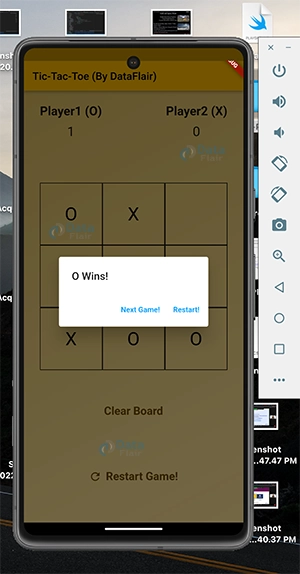
In the below code, we return the Dialog widget to show the game result through the displayResult function. Specifically, we use the AlertDialog widget to display the message in the title argument. In the actions argument, we show two TextButtons, one to start the next game and the other to restart the game, which means the player’s scores will be set to zero.
// ignore: file_names
import 'package:flutter/material.dart';

void displayResult(
    {required String winner,
    required BuildContext context,
    required Function() emptyBoard,
    required Function() restart}) {
  showDialog(
    barrierDismissible: false,
    context: context,
    builder: (ctx) {
      return AlertDialog(
        title: Text(winner == '' ? 'Draw!' : '$winner Wins!'),
        // content: Text('To Start Next Game'),
        actions: [
          TextButton(
            onPressed: () {
              Navigator.of(context).pop();
              emptyBoard();
            },
            child: const Text('Next Game!'),
          ),
          TextButton(
            onPressed: () {
              Navigator.of(context).pop();
              restart();
            },
            child: const Text('Restart!'),
          ),
        ],
      );
    },
  );
}
4. Function to Find Result of the Game
This function contains the main logic behind the game. The function accepts two arguments:- grid, which is the positions of ‘O’ and ‘X’ on the board, and numMoves, which is the total number of moves by both players. Using these arguments, we create the logic of when a player will win. We check if the same player has consecutive positions horizontally, vertically or diagonally, then that player wins the game. But if neither player has these consecutive positions, then it is a draw.
// ignore: unused_element
String gameResult(List<String> grid, numMoves) {
  var winner = '';
  // Checking for Win in Rows
  if (grid[0] == grid[1] && grid[1] == grid[2] && grid[0] != '') {
    winner = grid[0];
  } else if (grid[3] == grid[4] && grid[4] == grid[5] && grid[3] != '') {
    winner = grid[3];
  } else if (grid[6] == grid[7] && grid[7] == grid[8] && grid[6] != '') {
    winner = grid[6];
  }
  // Checking for Win in Columns
  else if (grid[0] == grid[3] && grid[3] == grid[6] && grid[0] != '') {
    winner = grid[0];
  } else if (grid[1] == grid[4] && grid[4] == grid[7] && grid[1] != '') {
    winner = grid[1];
  } else if (grid[2] == grid[5] && grid[5] == grid[8] && grid[2] != '') {
    winner = grid[2];
  }
  // Checking for Win in Diagonals
  else if (grid[0] == grid[4] && grid[4] == grid[8] && grid[0] != '') {
    winner = grid[0];
  } else if (grid[2] == grid[4] && grid[4] == grid[6] && grid[2] != '') {
    winner = grid[2];
  }
  // In case of Draw
  else if (numMoves == 9) {
    print('Draw!');
  }
  return winner;
}
Flutter Tic-Tac-Toe Output

Conclusion
I hope you liked working on this project. Here we got to learn about a lot of widgets including GridView builder, Gesture Detector, TextButton.icon(), AlertDialog, Spacer. Also, we defined several functions to build the logic of the app.
Thank you for reading! Keep Learning Flutter!
Did you like this article? If Yes, please give DataFlair 5 Stars on Google





