
CSS Visibility Property
Full Stack Web Development Courses with Real-time projects Start Now!!
CSS Visibility is a valuable CSS property that is used to control the visibility of an element on a webpage.CSS display property allows web developers to hide or show HTML elements on a page based on the requirement, either temporarily or permanently.
Syntax:
visibility: visible|hidden|collapse
CSS Visibility Values
The following values are assigned to the visibility property:
- visible:
- hidden:
- collapse:
Let’s understand each one of them in more depth and with proper examples.
1. CSS visibility visible
visibility: visible;
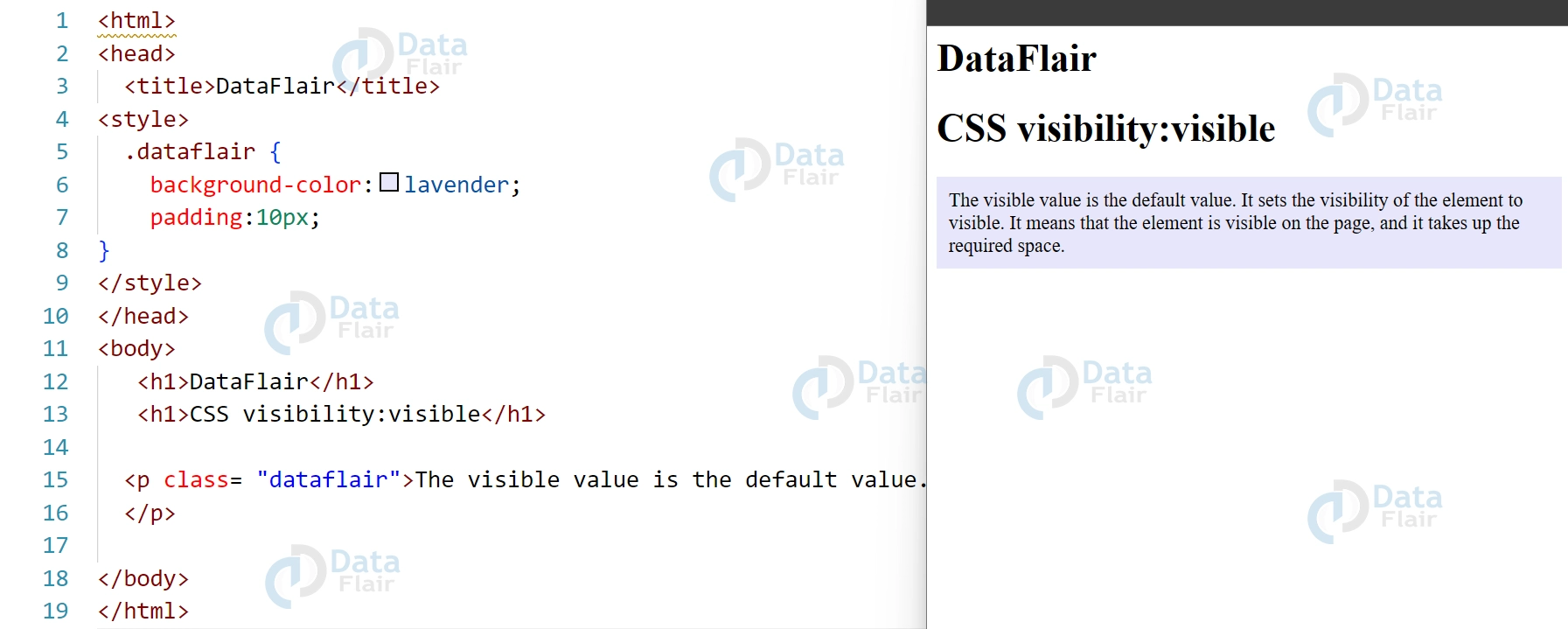
The visible value is the default value. It sets the visibility of the element to visible. It means that the element is visible on the page, and it takes up the required space.
In the following example, the paragraph element (<p> tag) with class dataFlair is set to visible, meaning it will be visible on the web page:
<html>
<head>
  <title>DataFlair</title>
<style>
  .dataflair {
    background-color:lavender;
    padding:10px;
}
</style>
</head>
<body>
   <h1>DataFlair</h1>
   <h1>CSS visibility:visible</h1>

  <p class= "dataflair">The visible value is the default value. It sets the visibility of the element to visible. It means that the element is visible on the page, and it takes up the required space.
  </p>

</body>
</html>
Output:
2. CSS visibility hidden
visibility: hidden;
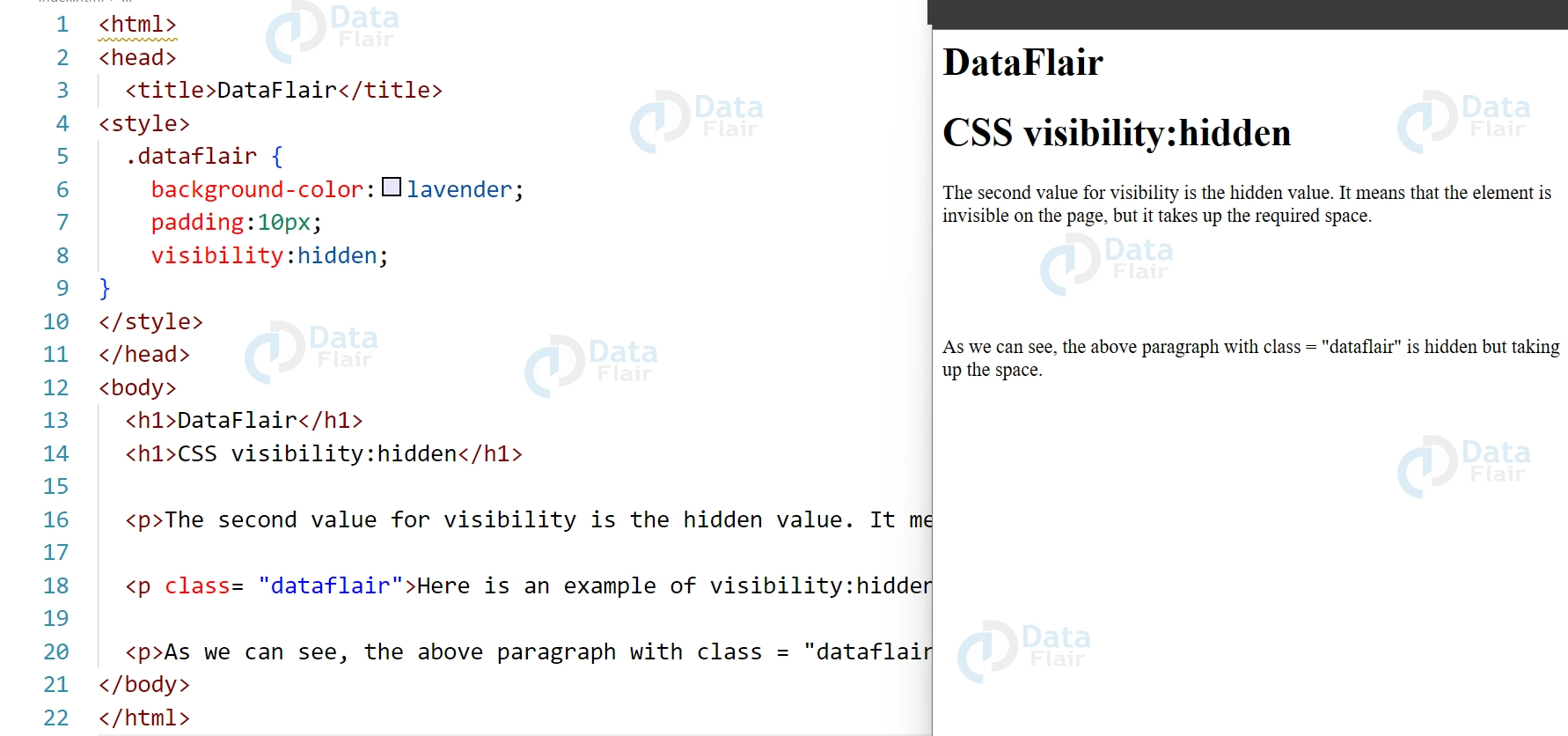
The second value of css visibility property is hidden. When an element has a “hidden” visibility value, it means that the element will be invisible on the webpage but still take up the space.
In simpler terms, the element becomes invisible but occupies the space on the webpage so that no other element can sit over it. This property is really helpful when we want to temporarily hide the element without changing the layout of the page.
For example, it is possible to use this property to mask error messages or notifications that require to be obscured but their area of the page layout should be permanently occupied. It plays a role in preventing layout shifts that are most likely to occur the moment you remove elements entirely.
We can understand it better with the help of the following example. Here we have set the visibility of the paragraph tag to hidden. It is invisible on the webpage but takes up the required space.
<html>
<head>
  <title>DataFlair</title>
<style>
  .dataflair {
    background-color:lavender;
    padding:10px;
  	visibility:hidden;
}
</style>
</head>
<body>
  <h1>DataFlair</h1>
  <h1>CSS visibility:hidden</h1>

  <p>The second value for visibility is the hidden value. It means that the element is invisible on the page, but it takes up the required space. </p>

  <p class= "dataflair">Here is an example of visibility:hidden. This paragraph will be hidden in the output.</p>

  <p>As we can see, the above paragraph with class = "dataflair" is hidden but taking up the space.</p>
</body>
</html>
Output:
3. CSS visibility collapse
The third and final value is collapse, and it only works for table rows (<tr>), row groups (<tbody>, <thead> , <tfoot> ), columns (<col>), and column groups (<colgroup>).CSS display property allows web developers to remove a specified row or column without affecting the table layout or taking up space on the page.
If we use collapse value on other elements, it will be considered as “hidden” and rendered as same.
Let us understand this with the below example:
<html>
<html>
<head>
  <title>DataFlair</title>
<style>
  table, td {
  border: 2px solid black;
}
  .hide {
  background-color:lavender;
  visibility:collapse;
}
</style>
</head>
<body>
  <h1>DataFlair</h1>
  <h1>CSS visibility:collapse;</h1>
  <table>
  <tr>
    <td>Data </td>
    <td>Flair</td>
  </tr>
  <tr class="hide">
    <td>example</td>
    <td>of collapse</td>
  </tr>
</table>
</body>
</html>
Output:
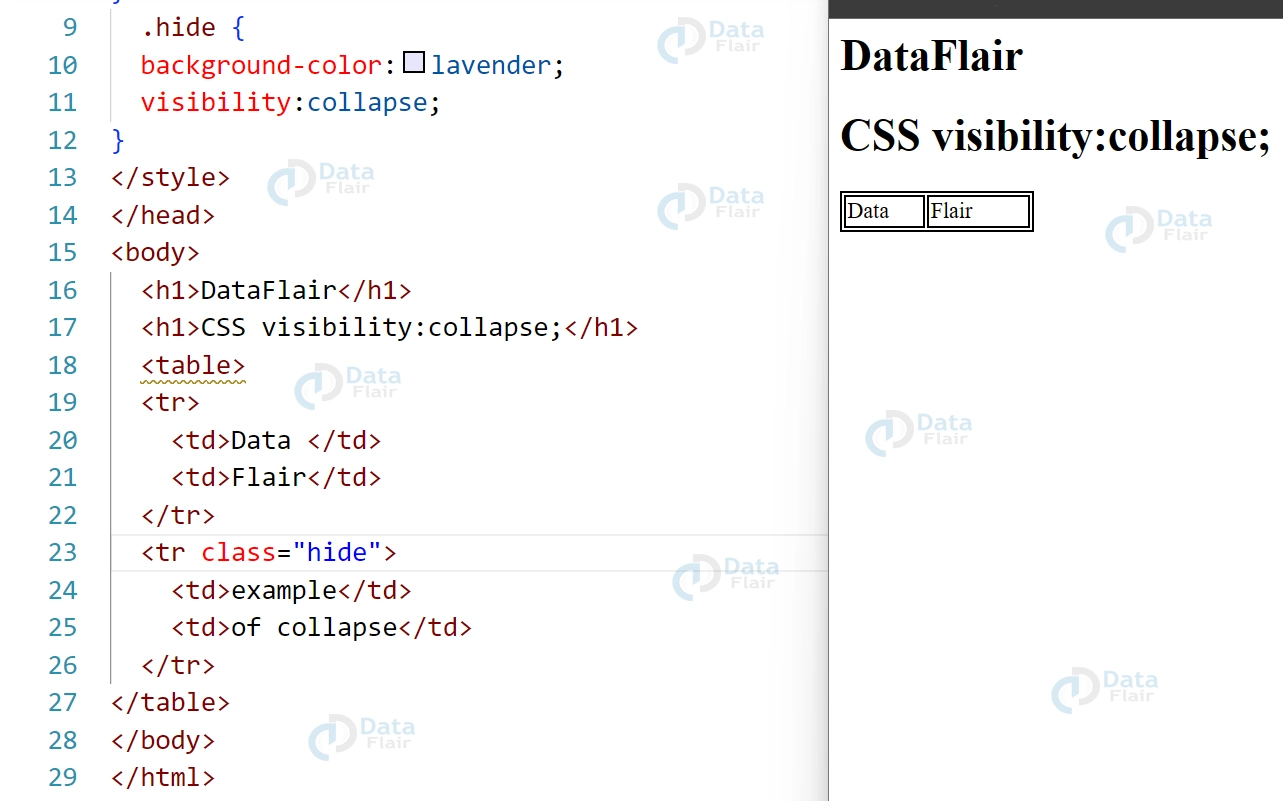
Here we can see that the second row is hidden and is not visible on the output.
CSS Visibility attributes
CSS Visibility attributes refer to the properties that determine whether an HTML element is visible or not on a web page. The visibility property determines whether an element is visible or not, while the opacity property determines the transparency level of the element.
When an element’s visibility property is set to hidden, it will still take up space on the page, but it will not be visible. When an element’s opacity property is set to a value less than 1, the element will be partially transparent, allowing the background or underlying elements to show through.
One more important use of the visibility property is in developing Print Styles for web pages to print appropriately when the Ctrl + P print command is used. By setting certain elements to visibility:
Well, if you use a print stylesheet and you don’t know it, those hidden elements can be hidden when printing, but the layout will not be hidden on the screen. This is particularly helpful where you would like to develop graphical objects such as navigation menus or ads that should not be printed out.
Accessibility concerns
In terms of accessibility concerns, using CSS Visibility attributes can impact users who rely on screen readers or other assistive technologies to access the content. If an element is set to visibility: hidden, it may still be read by screen readers, leading to confusion and frustration for users. Additionally, using the opacity property to make elements partially transparent can also impact readability for users with visual impairments. To ensure accessibility, it’s important to use these properties judiciously and test the content with assistive technologies to ensure that it remains accessible to all users.
Browser Compatibility
The CSS visibility property and the opacity property are both widely supported by modern browsers, including Chrome, Firefox, Safari, and Edge. However, older browsers may not fully support these properties, which can impact the visual display of the content on the page.
In terms of specific browser compatibility, the visibility property is supported by all major browsers, including Internet Explorer 8 and later versions. However, Internet Explorer 7 and earlier versions do not support this property.
The opacity property is also widely supported by modern browsers, including Internet Explorer 9 and later versions. However, older versions of Internet Explorer do not support this property. This can impact the visual display of the content on the page. Additionally, there may be some differences in the way that different browsers handle opacity, such as the way that it interacts with background colors or images.
Overall, it’s important to test the content with a range of browsers and browser versions to ensure that it remains accessible and functional for all users.
Conclusion:
This DataFlair tutorial covered the CSS visibility property in great detail. As we saw, it is a simple property for setting the visibility of elements on a web page. We can use this to temporarily or permanently hide the elements depending upon the need.
Did you like this article? If Yes, please give DataFlair 5 Stars on Google





