
Python OpenCV Project – Chrome’s Dinosaur Game
Machine Learning courses with 100+ Real-time projects Start Now!!
Chrome’s Dinosaur Game is a fun game that many people play when they don’t have the internet. However, playing with a keyboard can get boring after a while. That’s where OpenCV comes in.
OpenCV is a technology that can be used to create a special way of controlling the game using your hand movements. So, instead of using the keyboard, you can use your hands to make the dinosaur jump over obstacles and avoid enemies. This makes the game much more interesting and fun to play.
In this project, we’ll talk about how to control the game using OpenCV and how it can make the game even better.
MediaPipe
Mediapipe is a free tool created by Google that helps developers create cool games quickly. One fun game they can make with Mediapipe is the Chrome Dinosaur Game, where you control a dinosaur and jump over obstacles. With Mediapipe, you can use hand movements to control the game instead of buttons. To do this, you train a computer program to recognize different hand movements and then use them to control the game.
For example, you can raise your five fingers to make the dinosaur jump. This makes the game more interactive and exciting for players.

Pyautogui
PyAutoGUI is a Python library that allows users to automate repetitive tasks on their computer, such as keyboard and mouse movements. It’s easy to use and compatible with different platforms. It can help improve productivity but should be used responsibly.
Gesture Recognition
Gesture recognition for Chrome’s dinosaur game using OpenCV is a cool technology that lets you control the game using hand movements. OpenCV uses a camera to detect your hand gestures and translates them into game commands, like jumping or ducking. This makes gaming more fun and interactive. The same technology can also be used in medicine and industry to help people with disabilities or control machines and robots. Overall, it’s an exciting development with many potential applications.
Prerequisites For Chrome’s Dinosaur Game Using Python OpenCV
It is important to have a solid understanding of the Python programming language and the OpenCV library. Apart from this, you should have the following system requirements.
- Python 3.7 (64-bit) and above
- Any Python editor (VS code, Pycharm)
Download Python OpenCV Chrome’s Dinosaur Game Project
Please download the source code of Python OpenCV Chrome’s Dinosaur Game Project: Python OpenCV Chrome’s Dinosaur Game Project Code.
Installation
Open Windows cmd as administrator
1. To install the opencv library, run the command from the cmd.
pip install opencv-python
2. To install the media pipe library, run the command from the cmd.
pip install mediapipe
3. To install the pyautogui library, run the command from the cmd.
pip install pyautogui
Let’s Implement
To implement this, follow the below steps.
1. We need to import some libraries that will be used in our implementation.
import cv2
import mediapipe as mp
from tensorflow.keras.models import load_model
import pyautogui
2. This Python code uses the MediaPipe library to detect and visually represent one hand in an image or video. The code only recognizes hands with a confidence level of 70% or higher and makes use of MediaPipe’s drawing module to illustrate the detected landmarks on the image.
mpHands = mp.solutions.hands
hands = mpHands.Hands(max_num_hands=1, min_detection_confidence=0.7)
mpDraw = mp.solutions.drawing_utils
3. It opens the integrated camera.
cap = cv2.VideoCapture(0)
4. Start the while loop.
while True:
5. cap.read() function returns two values, first is stored in ‘ret’ which is a boolean value The function cap.read() reads the frame and returns two values: ret (a boolean indicating if the frame was successfully read) and frame (an array of pixel values in the captured frame). These values can be used to process or display the image
ret, frame = cap.read()
6. This code determines the frame’s dimensions and assigns the values to x, y, and c variables, where x represents the height, y represents the width, and c represents the number of color channels. This information is crucial for image processing tasks like object detection or image segmentation.
x, y, c = frame.shape
7. This code flips and mirrors the input frame horizontally and changes its color space to RGB. It saves the modified frame in a variable called image, which can be used for further processing.
frame = cv2.flip(frame, 1)
framergb = cv2.cvtColor(frame, cv2.COLOR_BGR2RGB)
Output of this step
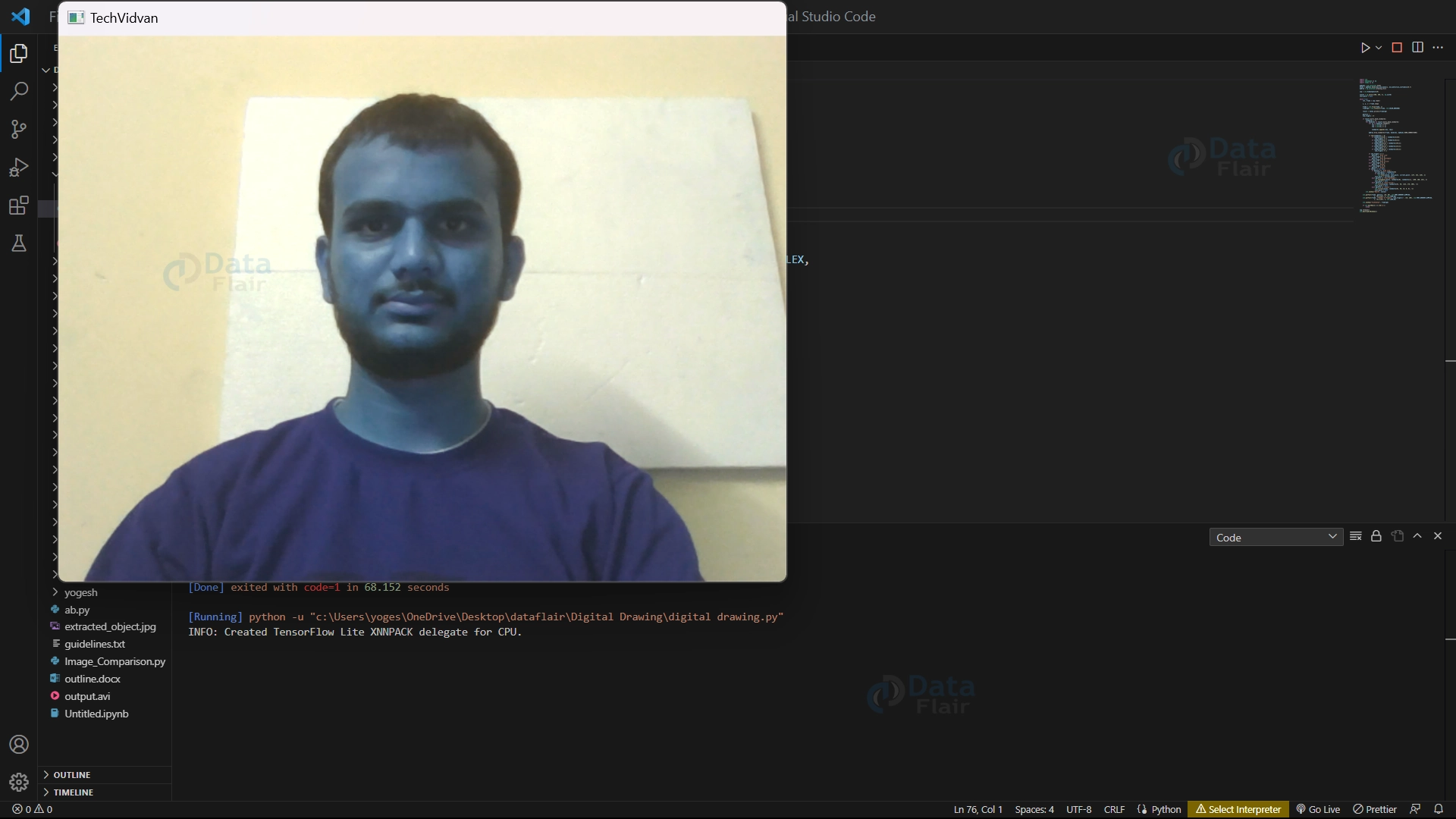
8. This code uses MediaPipe to detect hands and stores the results in a variable called “result”. It also initializes a “num_fingers” variable to count the number of fingers in a hand gesture. This is important for applications that require hand gesture recognition.
result = hands.process(framergb)
num_fingers = 0
9. This if statement is used to check if the “result” variable has any detected hand landmarks. If the condition is true, an empty list called “landmarks” is created to store the coordinates of these landmarks.
if result.multi_hand_landmarks:
        landmarks = []
10. This code starts a loop that goes through each hand detected in the input frame by MediaPipe’s hand detection model.
for handslms in result.multi_hand_landmarks
Note:- This for loop starts under the 9th step if block.
11. This code uses the width and height of the input frame to calculate the exact position of each detected landmark point, which is stored in a list called “landmarks”. The int() function is applied to convert the floating-point values to integers for compatibility with other functions.
lmx = int(lm.x * x)
 lmy = int(lm.y * y)
 landmarks.append([lmx, lmy])
12. In this code, the mpDraw module is utilized to draw the detected hand landmarks and connections on the input frame. It takes the landmarks detected by the MediaPipe hand detection model and creates a shape of the hand by connecting them with lines. The outcome of the code is an image that displays the detected hand with dots representing the landmarks and lines connecting them.
mpDraw.draw_landmarks(frame, handslms, mpHands.HAND_CONNECTIONS)
13. This code checks if any hand landmarks were detected by checking the length of the “landmarks” list. If landmarks are present, it checks the position of specific landmarks to determine the number of extended fingers and increments the “num_fingers” variable accordingly.
if len(landmarks) > 0:
                if landmarks[4][0] < landmarks[3][0]:
                    num_fingers += 1
                if landmarks[8][1] < landmarks[6][1]:
                    num_fingers += 1
                if landmarks[12][1] < landmarks[10][1]:
                    num_fingers += 1
                if landmarks[16][1] < landmarks[14][1]:
                    num_fingers += 1
                if landmarks[20][1] < landmarks[18][1]:
                    num_fingers += 1

14. This code block checks the number of fingers in a hand gesture and controls the Chrome Dinosaur Game character accordingly. If the hand has one to four fingers, the character stops jumping and goes without jumping and “Go” is displayed on the screen. If the hand has five fingers, the character jumps, and “Jump” is displayed on the screen. If the hand has no fingers or any other number of fingers, the character stops jumping, and “Go” is displayed on the screen. The PyAutoGUI library is used to mimic keypress and key release events.
if num_fingers == 1:
                pyautogui.keyUp("space")
            elif num_fingers == 2:
                pyautogui.keyUp("space")
            elif num_fingers == 3:
                pyautogui.keyUp("space")
            elif num_fingers == 4:
                pyautogui.keyUp("space")
            elif num_fingers == 5:
                cv2.putText(frame, "Jump", (10, 50), cv2.FONT_HERSHEY_SIMPLEX,
                  1, (0,0,255), 2, cv2.LINE_AA)
                pyautogui.keyDown("space")
            else:
                cv2.putText(frame, "Go", (10, 50), cv2.FONT_HERSHEY_SIMPLEX,
                  1, (0,0,255), 2, cv2.LINE_AA)
                pyautogui.keyUp("space")
Note:- Steps 11-14 must be written under step 10th for loop
15. This code displays the output frame with landmarks and text using the imshow method of the cv2 library. It also waits for the user to press the ‘q’ key to exit the program using the waitKey method with a parameter of 1.
cv2.imshow("DataFlair", frame)

    if cv2.waitKey(1) == ord('q'):
        break
Note:- Steps 5-15 must be written under the while loop.
16. cap.release() frees the resources used to capture the video or camera stream, allowing them to be used by other applications. cv2.destroyAllWindows() closes all OpenCV windows, freeing system resources and ensuring the program ends cleanly.
cap.release()
cv2.destroyAllWindows()
Python OpenCV Chrome’s Dinosaur Game Output


Python OpenCV Chrome’s Dinosaur Game Video Output
Conclusion
To sum up, using OpenCV technology to control Chrome’s Dinosaur Game with hand gestures makes it even more fun and engaging. It also has potential for other uses like medical procedures and robotics. As technology keeps advancing, we can look forward to even more creative ways to use OpenCV in the future.
We work very hard to provide you quality material
Could you take 15 seconds and share your happy experience on Google





