Android Kotlin Project – Calorie Calculator App
Hello there, Android enthusiasts! Today we will look at and learn how to develop an Android project, a calorie counter in Android Studio. In this article, we’ll learn about the entire project’s development.
A calorie calculator app in Kotlin is an application that determines a daily calorie intake based on some parameters. The app provides a simple and easy-to-use interface where users can input their personal information, such as age, gender, height, weight, and activity level, and receive an estimate of the number of calories they need to consume each day to maintain, gain, or lose weight.
About Android Kotlin Calorie Calculator App
This is a simple Calorie Calculator App Project for those just learning the fundamentals of developing Android applications. This Android app’s user interface contains multiple activities; the home screen contains two buttons for the user to choose their gender, which redirects to respective calorie calculators that give the daily calorie intake goal based on some parameters. Details about the application’s user interface are as follows:
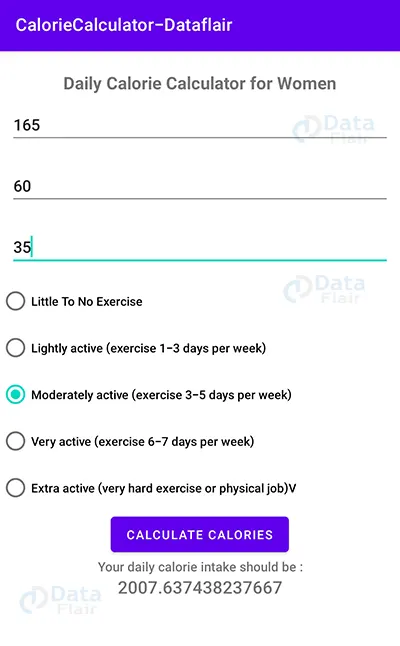
1. The home screen contains two buttons, ‘Male’ and ‘Female’, for the user to choose from; depending on which button the user clicks, they are redirected to the respective calorie calculators.
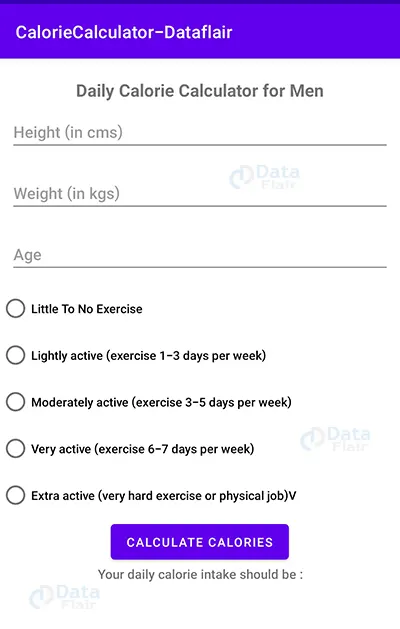
2. The user must fill out various fields, including height, weight, age, and activity level, in both the male and female calorie calculator activities before the user’s calorie intake can be calculated.
3. At the bottom of both activities, there is a button, ‘Calculate Calories’.
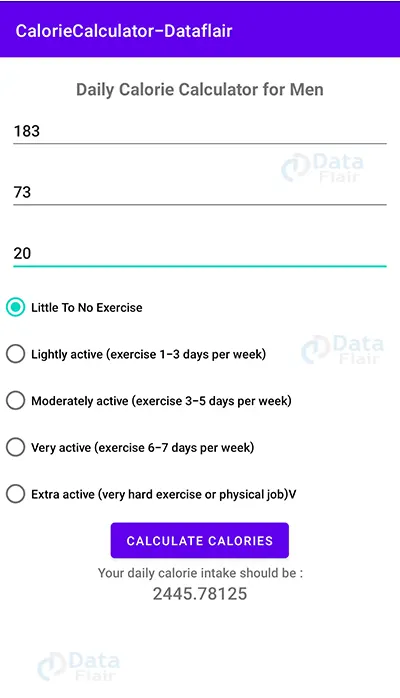
4. When the ‘Calculate Calories’ button is clicked, the ideal daily calorie intake to maintain the same weight is displayed using a textview.
Prerequisites for Calorie Calculator App using Android Kotlin
To develop this Android Kotlin Calorie Calculator App, the requirements and prerequisites are as follows:
1. Kotlin: You must become acquainted with Kotlin programming first. It is necessary because we’ll be writing the app’s code in the programming language Kotlin.
2. XML: XML is a further essential part of our Android application. It will be used to create the user interface for the application.
3. Android Studio: Android Studio is at the core of our application because it is how we will create it. An Android virtual device that can be used to test an application’s functionality is also available with Android Studio.
Download Android Kotlin Calorie Calculator App Project
Please download the source code of Android Kotlin Calorie Calculator App Project: Android Kotlin Calorie Calculator Project Code.
Develop a Calorie Calculator Application in Android Studio
We’ll now start working on developing a Calorie Calculator application. Before actually implementing and executing the code, we will learn about its working. So, let’s look at the files and functions needed to run the code:
In order to make this Android Calorie Counter application, you must follow a set of instructions. We are here to guide you through each step of creating an app.
1. To the location of your choice, extract all the files from the downloaded zip file.
2. Launch Android Studio.
3. Open by selecting File.
4. Locate and choose the extracted folder, then select OK.
The Calorie calculator application’s source code has been successfully opened in Android Studio.
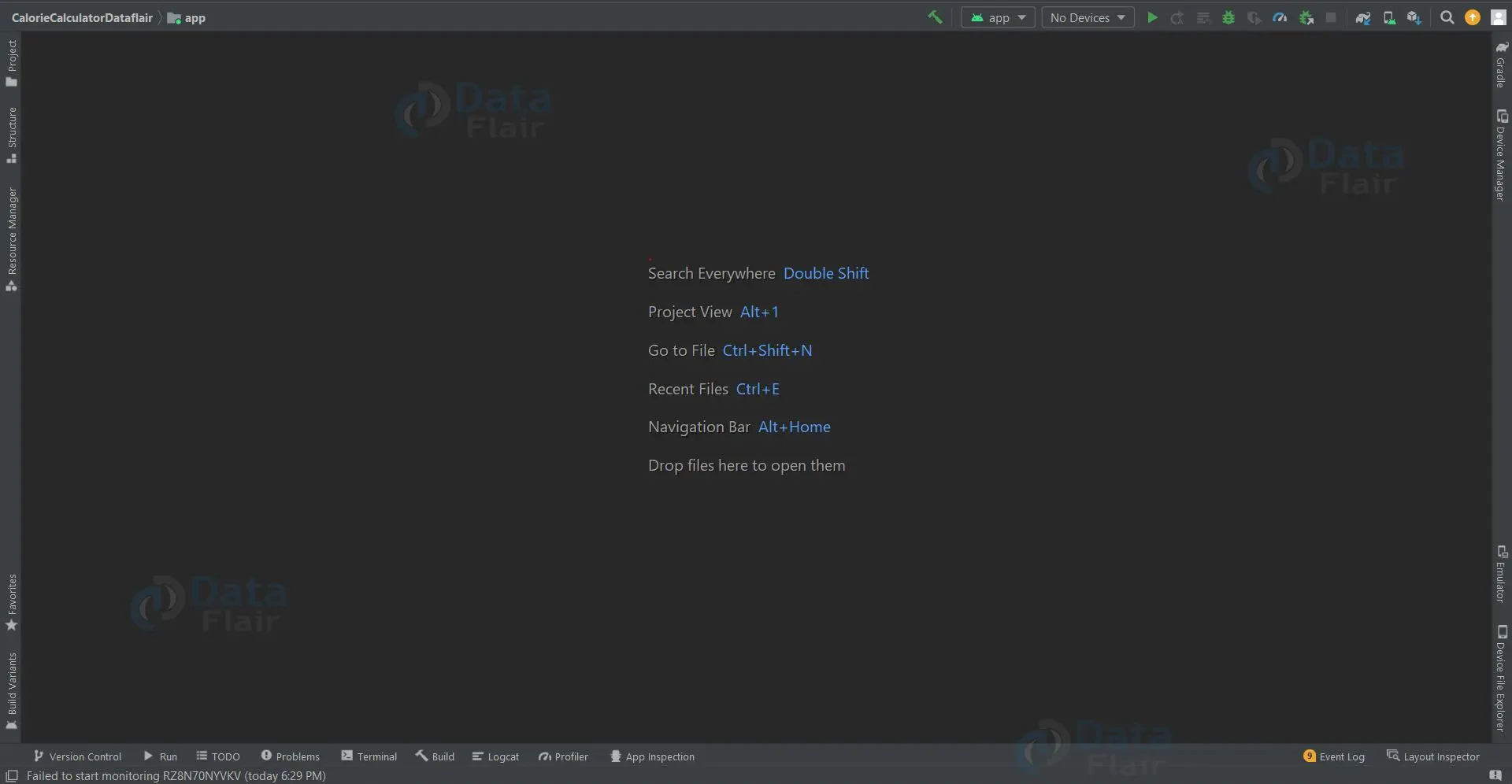
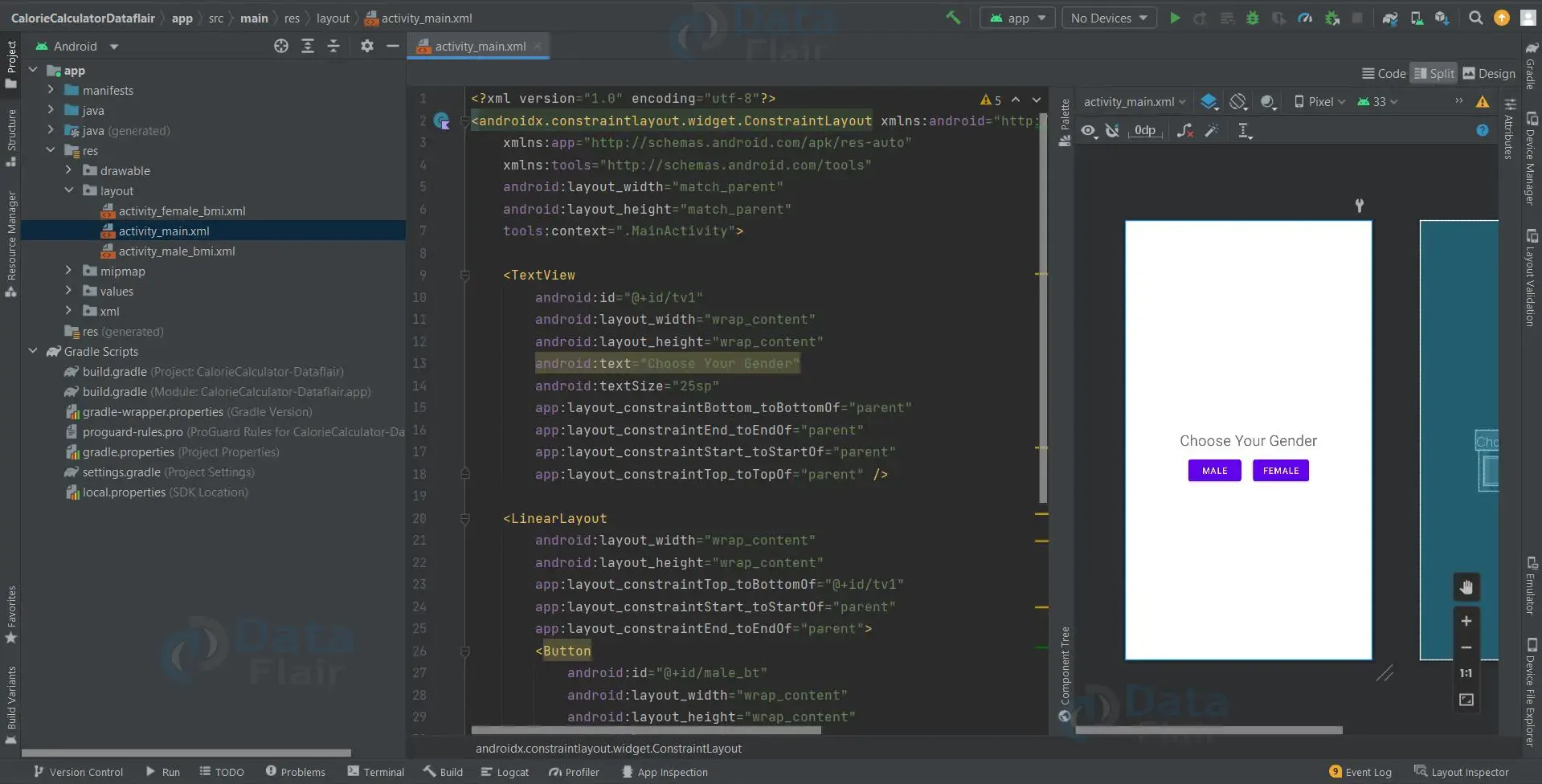
1. The “activity_main” is an XML file that is responsible for creating the user interface of the home screen that is displayed when the Calorie Counter app is initialized.
<?xml version="1.0" encoding="utf-8"?>
<androidx.constraintlayout.widget.ConstraintLayout xmlns:android="http://schemas.android.com/apk/res/android"
    xmlns:app="http://schemas.android.com/apk/res-auto"
    xmlns:tools="http://schemas.android.com/tools"
    android:layout_width="match_parent"
    android:layout_height="match_parent"
    tools:context=".MainActivity">

    <TextView
        android:id="@+id/tv1"
        android:layout_width="wrap_content"
        android:layout_height="wrap_content"
        android:text="Choose Your Gender"
        android:textSize="25sp"
        app:layout_constraintBottom_toBottomOf="parent"
        app:layout_constraintEnd_toEndOf="parent"
        app:layout_constraintStart_toStartOf="parent"
        app:layout_constraintTop_toTopOf="parent" />

    <LinearLayout
        android:layout_width="wrap_content"
        android:layout_height="wrap_content"
        app:layout_constraintTop_toBottomOf="@+id/tv1"
        app:layout_constraintStart_toStartOf="parent"
        app:layout_constraintEnd_toEndOf="parent">
        <Button
            android:id="@+id/male_bt"
            android:layout_width="wrap_content"
            android:layout_height="wrap_content"
            android:layout_margin="10dp"
            android:text="Male"/>

        <Button
            android:id="@+id/female_bt"
            android:layout_width="wrap_content"
            android:layout_height="wrap_content"
            android:layout_margin="10dp"
            android:text="Female"/>
    </LinearLayout>

</androidx.constraintlayout.widget.ConstraintLayout>
2. ‘Acitivity_male_bmi.xml’ is responsible for creating the user interface when the user clicks on ‘Male’ button on the home screen.
<?xml version="1.0" encoding="utf-8"?>
<LinearLayout xmlns:android="http://schemas.android.com/apk/res/android"
    xmlns:app="http://schemas.android.com/apk/res-auto"
    xmlns:tools="http://schemas.android.com/tools"
    android:layout_width="match_parent"
    android:layout_height="match_parent"
    android:orientation="vertical"
    tools:context=".MaleBMI">

    <TextView
        android:layout_width="wrap_content"
        android:layout_height="wrap_content"
        android:layout_gravity="center"
        android:layout_marginTop="20dp"
        android:textSize="20sp"
        android:textStyle="bold"
        android:text="Daily Calorie Calculator for Men"
        />

    <EditText
        android:id="@+id/heightET"
        android:layout_width="match_parent"
        android:layout_height="wrap_content"
        android:layout_margin="10dp"
        android:hint="Height (in cms)" />

    <EditText
        android:id="@+id/weightET"
        android:layout_width="match_parent"
        android:layout_height="wrap_content"
        android:layout_margin="10dp"
        android:hint="Weight (in kgs)" />

    <EditText
        android:id="@+id/ageET"
        android:layout_width="match_parent"
        android:layout_height="wrap_content"
        android:layout_margin="10dp"
        android:hint="Age" />

    <RadioGroup
        android:id="@+id/radioGroupGender"
        android:layout_width="match_parent"
        android:layout_height="wrap_content"
        android:orientation="vertical">

        <RadioButton
            android:id="@+id/r1"
            android:layout_width="wrap_content"
            android:layout_height="wrap_content"
            android:text="Little To No Exercise" />

        <RadioButton
            android:id="@+id/r2"
            android:layout_width="wrap_content"
            android:layout_height="wrap_content"
            android:text="Lightly active (exercise 1-3 days per week)" />

        <RadioButton
            android:id="@+id/r3"
            android:layout_width="wrap_content"
            android:layout_height="wrap_content"
            android:text="Moderately active (exercise 3-5 days per week)" />

        <RadioButton
            android:id="@+id/r4"
            android:layout_width="wrap_content"
            android:layout_height="wrap_content"
            android:text="Very active (exercise 6-7 days per week)" />

        <RadioButton
            android:id="@+id/r5"
            android:layout_width="wrap_content"
            android:layout_height="wrap_content"
            android:text="Extra active (very hard exercise or physical job)V" />

    </RadioGroup>

    <Button
        android:id="@+id/calculate"
        android:layout_width="wrap_content"
        android:layout_height="wrap_content"
        android:textAlignment="center"
        android:text="Calculate Calories"
        android:layout_gravity="center_horizontal"/>
    <TextView
        android:layout_width="match_parent"
        android:layout_height="wrap_content"
        android:textAlignment="center"
        android:textSize="15sp"
        android:text="Your daily calorie intake should be :"/>

    <TextView
        android:id="@+id/calories"
        android:layout_width="match_parent"
        android:layout_height="wrap_content"
        android:textAlignment="center"
        android:textSize="20sp"
        android:text=""/>
</LinearLayout>

3. ‘Acitivity_female_bmi.xml’ is responsible for creating the user interface when the user clicks on ‘Female’ button on the home screen.
<?xml version="1.0" encoding="utf-8"?>
<LinearLayout xmlns:android="http://schemas.android.com/apk/res/android"
    xmlns:app="http://schemas.android.com/apk/res-auto"
    xmlns:tools="http://schemas.android.com/tools"
    android:layout_width="match_parent"
    android:layout_height="match_parent"
    android:orientation="vertical"
    tools:context=".MaleBMI">

    <TextView
        android:layout_width="wrap_content"
        android:layout_height="wrap_content"
        android:layout_gravity="center"
        android:layout_marginTop="20dp"
        android:textSize="20sp"
        android:textStyle="bold"
        android:text="Daily Calorie Calculator for Women"
        />


    <EditText
        android:id="@+id/heightET"
        android:layout_width="match_parent"
        android:layout_height="wrap_content"
        android:layout_margin="10dp"
        android:hint="Height (in cms)" />

    <EditText
        android:id="@+id/weightET"
        android:layout_width="match_parent"
        android:layout_height="wrap_content"
        android:layout_margin="10dp"
        android:hint="Weight (in kgs)" />

    <EditText
        android:id="@+id/ageET"
        android:layout_width="match_parent"
        android:layout_height="wrap_content"
        android:layout_margin="10dp"
        android:hint="Age" />

    <RadioGroup
        android:id="@+id/radioGroupGender"
        android:layout_width="match_parent"
        android:layout_height="wrap_content"
        android:orientation="vertical">

        <RadioButton
            android:id="@+id/r1"
            android:layout_width="wrap_content"
            android:layout_height="wrap_content"
            android:text="Little To No Exercise" />

        <RadioButton
            android:id="@+id/r2"
            android:layout_width="wrap_content"
            android:layout_height="wrap_content"
            android:text="Lightly active (exercise 1-3 days per week)" />

        <RadioButton
            android:id="@+id/r3"
            android:layout_width="wrap_content"
            android:layout_height="wrap_content"
            android:text="Moderately active (exercise 3-5 days per week)" />

        <RadioButton
            android:id="@+id/r4"
            android:layout_width="wrap_content"
            android:layout_height="wrap_content"
            android:text="Very active (exercise 6-7 days per week)" />

        <RadioButton
            android:id="@+id/r5"
            android:layout_width="wrap_content"
            android:layout_height="wrap_content"
            android:text="Extra active (very hard exercise or physical job)V" />

    </RadioGroup>

    <Button
        android:id="@+id/calculate"
        android:layout_width="wrap_content"
        android:layout_height="wrap_content"
        android:textAlignment="center"
        android:text="Calculate Calories"
        android:layout_gravity="center_horizontal"/>
    <TextView
        android:layout_width="match_parent"
        android:layout_height="wrap_content"
        android:textAlignment="center"
        android:textSize="15sp"
        android:text="Your daily calorie intake should be :"/>

    <TextView
        android:id="@+id/calories"
        android:layout_width="match_parent"
        android:layout_height="wrap_content"
        android:textAlignment="center"
        android:textSize="20sp"
        android:text=""/>
</LinearLayout>

4. ‘MainActivity’ is a kotlin file, which is responsible for the functionality of the application where the user chooses their gender.
class MainActivity : AppCompatActivity() {

    private lateinit var male:Button
    private lateinit var female:Button
    override fun onCreate(savedInstanceState: Bundle?) {
        super.onCreate(savedInstanceState)
        setContentView(R.layout.activity_main)

        male = findViewById(R.id.male_bt)
        female = findViewById(R.id.female_bt)

        male.setOnClickListener {
            val intent = Intent(this, MaleBMI::class.java)
            startActivity(intent)
        }

        female.setOnClickListener {
            val intent = Intent(this, FemaleBMI::class.java)
            startActivity(intent)
        }
    }
}
5. MaleBMI.kt is a kotlin file that determines the daily calorie intake target for men and is essential to the operation of the calorie calculator. This file accepts input from the user and computes the daily calories needed for the user to maintain weight using a few formulas and input variables.
class MaleBMI : AppCompatActivity() {
    private lateinit var heightEt:EditText
    private lateinit var weightEt:EditText
    private lateinit var ageEt:EditText
    private lateinit var calculate: Button
    private lateinit var calories:TextView
    override fun onCreate(savedInstanceState: Bundle?) {
        super.onCreate(savedInstanceState)
        setContentView(R.layout.activity_male_bmi)


        val r1 = findViewById<RadioButton>(R.id.r1)
        val r2 = findViewById<RadioButton>(R.id.r2)
        val r3 = findViewById<RadioButton>(R.id.r3)
        val r4 = findViewById<RadioButton>(R.id.r4)
        val r5 = findViewById<RadioButton>(R.id.r5)

        var value:Float = 0f

        r1.setOnCheckedChangeListener { compoundButton, b ->
            value = 1.20f
        }

        r2.setOnCheckedChangeListener { compoundButton, b ->
            value = 1.375f
        }

        r3.setOnCheckedChangeListener { compoundButton, b ->
            value = 1.55f
        }

        r4.setOnCheckedChangeListener { compoundButton, b ->
            value = 1.725f
        }

        r5.setOnCheckedChangeListener { compoundButton, b ->
            value = 1.90f
        }

        heightEt = findViewById(R.id.heightET)
        weightEt = findViewById(R.id.weightET)
        ageEt = findViewById(R.id.ageET)

        calculate = findViewById(R.id.calculate)

        calculate.setOnClickListener {
            var height = heightEt.text.toString().toFloat()
            var weight = weightEt.text.toString().toFloat()
            var age = ageEt.text.toString().toFloat()
            val bmr = (weight*10)+(6.25*height)+5-(5*age)
            val goal = bmr*value

            calories = findViewById(R.id.calories)

            calories.setText(goal.toString())
        }
    }
}
6. FemaleBMI.kt is a kotlin file that determines the daily calorie intake target for females and is essential to the operation of the calorie calculator. This file accepts input from the user and computes the daily calories needed for the user to maintain weight using a few formulas and input variables.
class FemaleBMI : AppCompatActivity() {
    private lateinit var heightEt: EditText
    private lateinit var weightEt: EditText
    private lateinit var ageEt: EditText
    private lateinit var calculate: Button
    private lateinit var calories: TextView
    override fun onCreate(savedInstanceState: Bundle?) {
        super.onCreate(savedInstanceState)
        setContentView(R.layout.activity_female_bmi)

        val r1 = findViewById<RadioButton>(R.id.r1)
        val r2 = findViewById<RadioButton>(R.id.r2)
        val r3 = findViewById<RadioButton>(R.id.r3)
        val r4 = findViewById<RadioButton>(R.id.r4)
        val r5 = findViewById<RadioButton>(R.id.r5)

        var value:Float = 0f

        r1.setOnCheckedChangeListener { compoundButton, b ->
            value = 1.20f
        }

        r2.setOnCheckedChangeListener { compoundButton, b ->
            value = 1.375f
        }

        r3.setOnCheckedChangeListener { compoundButton, b ->
            value = 1.55f
        }

        r4.setOnCheckedChangeListener { compoundButton, b ->
            value = 1.725f
        }

        r5.setOnCheckedChangeListener { compoundButton, b ->
            value = 1.90f
        }

        heightEt = findViewById(R.id.heightET)
        weightEt = findViewById(R.id.weightET)
        ageEt = findViewById(R.id.ageET)

        calculate = findViewById(R.id.calculate)

        calculate.setOnClickListener {
            var height = heightEt.text.toString().toFloat()
            var weight = weightEt.text.toString().toFloat()
            var age = ageEt.text.toString().toFloat()
            val bmr = (weight*10)+(6.25*height)-(5*age)-161
            val goal = bmr*value

            calories = findViewById(R.id.calories)

            calories.setText(goal.toString())
        }
    }
}
Android Kotlin Calorie Calculator App Output:
1. Home Screen:

2. Gender selected – MALE :
3. Gender selected – FEMALE:

4. Calorie Calculated for a male:
5. Calorie Calculated for a female:
Summary
So, in this Android Kotlin Calorie Calculator App, we learnt how to use Android Studio to develop an application that calculates daily calorie intake goals based on some parameters and using formulas. This android project is suitable for beginners as it will improve your ability to design user interface as per the application’s need and work with multiple activities, also taking input from the user. We hope you enjoyed it, and we are confident that you will like putting it into practice.
Your 15 seconds will encourage us to work even harder
Please share your happy experience on Google