How to Set Document Password in PowerPoint?
We offer you a brighter future with industry-ready online courses - Start Now!!
You may occasionally create Presentations that are not intended to be shared with strangers. Such presentations are restricted to your organization’s boundaries and are intended for a specific group of people. Adding a password to your presentation comes in handy in these situations. It’s a piece of cake with the latest version of Microsoft PowerPoint, adding a password for your presentation. let’s learn how to do it.
How to Set Document Password in PowerPoint?
PowerPoint provides the following password options:
1. Only require a password to open the file: You can only require a password to open the file. When you open a PowerPoint presentation in Windows, PowerPoint asks for the password.
2. Only require a password to modify the file: You can only require a password to modify the file. When you open a PowerPoint presentation in Windows, you are not prompted for a password. This is due to the fact that PowerPoint opens the presentation file in a slide show window, and you can’t change the file while it’s playing.
Here are the steps to adding a password to your PowerPoint presentation:
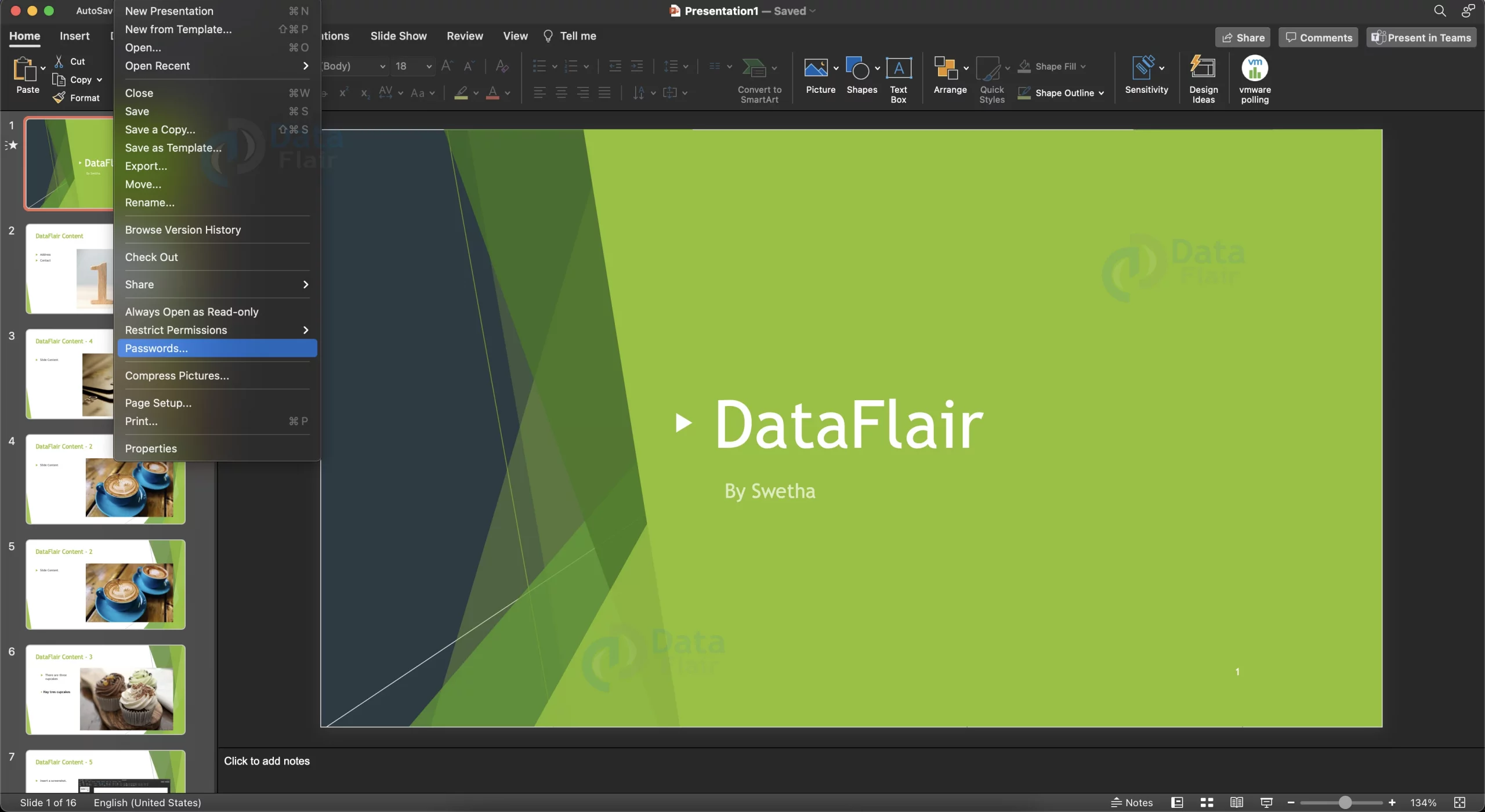
1. Click on the File button, then click on Passwords.
2. This will open a dialog box. You can choose to have a password for opening the file or for modifying the file.
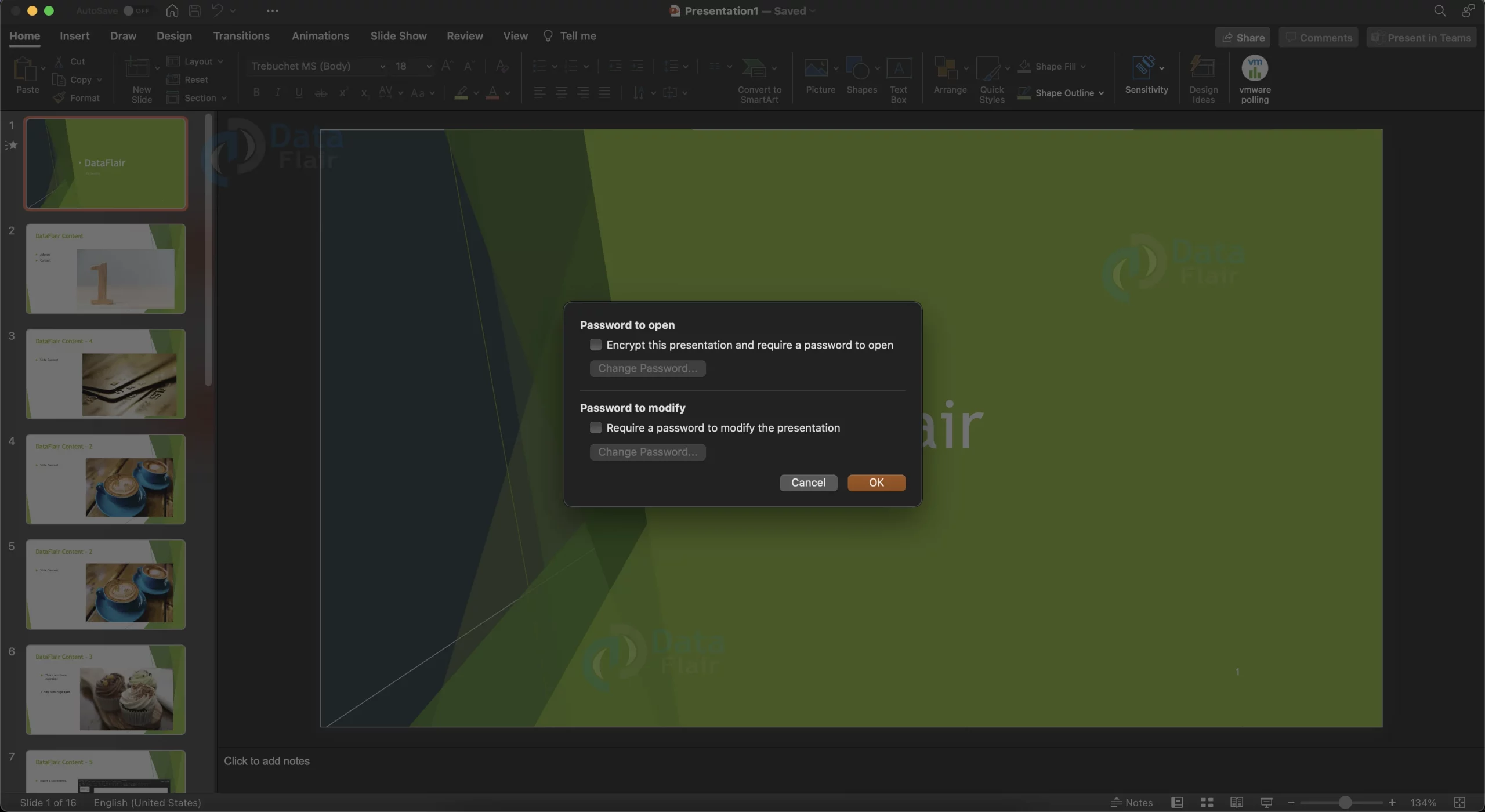
3. To add a password, simply click on the respective checkbox.
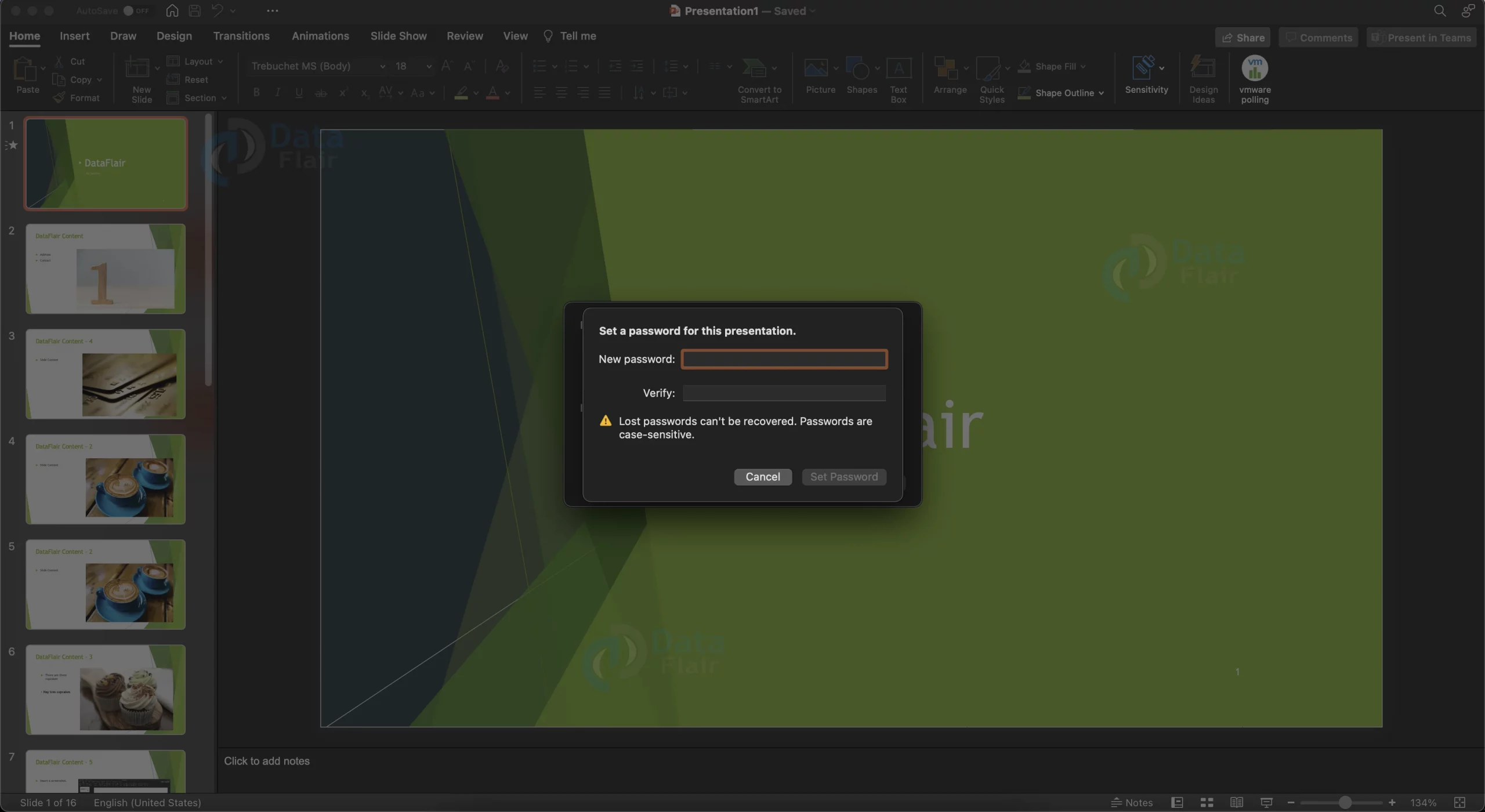
4. Add a password, retype it and click on the OK button to save the password.
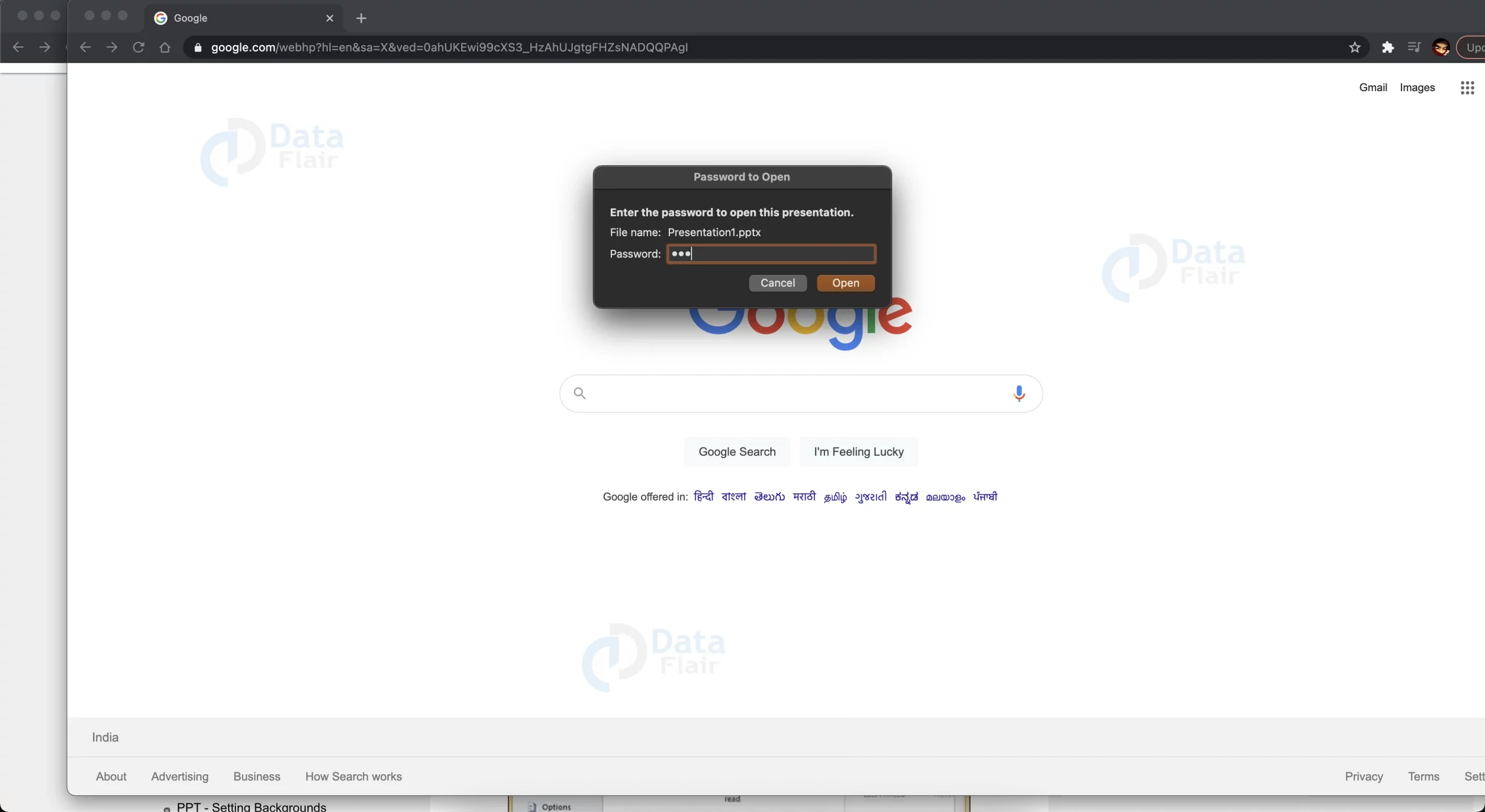
5. The next time you open the presentation you will be prompted for a password.
6. To remove the password, clear the respective checkbox and then press OK.
Note:
1. You will be able to open, but not edit, a password-protected file that someone else is presently working on. The file will be in read-only mode.
2. The process of changing the password is exactly similar to adding a password.
Summary:
Now, with this article, we hope you have learned how to secure your file from prying hands of unwanted intruders. Be sure to remember your password; if you lose the password, then it would be very difficult to recover your file.
You give me 15 seconds I promise you best tutorials
Please share your happy experience on Google