
React State
Expert-led Online Courses: Elevate Your Skills, Get ready for Future - Enroll Now!
React state is a fundamental feature of the React library that allows developers to manage data within a component. State is a JavaScript object that represents the internal data of a component and can be modified over time, causing the component to re-render. In this article, we will take a closer look at React state. We will also see how to define and use it in components and how to update state.
Defining State in a React Component
To define state in a React component, we use the useState hook, which is a function that returns an array with two elements, The current state value, and a function to update the state value.
Here’s an example of a simple React component that uses state to manage a count:
function Counter() {
  const [count, setCount] = React.useState(0);

  return (
    <div>
      <p>You clicked the DataFlair button {count} times</p>
      <button onClick={() => setCount(count + 1)}>Click DataFlair Button</button>
    </div>
  );
}

ReactDOM.render(<Counter />, document.getElementById("root"));
Output:
This is the output after clicking it once.
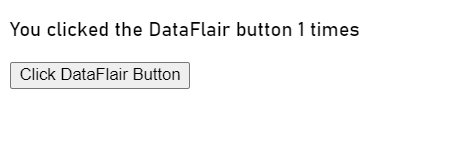
In this example, we import the useState hook from the react package and use it to define a state variable count. We also define a function setCount that can be used to update the count value.
In the component’s return statement, we use JSX to display the current count value.
Updating State in a React Component
To update state in a React component, we call the state updating function that was returned by the useState hook. When we call this function with a new value, React will automatically update the component’s internal state and re-render the component.
Here’s an example that demonstrates updating state in response to user input:
import React, { useState } from 'react';

function TextInput() {
  const [text, setText] = useState('');

  function handleInputChange(event) {
    setText(event.target.value);
  }

  return (
    <div>
      <label>Enter some text:</label>
      <input type="text" value={text} onChange={handleInputChange} />
      <p>You entered: {text}</p>
    </div>
  );
}

export default TextInput;
In this example, we define a state variable text and use the useState hook to initialize it to an empty string. We also define a function handleInputChange that will be called whenever the input element’s value changes.
In the component’s return statement, we use JSX to display a label and input element that are bound to the text state value.
When the user types into the input element, the onChange event listener calls handleInputChange.
Adding Local State to a Class in React:
Let’s understand it using an example.
class Clock extends React.Component {
  constructor(props) {
    super(props);
    this.state = {date: new Date()};
  }

  render() {
    return (
      <div>
        <h1>Hello, world!</h1>
        <h2>It is {this.state.date.toLocaleTimeString()}.</h2>
      </div>
    );
  }
}

const root = ReactDOM.createRoot(document.getElementById('root'));
root.render(<Clock />);
Output:

The above code is an example of a class component in React that uses local state. Let’s go through the code to understand how it works.
First, a class component Clock is defined. It extends the class and has a constructor method that sets an initial state object. The render method is then defined, which returns a JSX expression. The expression includes an <h2> element that uses the toLocaleTimeString() method of the Date object in the component’s state to display the current time.
The Clock component is then rendered using the ReactDOM.createRoot() method and the ReactDOM.render() method. The createRoot() method is used to create a root from which the component can be rendered using the render() method.
When the component is initially rendered, the current time is displayed in the h2 element. The time is updated every second because the component’s state is updated using the setState() method in the componentDidMount() lifecycle method. The setInterval() function is used to update the date property of the state object every second, causing the component to re-render.
This is an example of how local state can be added to a class component in React. By updating the state, the component can be made to re-render, displaying the updated data.
Best Practices for Working with State in React
While state is a powerful tool for managing data in React components, it’s important to use it wisely and avoid common pitfalls. Here are some best practices for working with state in React:
Only use state when necessary: Not every piece of data in your component needs to be stored in state. If a value doesn’t change over time and isn’t used to determine what the component should render, it probably doesn’t need to be in state.
Avoid directly modifying state: Instead of modifying state directly, use the state updating function returned by the useState hook. Directly modifying state can lead to unexpected behavior and bugs.
Conclusion:
In React, state is a powerful tool for managing the data that your components rely on. By following the best practices for managing state, you can ensure that your React components are efficient, scalable, and easy to maintain.
Your opinion matters
Please write your valuable feedback about DataFlair on Google





