
How to Save Template in PowerPoint?
We offer you a brighter future with industry-ready online courses - Start Now!!
Sometimes we may want to create a PowerPoint presentation exactly like one we had prepared earlier. Or sometimes, we may want to create a test or assignment using PowerPoint such that any user can add their inputs or modify it. In such cases of need, saving a presentation as a template comes in handy.
By saving a presentation as a template, the saved presentation will be available to use when creating a new presentation. New data or settings can be added or removed from the template. Here are the steps you will need to follow to save a presentation as a template:
Steps to Save Template in PowerPoint
1. In order to create a design template, you will have to be on the Slide Master view. Go to the View tab and click on Slide Master. In the slides, add desired content.
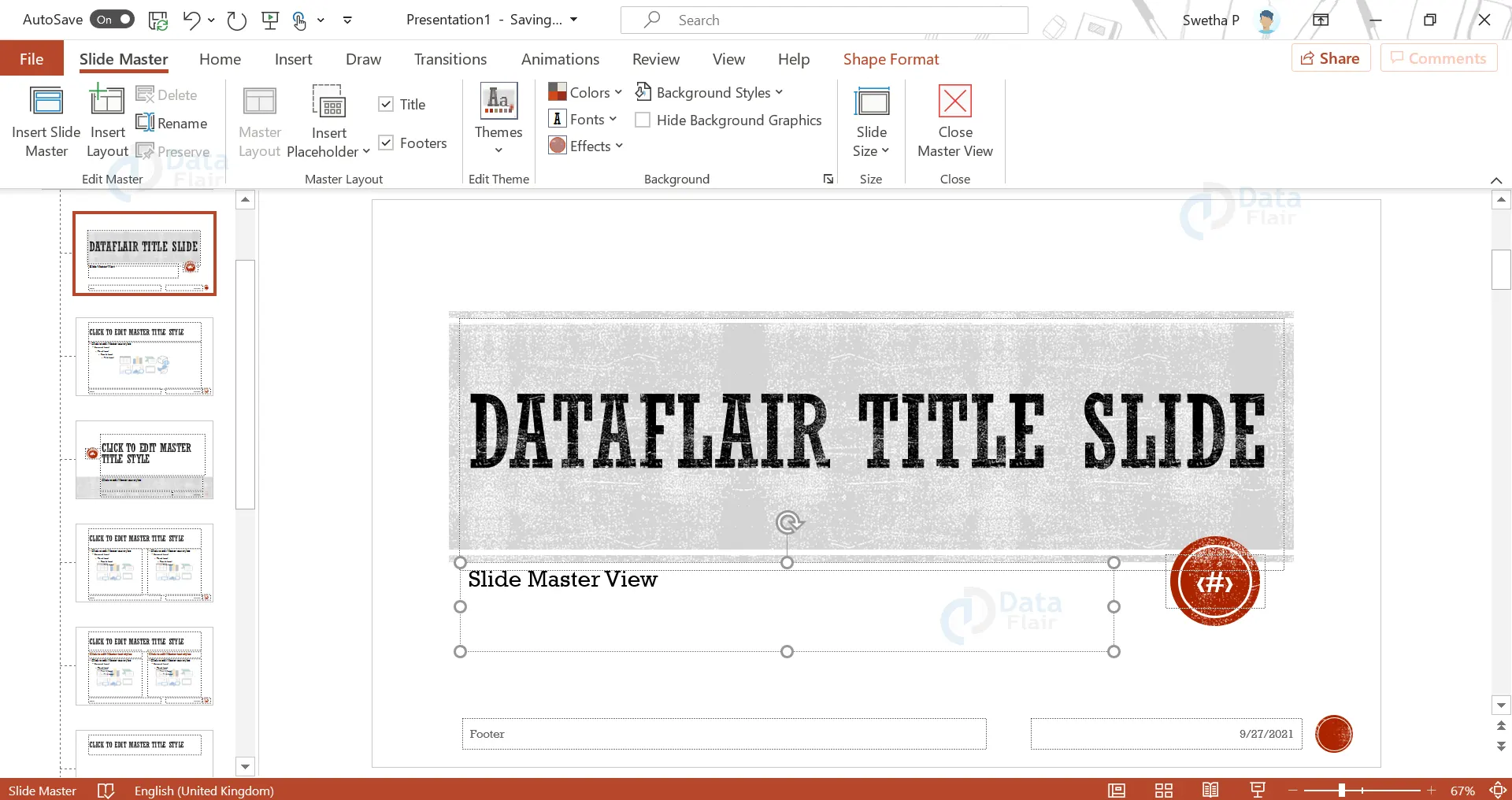
2. In the Slide Master view, you can add a background, change the orientation, add placeholders, add a theme, etc.
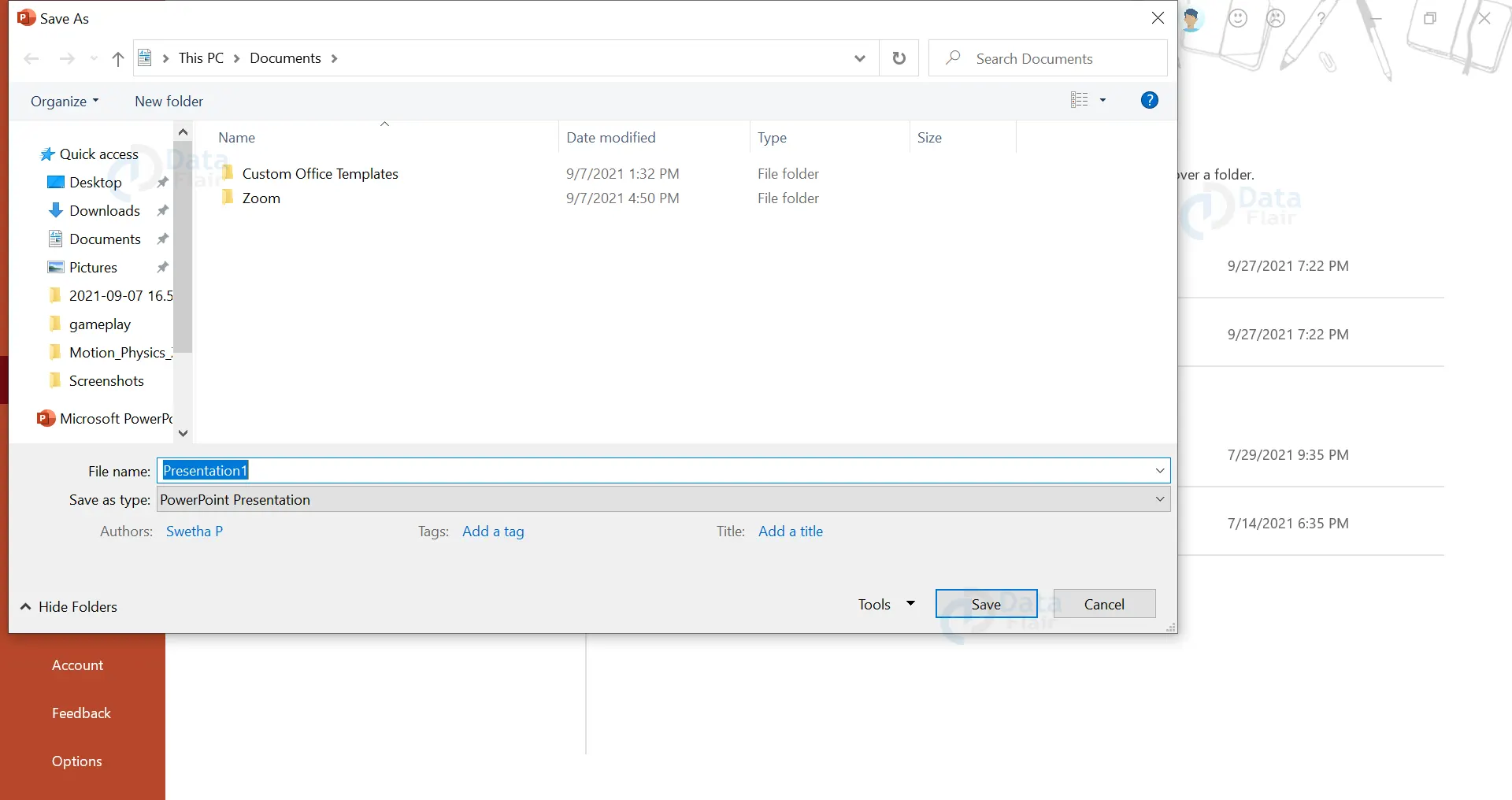
3. Now click on File and then Save As. Then click on Browse. This will open up a dialogue box as shown:
4. Then, in the drop down beside the option “Save as type:” choose PowerPoint template.
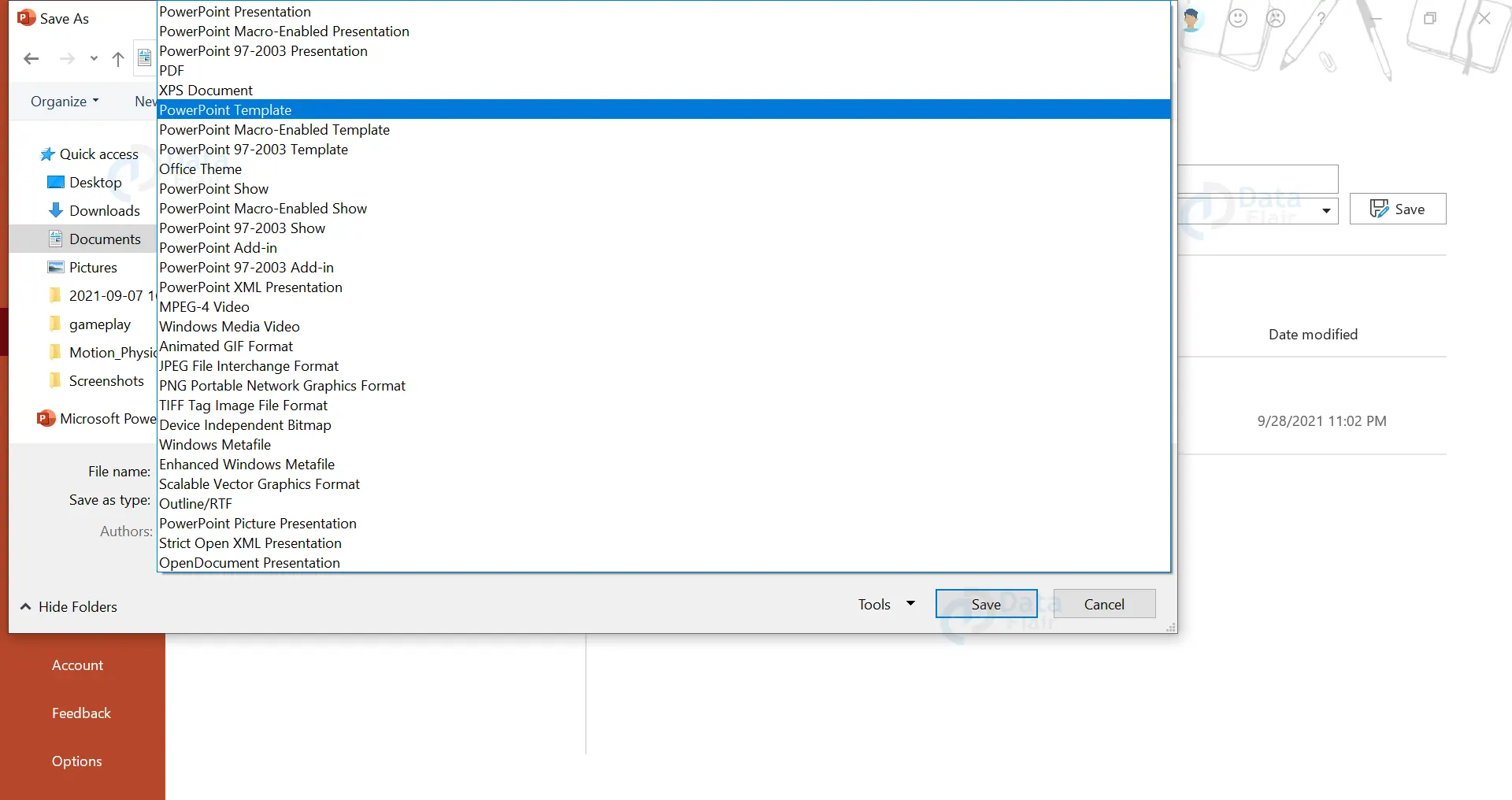
5. Modify the name if required and click Save.
Now that we know how to save a design template, let us explore how to utilise a saved template.
1. Open the File menu, click on New.
2. In the right side of the window, click on the Personal tab. You will be able to find the saved template in the tab. Click on it to apply to a new presentation.
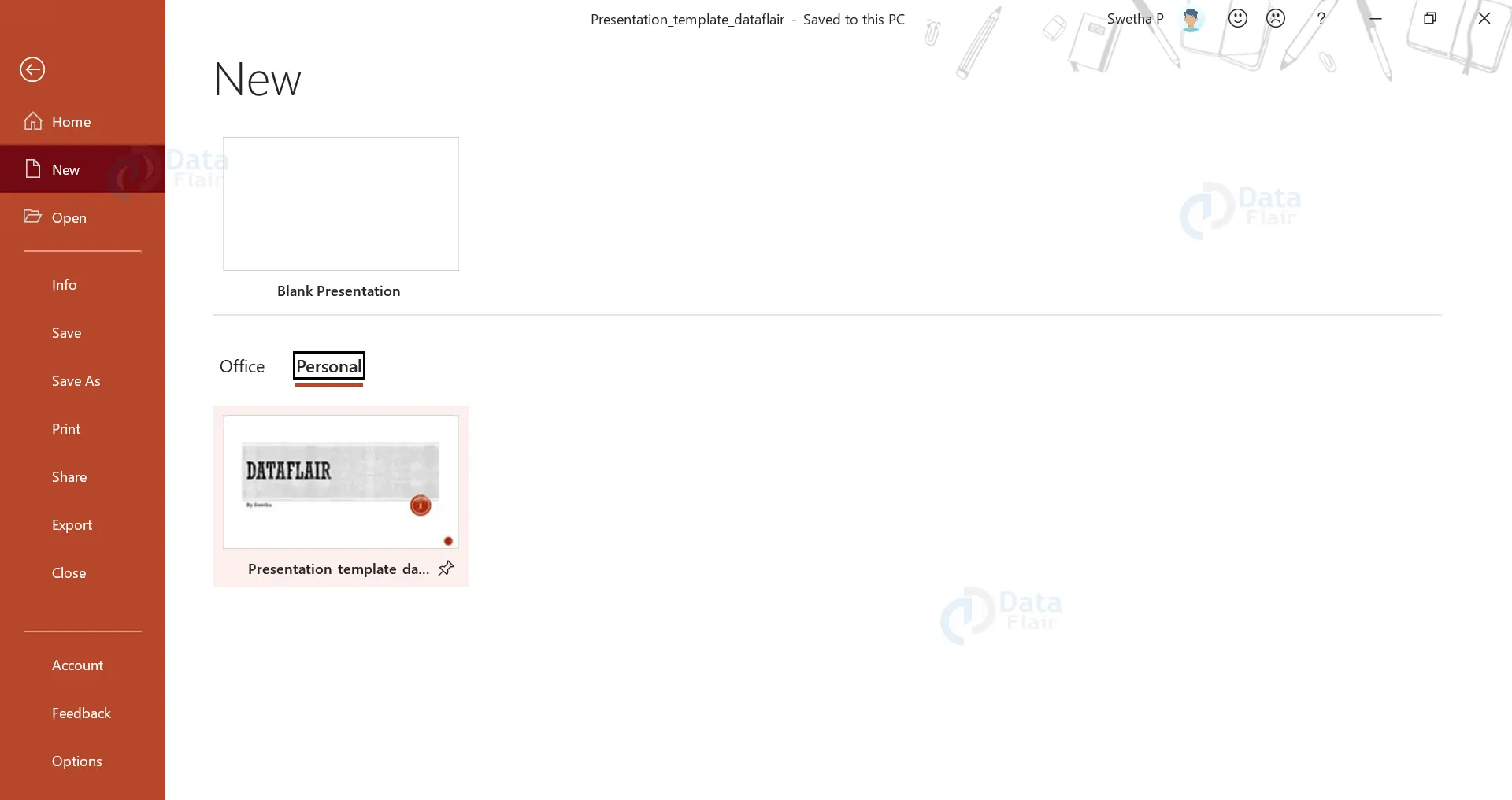
3. In the dialog box that appears following clicking the template, click on the Create button.
Summary
And voila! You have successfully learned how to create and use a design template. It might seem a bit complex at first, but as you start using the feature, you will learn to navigate around quite quickly.
If you are Happy with DataFlair, do not forget to make us happy with your positive feedback on Google





