
CSS Line Height Property
Full Stack Web Development Courses with Real-time projects Start Now!!
Line height is a CSS property that is used to control the amount of space between lines of text. It is used to set the height of a line. It is an important part of the typography and the overall aesthetic of the website. This property can be set using normal, numbers, percentages, value, length, initial, and inherit. We cannot use negative values for line-height property.
Browser Support
Browser support is necessary as only then the property properly works. If it is not supported, even if we have used it, it will not appear on the website. Today, this property is almost supported by all major browsers on the internet now. These are the first versions of the browsers that supported this line-height property completely.
- Google Chrome 1.0
- Microsoft Edge 4.0
- Mozilla Firefox 1.0
- Apple Safari 1.0
- Opera Mini 7.0
Values of Line-height property:
Line Height property can take a total of 6 values, here I will explain all of them with their proper application in the code. All of them are useful and are used according to the need and requirements. Here is the list of the 6 values.
Basic Syntax: of Line Height
line-height: normal | percentage | number | length | initial | inherit;
1. Normal
line-height:normal;
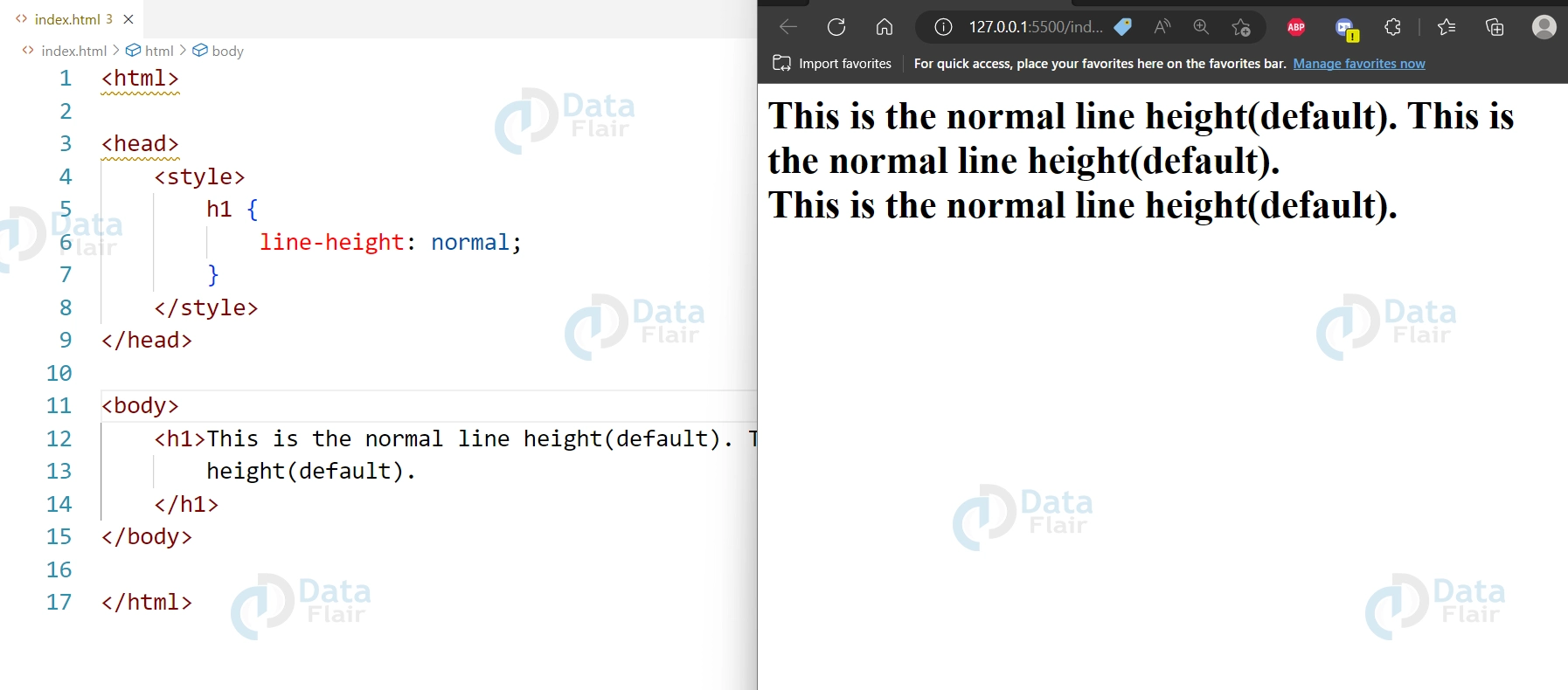
This is the by-default value. It is the normal line height for most browsers. It is based on font size.
Example:
<html>
<head>
 <style>
    h1{
        line-height: normal;
    }
  </style>
</head>
<body>
    <h1>This is the normal line height(default). This is the normal line height(default). <br>This is the normal line height(default).
  </h1>
</body>
</html>
Output:
2. Percentage (%)
line-height: percentage;
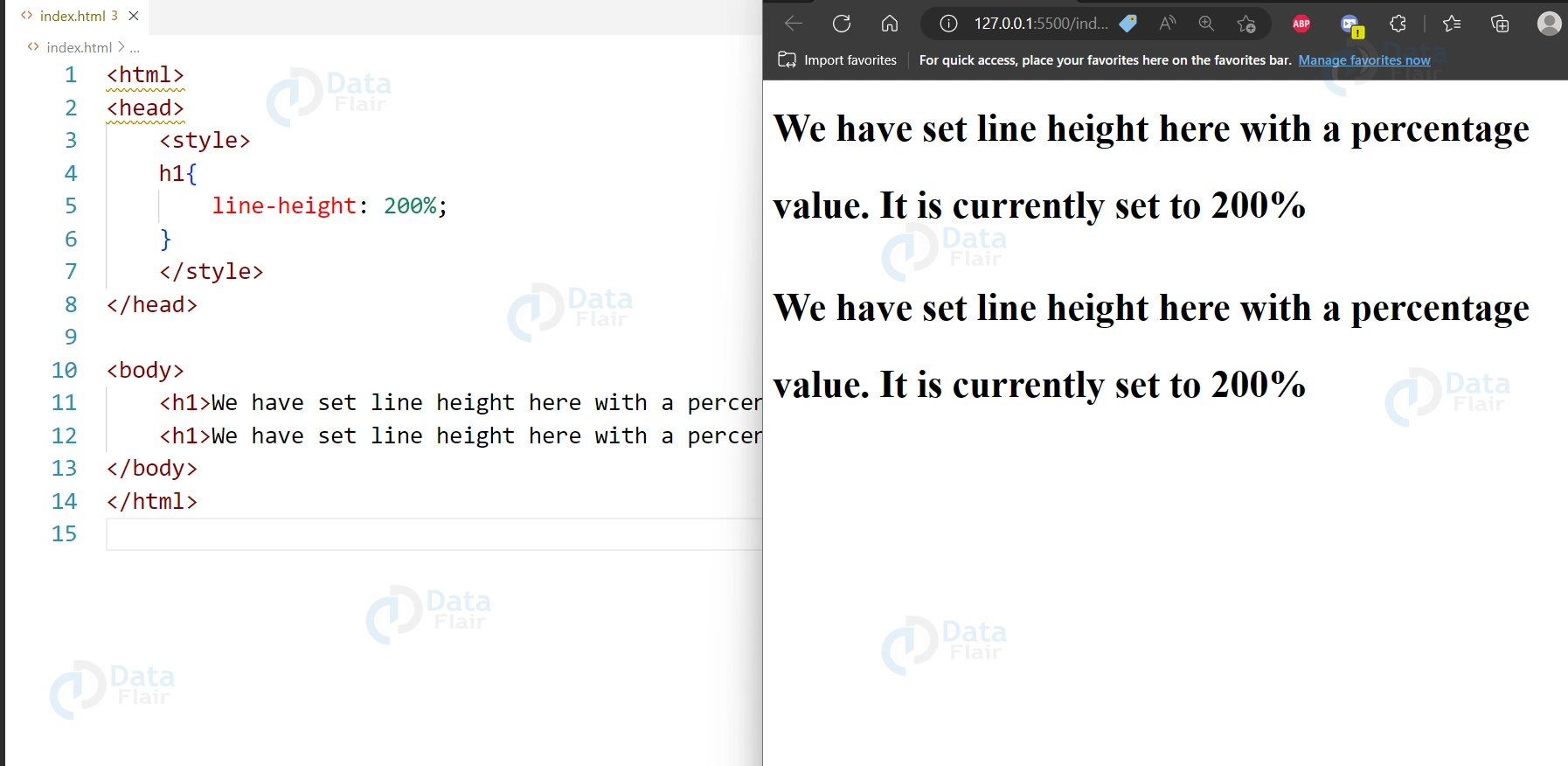
Here we have used a percentage value to set the line height. This is a flexible way to set the line height as it is dependent upon the font size of the text. For example, if the font size is 16px and the line height is set to 200%, the resulting line height will be 32px ( as 16px x 200% = 32px) It is used for creating responsive designs as it automatically adjusts based on the font size.
Example:
<html>
<head>
    <style>
    h1{
        line-height: 200%;
    }
    </style>
</head>

<body>
    <h1>We have set line height here with a percentage value. It is currently set to 200%</h1>
    <h1>We have set line height here with a percentage value. It is currently set to 200%</h1>
</body>
</html>
Output:
3. CSS Line Height Number
line-height: number;
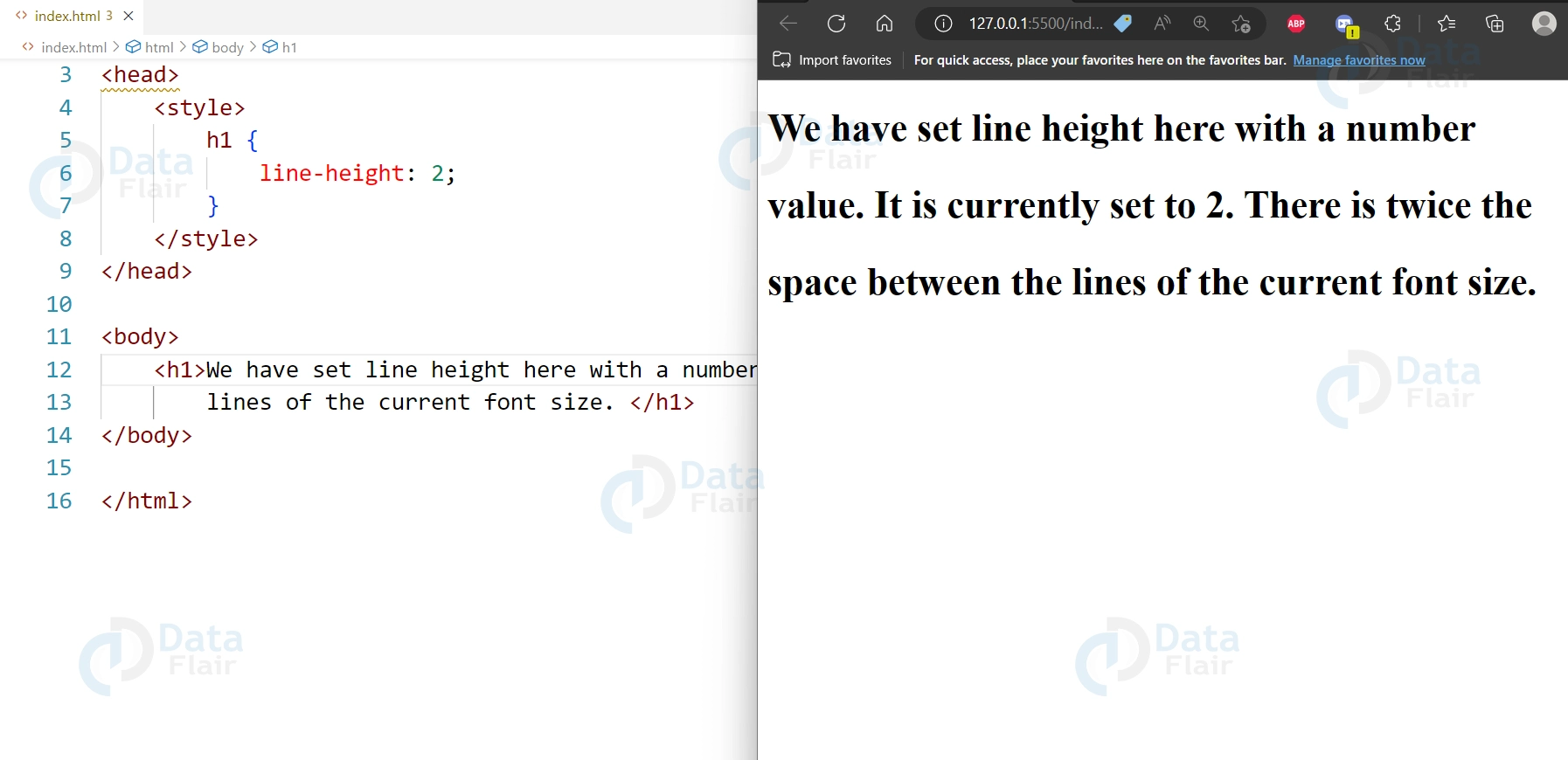
It is a common way to set the line height of the element. The number value represents a multiplier of the current font size. For example, if the line height is set to 2, it means that the current font size, lets say 16px will be multiplied by 2, and the resulting, 32px (16px x 2 = 32px ) will be used to set the line height.
There will be twice the space between the lines of the current font size.
Example:
<html>
<head>
    <style>
    h1{
        line-height: 2;
    }
    </style>
</head>
<body>
    <h1>We have set line height here with a number value. It is currently set to 2. There is twice the space between the lines of the current font size. </h1>
</body>
</html>
Output:
4. Line Height Length
line-height: length;
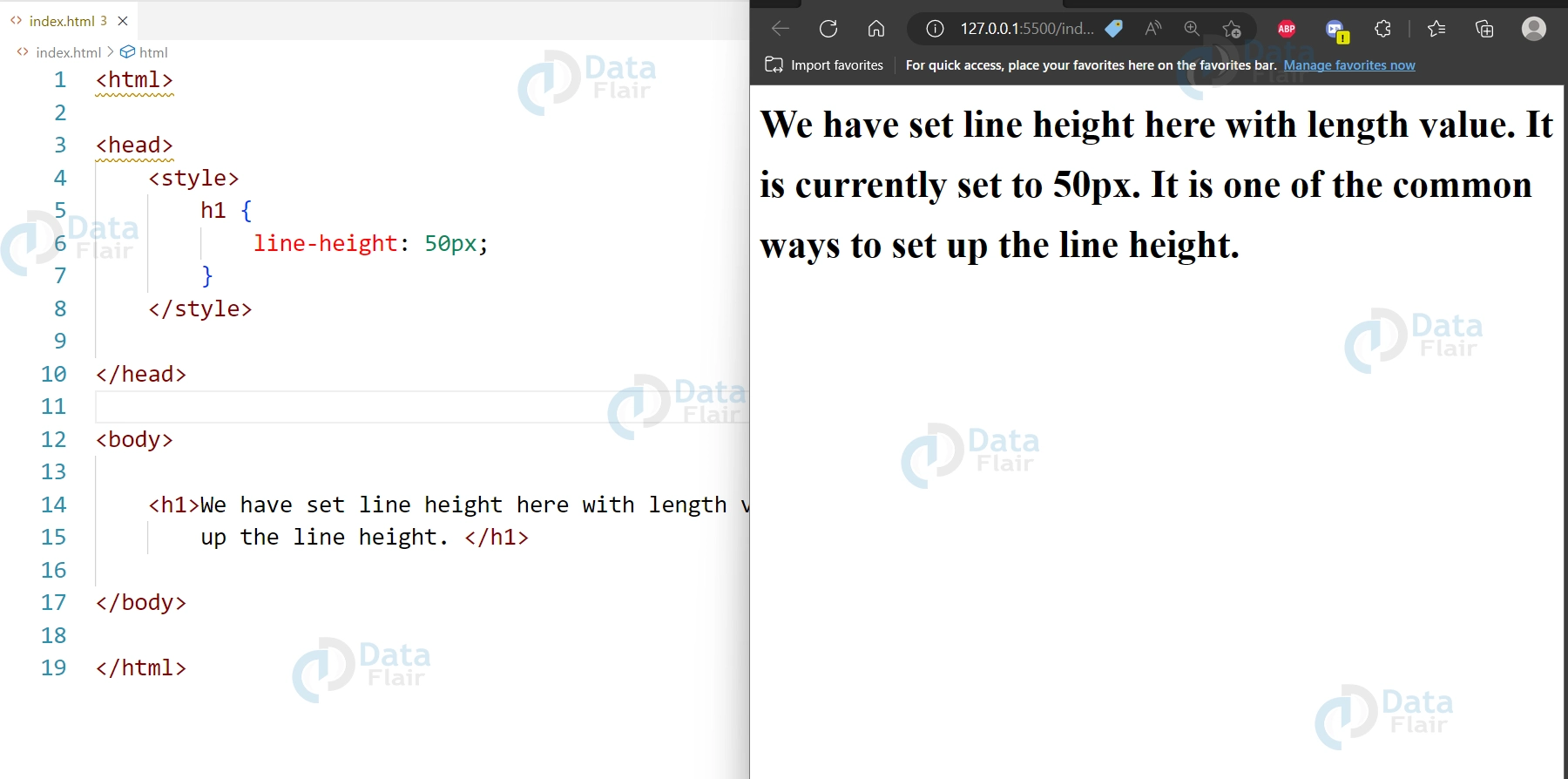
One of the other ways to set up the line height is to use a length value that is pixel (px), points (pt) value or (cm) value. It is a precise way to set a specific amount of space between the lines, but it is difficult to achieve consistency across different screens and resolutions as the absolute size of the text may depend upon the screen resolution.
Example:
<html>
<head>
  <style>

    h1{
        line-height: 50px;
    }
    </style>

</head>

<body>

    <h1>We have set line height here with length value. It is currently set to 50px. It is one of the common ways to set up the line height. </h1>

</body>
</html>
Output:
5. Inherit
line-height: inherit;
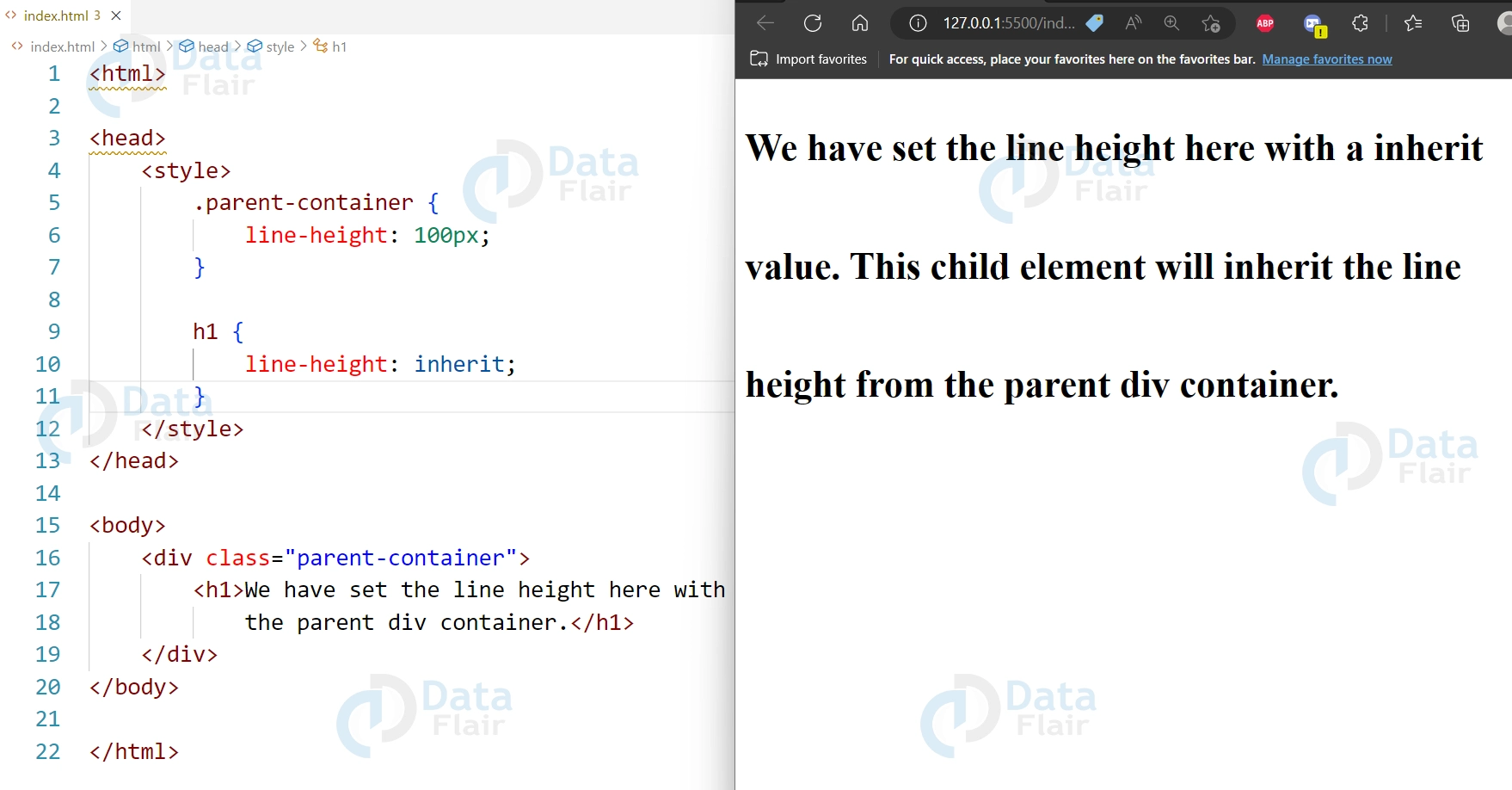
If we set the line height to inherit, it will inherit the value from its parent element. For example, if the parent element has the line height of 40px, then the child element whose line height has been set up to inherit value will take the same value of 40px.
Example:
<html>
<head>
  <style>
   .parent-container{
     line-height:100px;
   }

  h1{
   line-height: inherit;
  }
  </style>
</head>
<body>
  <div class="parent-container">
 <h1>We have set the line height here with a inherit value. This child element will inherit the line height from the parent div container.</h1>
  </div>
</body>
</html>
Output:
6. Initial
line-height:initial;
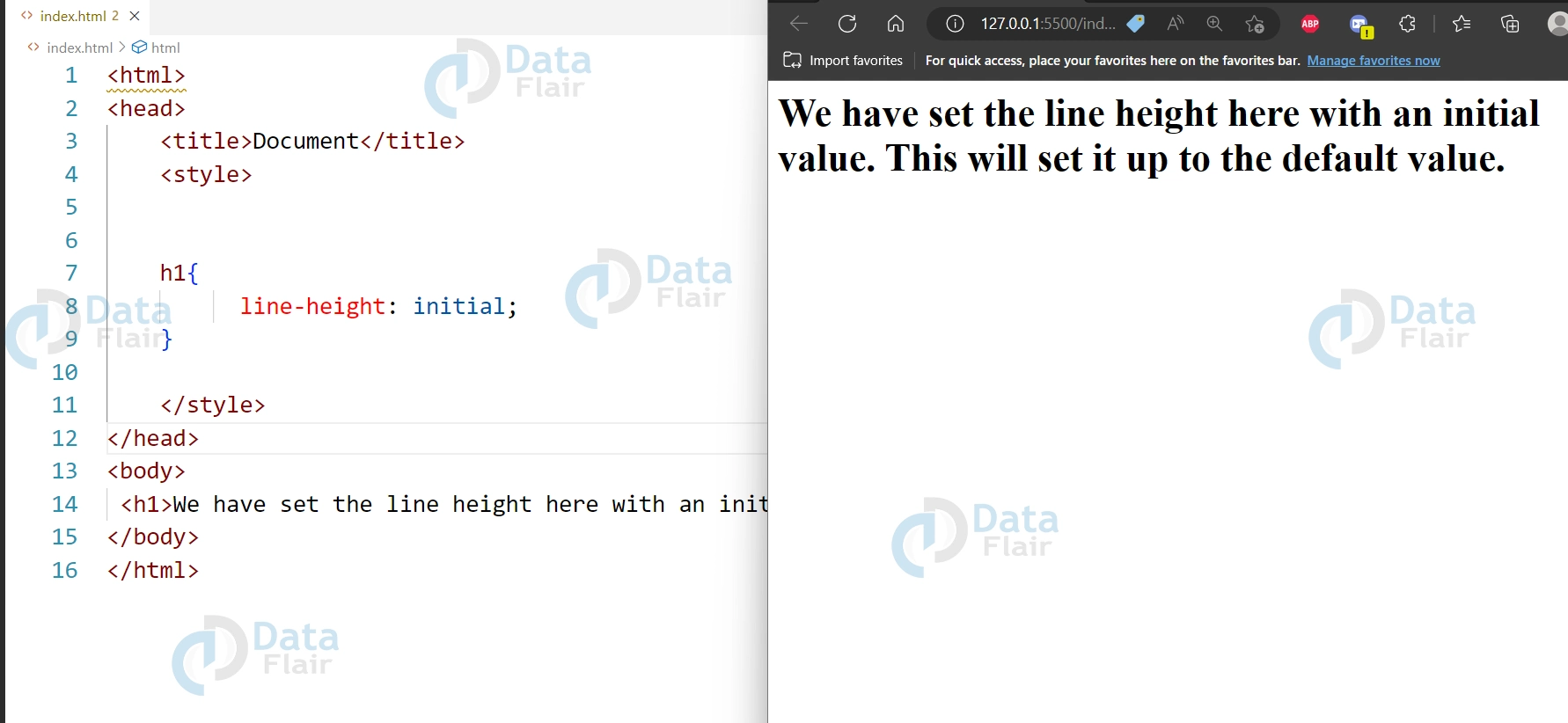
This initial value will set the line height to the initial default value.
Example:
<html>
<head>
    <title>Document</title>
    <style>


    h1{
          line-height: initial;
    }

    </style>
</head>
<body>
 <h1>We have set the line height here with an initial value. This will set it up to the default value.</h1>
</body>
</html>
Output:
Line height is one of the most basic principles in Web design that significantly affects the legibility and aesthetic of textual information. This choice affects the comfort of reading and brings additional visual work to the overall appearance of the web page depending on the distance between lines. Choosing the right line height depends on a font size and type to make the text look legible and the design to be coherent.
Besides increasing readability, correct kernel spacing also plays a role in the accessibility of a site. Children and people with hearing impairments or dyslexia value spaced lines as they can follow through with what is written easily. Therefore, prior to evaluating the line space based on face values it can be equally important to take under consideration the usability of the webpage for a wide range of users.
Conclusion:
Line Height is an important part of typography. It helps to make the website more professional and aesthetically designed. It is also important to take care of accessibility and make the website more elegant.
Did you like this article? If Yes, please give DataFlair 5 Stars on Google





