React Time Picker
Expert-led Courses: Transform Your Career – Enroll Now
A time picker is a common user interface component that allows users to select a specific time of day. In this article, we’ll explore how to create a time picker component in React.
Setting Up the React Application
To get started, we’ll create a new React application using create-react-app. If you already have a React application, you can skip this step.
npx create-react-app time-picker-example
cd time-picker-example
Next, we’ll install the react-time-picker package:
npm install react-time-picker
Creating React Time Picker Component
Now that we have our React application setup and the react-time-picker package installed, let’s create a time picker component.
We’ll start by creating a new file called TimePicker.js in the src folder. This file will contain our TimePicker component.
import React, { useState } from 'react';
import TimePicker from 'react-time-picker';

function TimePickerComponent() {
const [time, setTime] = useState('10:00');

const handleChange = (newTime) => {
setTime(newTime);
};

return (
<div>
<h1>Selected Time: {time}</h1>
<TimePicker
onChange={handleChange}
value={time}
/>
</div>
);
}
export default TimePickerComponent;
Let’s break down this code:
- We import React and useState from the react package and the TimePicker component from the react-time-picker package.
- Next, we define a new functional component called TimePickerComponent.
- Then we use the useState hook to define a new state variable called time and a setter function called setTime. We initialize the state variable to 10:00.
- We define a new function called handleChange that updates the time state variable when the user selects a new time.
- Then we render a div that displays the currently selected time.
- We render a TimePicker component and pass in the handleChange function and the current time value as props.
Using the Time Picker Component
To use the TimePicker component in our application, we’ll update the App.js file to render our TimePickerComponent.
import React from 'react';
import TimePickerComponent from './TimePicker';

function App() {
return (
<div>
<TimePickerComponent />
</div>
);
}

export default App;
Let’s break down this code:
- We import React and our TimePickerComponent from ./TimePicker.
- We define a new functional component called App.
- Then We render a div that contains our TimePickerComponent.
Running the Application
To run the application, we can use the npm start command:
npm start
If everything is set up correctly, you should see a time picker component in your browser that allows you to select a specific time of day.
Types of Time Picker in React
There are several types of time pickers, each with its own set of features and advantages. In this writeup, we will discuss some of the most common types of time pickers.
1. Analog Time Picker:
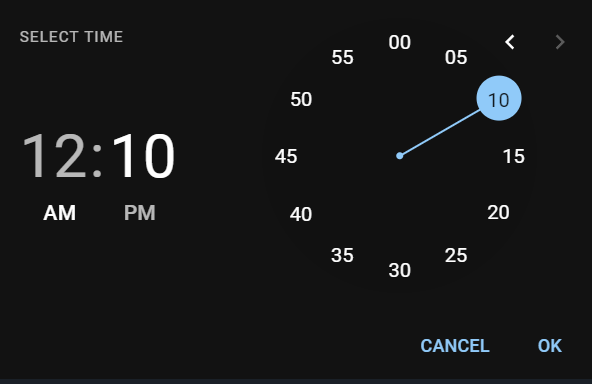
Analog time pickers display a clock face with hands that users can drag to set the time. This type of time picker is visually appealing and easy to use, but may not be as precise as other types of time pickers. Analog time pickers are often used in mobile applications and websites.
2. Digital Time Picker:
Digital time pickers display the time in a digital format, such as 24-hour or 12-hour clock. Users can change the time by clicking on the numbers or using arrow buttons. Digital time pickers are precise and easy to use, but may not be as visually appealing as other types of time pickers.
Output:
3. Incremental Time Picker:
Incremental time pickers allow users to adjust the time in small increments, such as 5 or 15 minutes. This type of time picker is useful when users need to select a time that is close to a specific value, but not necessarily exact. Incremental time pickers are often used in scheduling and calendar applications.
4. Range Time Picker:
Range time pickers allow users to select a time range, such as a start time and end time. This type of time picker is useful when users need to schedule appointments or events that have a duration. Range time pickers can be combined with other types of time pickers, such as digital or incremental time pickers.
5. Timezone Picker:
Timezone pickers allow users to select a timezone for the time value. This type of time picker is useful when users need to work with time values across different time zones, such as in international scheduling or remote collaboration. Timezone pickers can be combined with other types of time pickers, such as digital or range time pickers.
Output:

Conclusion
In this article, we explored how to create a time picker component in React using the react-time-picker package. We used the useState hook to manage the state of the selected time and passed a handler function to the onChange prop.
If you are Happy with DataFlair, do not forget to make us happy with your positive feedback on Google