
CSS Vertical Align Property
Full Stack Web Development Courses with Real-time projects Start Now!!
Vertical alignment is an essential aspect of web design that can make or break the visual appeal and user experience of a website. CSS provides various methods to align elements vertically, including flexbox, grid, and table display. In this article, we’ll explore the different techniques for CSS vertical alignment and provide practical examples.
Understanding CSS Vertical Align Property
The vertical-align property is used to align inline-level elements, such as text and images, within their parent element’s line box. By default, the property aligns the baseline of the element with the baseline of the parent element. However, it can be adjusted using different values, such as top, bottom, middle, text-top, text-bottom, and super.
Using Flexbox for CSS Vertical Alignment
Flexbox is a powerful CSS layout module that allows designers to create flexible and responsive layouts. It also provides an easy way to vertically align elements using the align-items property. Here’s an example of using flexbox for vertical alignment:
HTML
<div class="container">
  <div class="box">Box 1</div>
  <div class="box">Box 2</div>
  <div class="box">Box 3</div>
</div>
CSS
.container {
  display: flex;
  align-items: center;
  justify-content: center;
  height: 300px;
}

.box {
  width: 100px;
  height: 100px;
  background-color: #333;
  color: #fff;
  text-align: center;
  font-size: 24px;
  margin: 10px;
}
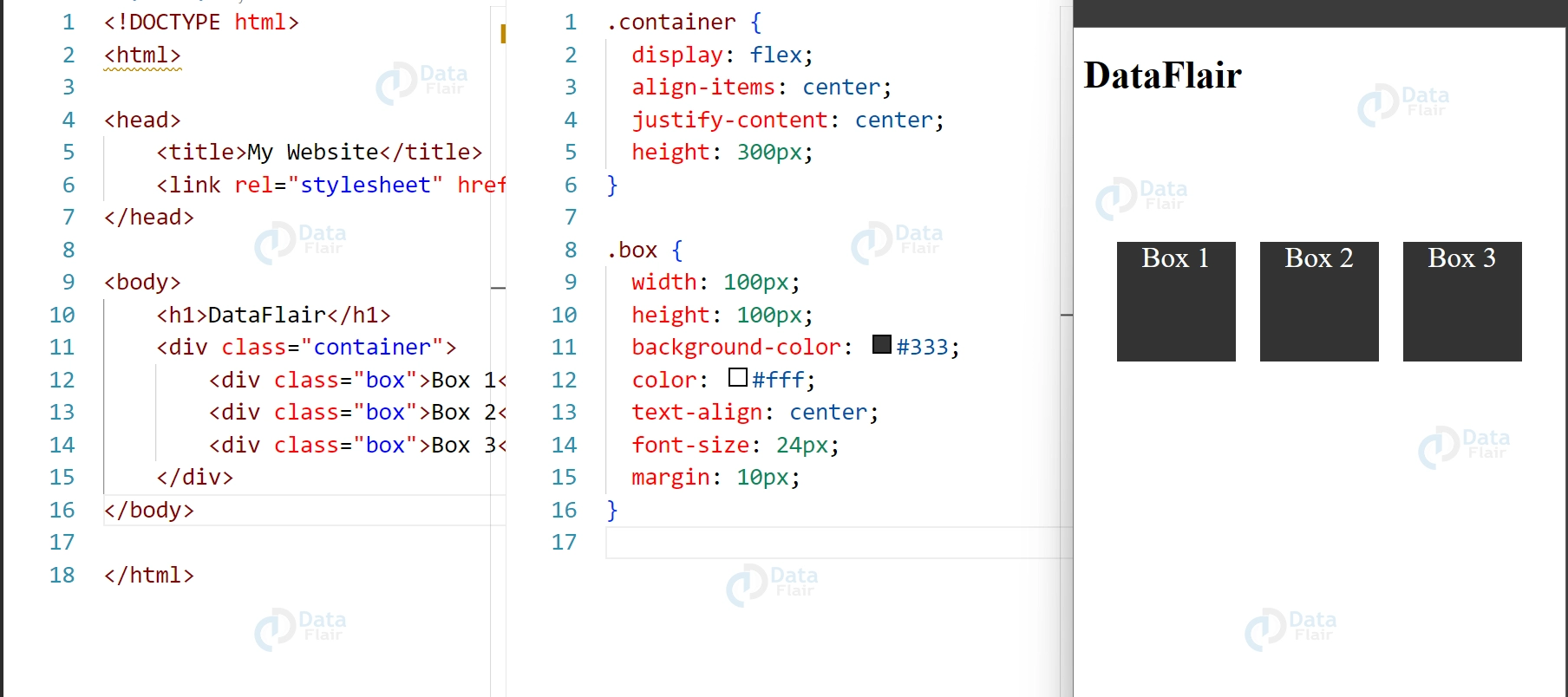
In the above example, we create a flex container with display: flex and set the align-items property to center to vertically align the child elements. We also set the justify-content property to center to horizontally center the child elements.
Output
Using Grid for CSS Vertical Alignment
CSS grid is another powerful layout module that enables designers to create complex and responsive layouts. It also provides a way to vertically align elements using the align-self property. Here’s an example of using grid for vertical alignment:
HTML
<div class="container">
  <div class="box">Box 1</div>
  <div class="box">Box 2</div>
  <div class="box">Box 3</div>
</div>
CSS
.container {
  display: grid;
  grid-template-columns: repeat(3, 1fr);
  grid-template-rows: 1fr;
  height: 300px;
}

.box {
  width: 100px;
  height: 100px;
  background-color: #333;
  color: #fff;
  text-align: center;
  font-size: 24px;
  margin: 10px;
  align-self: center;
}
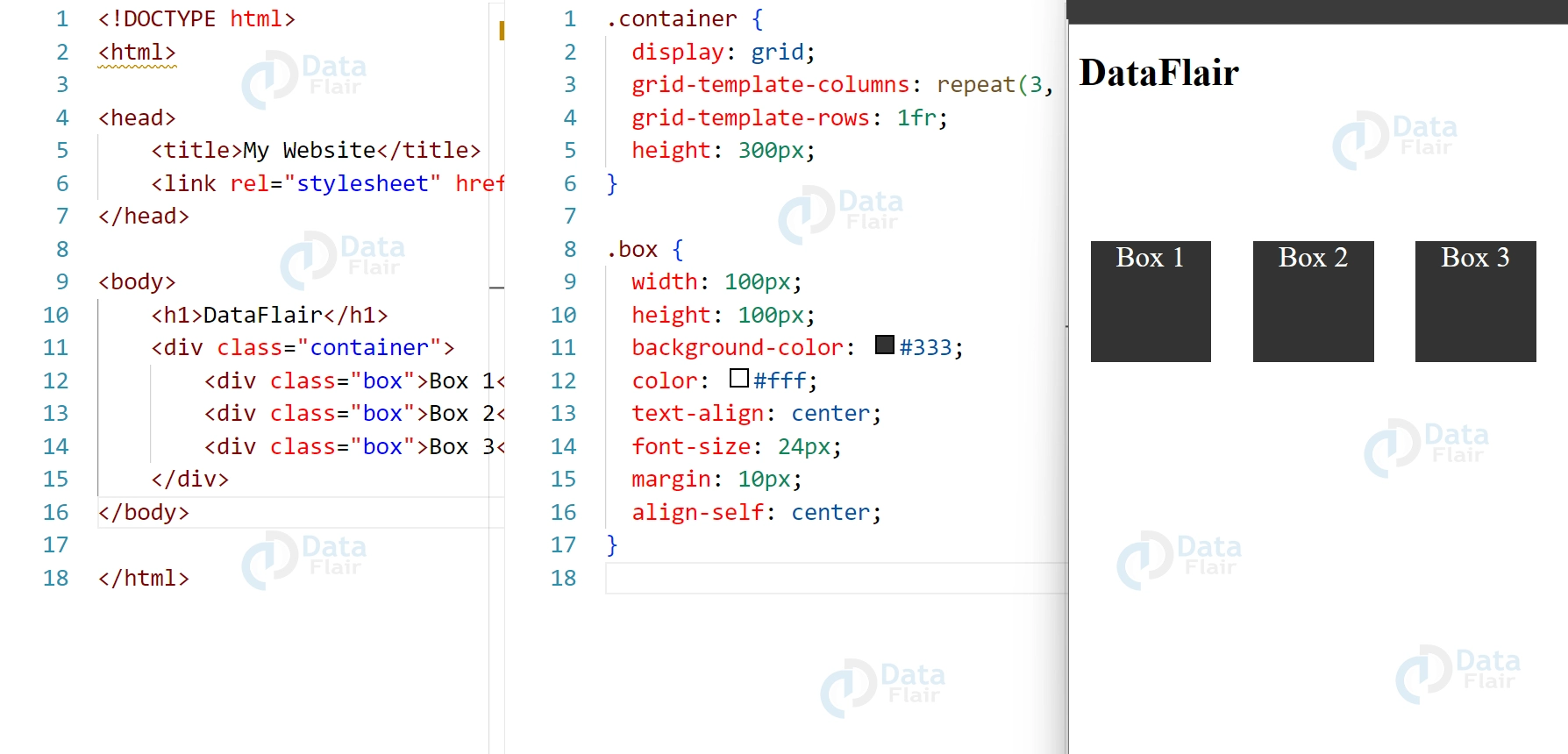
In the above example, we create a grid container with display: grid and set the grid-template-columns property to create three equal columns. We also set the grid-template-rows property to 1fr to create a single row. Finally, we set the align-self property to center on the child elements to vertically align them within the row.
Output
Using Table Display for CSS Vertical Alignment
CSS table display is a legacy layout module that mimics the behavior of HTML tables. It also provides a way to vertically align elements using the vertical-align property. Here’s an example of using table display for vertical alignment:
HTML
<div class="table">
  <div class="cell">Cell 1</div>
  <div class="cell">Cell 2</div>
  <div class="cell">Cell 3</div>
</div>
CSS
.table {
  display: table;
  height: 300px;
}

.cell {
  display: table-cell;
  vertical-align: middle;
  width: 100px;
  height: 100px;
  background-color: #333;
  color: #fff;
  text-align: center;
  font-size: 24px;
  margin: 10px;
}
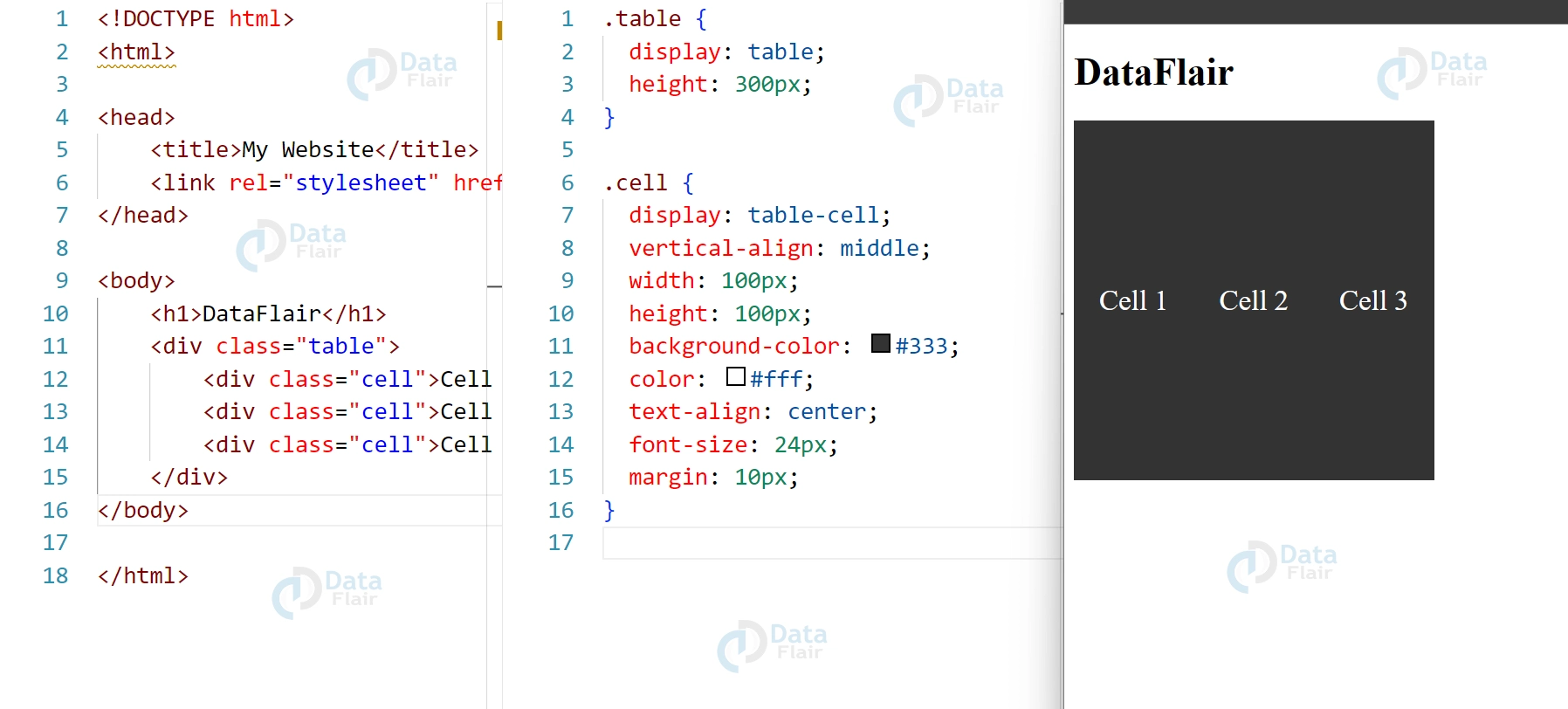
In the above example, we create a div element with the display: table property to simulate an HTML table. We then create child elements with display: table-cell to mimic table cells. Finally, we set the vertical-align property to middle on the child elements to vertically align them within the parent element.
Output
Here are some additional tips and best practices for CSS vertical alignment:
1. Use appropriate HTML structure
Using appropriate HTML structure can make it easier to apply vertical alignment to elements. For example, using ul and li elements for navigation menus makes it easier to align the menu items vertically using CSS.
2. Avoid using line-height for vertical alignment
While it’s possible to use line-height for vertical alignment, it’s not the most effective method. It can also cause problems with text wrapping and spacing. Instead, use the techniques described in this article for better and more consistent results.
3. Use fallbacks for older browsers
Not all older browsers support modern CSS techniques like flexbox and grid. To ensure that your website looks good on all browsers, use fallbacks like table display or JavaScript polyfills to achieve vertical alignment.
4. Test your design on different devices and screen sizes
Vertical alignment can behave differently on different devices and screen sizes. Make sure to test your design on various devices and screen sizes to ensure that your vertical alignment is consistent and works well across all devices.
5. Don’t overuse vertical alignment
While vertical alignment is an essential aspect of web design, it’s essential to use it sparingly and appropriately. Overusing vertical alignment can make your design look cluttered and confusing, and can even harm user experience. Use vertical alignment only when necessary to improve the visual hierarchy and readability of your design.
To ensure that the layout does not lose consistency when opened in different browsers or other devices, one needs to exercise a lot of tests. This involves verifying how different elements lie on the page on mobiles, tablets, and desktop screens. Also, it is valuable to pay attention to what people actually say to find out if there are any alignment problems that can have fallen through the cracks.
By familiarizing yourself with the rules of vertical alignment you will be able to improve the aesthetic appeal and functionality of your Web pages. It is not only about aesthetics, but it often involves enhancing the readability and general usability of an object. These techniques help designers to design the layouts that are refined and appear professional.
By following these tips and best practices, you can ensure that your vertical alignment is effective, consistent, and works well across all devices and screen sizes.
CSS Vertical Align Values
The vertical-align property in CSS controls the vertical alignment of inline and table-cell elements. It is a commonly used property in web design for aligning text, images, and other elements within a container.
Here are some of the property values for vertical-align and their descriptions:
- baseline: Aligns the element with the baseline of the parent element’s font.
- bottom: Aligns the element with the bottom of the parent element.
- top: Aligns the element with the top of the parent element.
- middle: Aligns the element with the middle of the parent element.
- initial: Sets the property to its default value.
- length: Aligns the element with a specified length value, such as “10px” or “2em”.
Here are some examples of how these values can affect the alignment of elements:
//DataFlair
<div style="height: 100px; background-color: lightgray;">
  <span style="vertical-align: baseline;">Baseline</span>
  <span style="vertical-align: bottom;">Bottom</span>
  <span style="vertical-align: top;">Top</span>
  <span style="vertical-align: middle;">Middle</span>
</div>
Conclusion
We can say that CSS provides various techniques for vertical alignment, including flexbox, grid, and table display. Each technique has its strengths and weaknesses, and designers should choose the one that best suits their needs. By mastering CSS vertical alignment, designers can create visually appealing and user-friendly websites that leave a lasting impression on their audience.
Did you like this article? If Yes, please give DataFlair 5 Stars on Google





