


We offer you a brighter future with industry-ready online courses - Start Now!!
In this Tableau tutorial, we are going to study the custom background image in Tableau and how they are useful. So, let us start Custom Background Image in Tableau.
Custom Background Image in Tableau
It is possible to use custom background Image in Tableau. This is useful when we are visualizing data that can be mapped onto a custom image, such as a floor plan or points of interest in a specific venue or conference.
Read about Tableau Branding – Customizing Shapes, Colors, Fonts, And Images
How to Change Tableau Background Image?
These are the following Steps to Customize Background Image in Tableau.
i. While connected to the Custom Image (Eating Sushi)… data source, create a new worksheet.
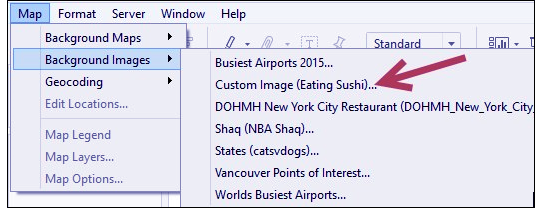
ii. Go to the Map Menu, and under Background Images, click on Custom Image (Eating Sushi)…:
iii. In the Add Background Image window, do the following:
- For File or URL, use the sushionaboard-800px.png image
- X Field, select X and set Left to 0 and Right to 100
- Y Field, select Y and set Bottom to 0 and Top to 100:
Let’s revise Tableau Filter Operations
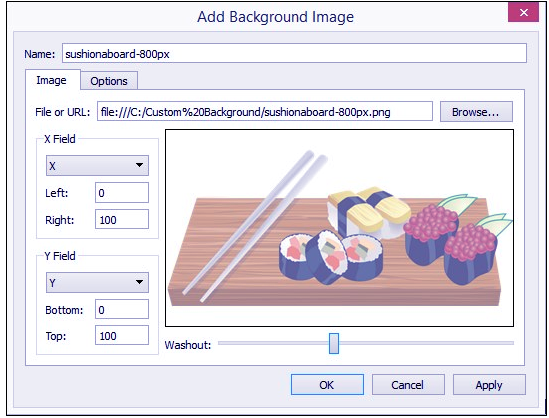
iv. Click OK when done.
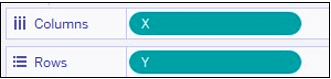
v. Drag X to Columns and Y to Rows.
Read about Tableau Data Sources – Connecting Data to Tableau
vi. Go to the Analysis menu, and uncheck Aggregate Measures. You should notice that only X and Y (not the aggregated format) are in your Columns and Rows shelves, respectively:
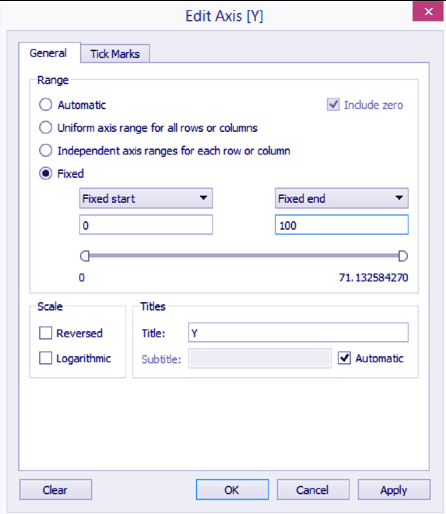
vii. Change the X and Y axes so they are each fixed from 0 to 100. To do this, you can right-click on each of the axes and select Edit Axis:
viii. In the Marks card, change mark to Shape.
Do You Know How to Save, Reorder and Delete Worksheet in Tableau
ix. Click on Shape in the Marks card, and change the Shape Palette to thin arrows. Select a diagonal left-downward pointing thin arrow:
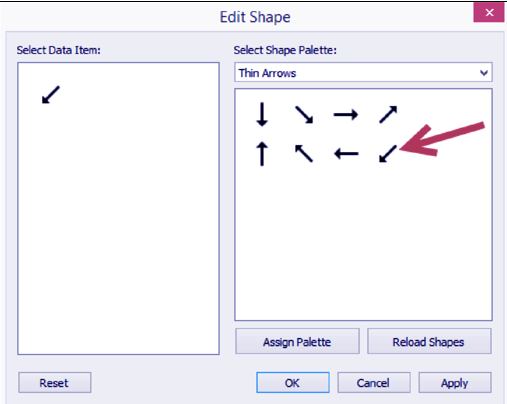
x. Increase the size of the marks so that the arrows appear bigger and more visible. To do this, click on Size in the Marks card, and move the slider a little bit to the right.
xi. From Dimensions, drag Name and Description to Label. Format the label so that Name is in bold font, and is bigger than Description.
Let’s Explore Tableau LOD – Level of Detail Expression
Conclusion
Hence, in this Tutorial, we studied what is a custom background image in Tableau and how to change it with proper steps and illustrations. Furthermore, if you have any query feel free to ask in a comment section.