


Job-ready Online Courses: Knowledge Awaits – Click to Access!
Welcome to this project, where we will build a Tic-Tac-Toe app using SwiftUI. Tic-Tac-Toe is a classic game that involves two players taking turns to mark X or O on a 3×3 grid. The objective of the game is to get three of your marks in a row, either horizontally, vertically, or diagonally. By following this project, you will learn how to create a fully functional Tic-Tac-Toe game using the Swift programming language and SwiftUI framework.
About Swift Tic-Tac-Toe App
The objective of this project is to build a Tic-Tac-Toe app that allows users to play a tic-tac-toe game. We will implement the game logic and user interface and handle win/draw conditions.
Prerequisites for Tic-Tac-Toe project using Swift
To follow this project, you should have basic knowledge of SwiftUI and the Swift programming language. It is also required to have Xcode installed on your Mac.
Download Swift Tic-Tac-Toe Project
Please download the source code of Swift Tic-Tac-Toe Project from the following link: Swift Tic-Tac-Toe Project Code.
Steps to Create a Tic-Tac-Toe Game Using Swift
Following are the steps for developing the Swift Tic-Tac-Toe app Project:
Step 1: Create a new SwiftUI project in Xcode.
Step 2: Creating the Tic-Tac-Toe View
Step 3: Creating the Tic-Tac-Toe View Model
Step 4: Creating the AlertItem
Step 1: Create a new SwiftUI project in Xcode.
a. Open Xcode and click on the “Create a new Xcode Project” option.

b. Now select the platform as “iOS” and the application type as “App”.

c. Now, Enter the name of the app and organization identifier, and select SwiftUI interface for building the UI of the app. Also, select Swift as a language for creating the app.
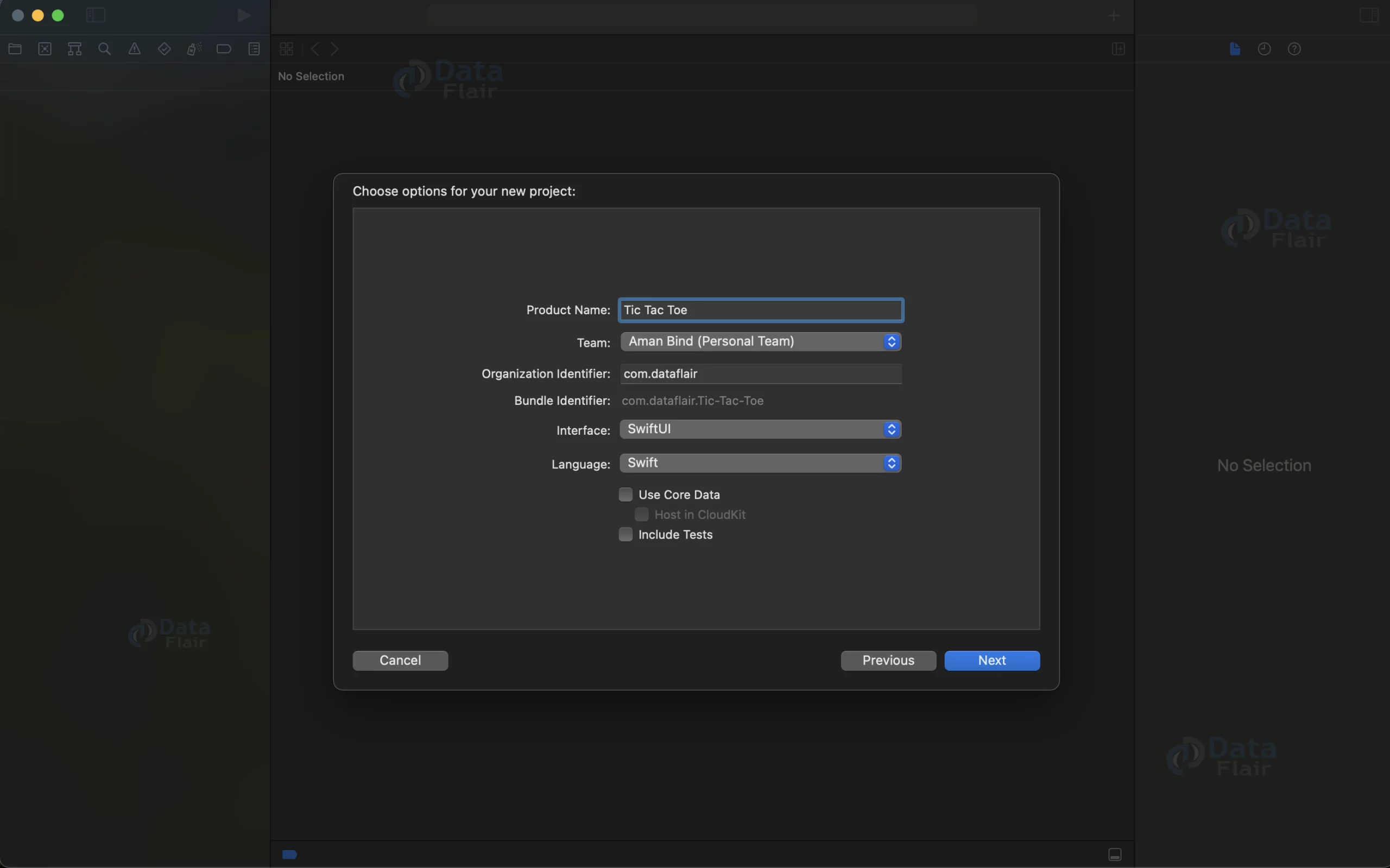
d. Select the folder where you want to save the app and click on Create.
e. Now your project is ready for development, and you will see something like below.

f. Drag and drop the “X” and “O” images in the assets
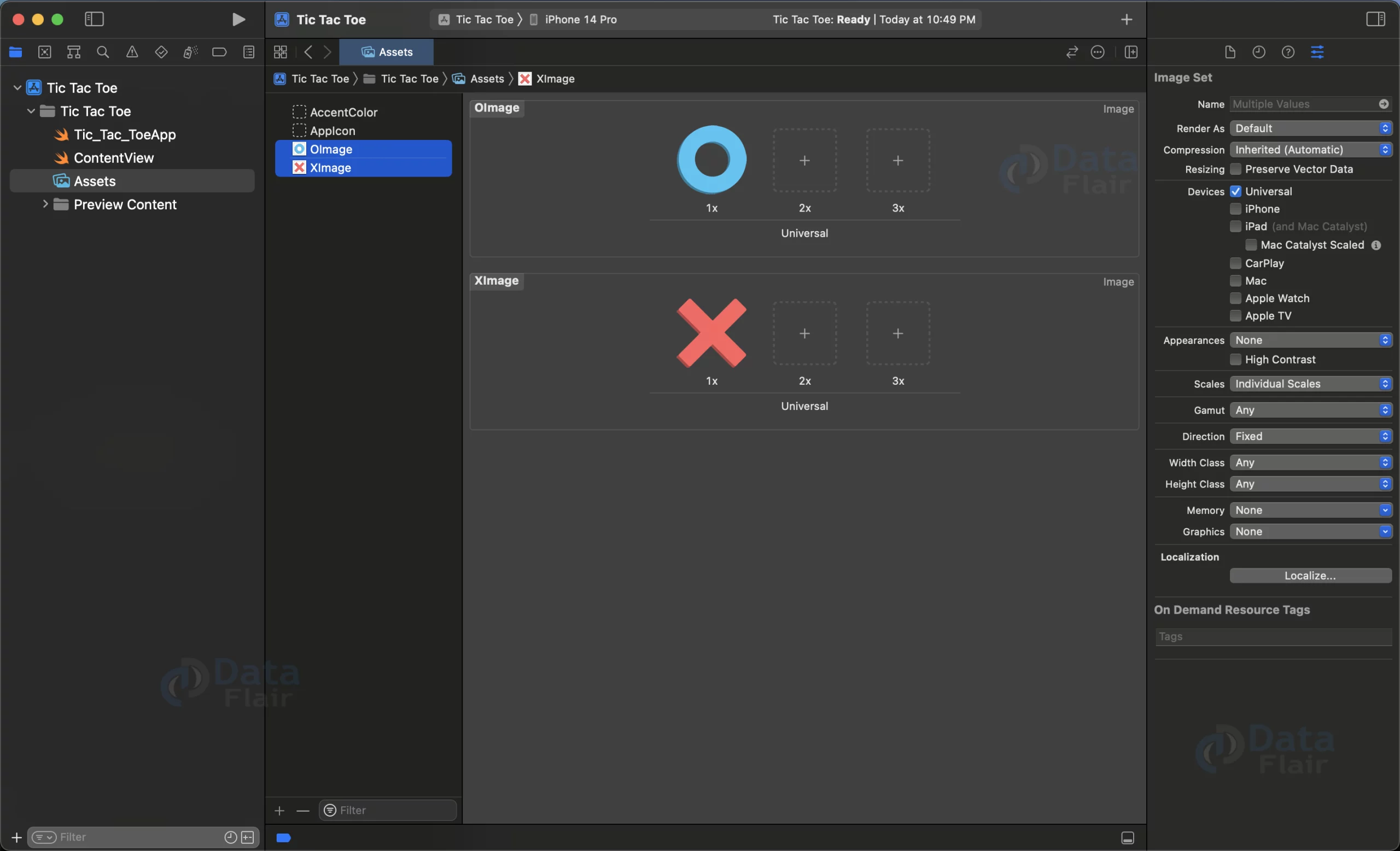
Step 2: Creating the Tic-Tac-Toe View
a.Create a new Swift file named “TicTacToeView.swift”.
b. In the TicTacToeView struct, define the layout of the game board using a LazyVGrid with three flexible columns.
c. Create an array of optional values representing the moves made by both players.
d. Create a ZStack for each square on the game board, overlaying a blue background rectangle and a white foreground rectangle.
e. Display an X or O image if the square has been filled.
f. Add an onTapGesture to each square to handle the player’s move.
g. Add space at the top and bottom of the game board using Spacer.
h. Disable the game board and display an alert if a win or draw has been detected.
i. Add padding to the game board.
j. Implement the TicTacToeView_Previews struct for previewing the view.
import SwiftUI
struct TicTacToeView: View {
    // Create an instance of the GameViewModel as a state object
    @StateObject private var viewModel = TicTacToeViewModel()
    // Create image views for the X and O symbols
    let xImage = Image("XImage")
    let oImage = Image("OImage")

    var body: some View {
        GeometryReader { geometry in
            VStack {
                // Add space at the top
                Spacer()
                // Create a grid of squares for the game board
                LazyVGrid(columns: viewModel.columns, spacing: 5) {
                    ForEach(0..<9) { i in
                        // Create a ZStack to overlay rectangles and images
                        ZStack {
                            // Create a blue rectangle as the background for the square
                            Rectangle()
                                .foregroundColor(.blue).opacity(0.9)
                                .frame(width: geometry.size.width/3 - 15,
                                       height: geometry.size.width/3 - 15)
                                .cornerRadius(15)
                            // Create a white rectangle as the foreground for the square
                            Rectangle()
                                .foregroundColor(.white)
                                .frame(width: geometry.size.width/3-30,
                                       height: geometry.size.width/3-30)
                                .cornerRadius(10)

                            // Display an X or O image if the square has been filled
                            if let move = viewModel.moves[i] {
                                if move.player == .human {
                                    xImage
                                        .resizable()
                                        .frame(width: 50, height: 50)
                                        .foregroundColor(.black)
                                } else {
                                    oImage
                                        .resizable()
                                        .frame(width: 50, height: 50)
                                        .foregroundColor(.black)
                                }
                            }
                        }
                        // When the square is tapped, call the function to process the move
                        .onTapGesture {
                            viewModel.processPlayerMove(for: i)
                        }
                    }
                    // Add space at the bottom
                    Spacer()
                }
                // Disable the game board if a win or draw has been detected
                .disabled(viewModel.isGameBoardDisabled)
                // Add padding to the game board
                .padding()
                // Show an alert if a win or draw has been detected
                .alert(item: $viewModel.alertItem) { alertItem in
                    Alert(title: alertItem.title,
                          message: alertItem.message,
                          dismissButton: .default(alertItem.buttonTitle, action: { viewModel.resetGame() }))
                }
                // Add space at the bottom
                Spacer()
            }
        }
    }
    // Define an enumeration for the players (human or computer)
    enum Player {
        case human, computer
    }

    // Define a struct for a move, including the player and board index
    struct Move {
        let player: Player
        let boarderIndex: Int

        // Provide an indicator for the move (X or O)
        var indicator: String {
            return player == .human ? "xmark" : "circle"
        }
    }

    // Define a preview for the view
    struct TicTacToeView_Previews: PreviewProvider {
        static var previews: some View {
            TicTacToeView()
        }
    }
}
Step 3: Creating the Tic-Tac-Toe View Model
a. Create a new Swift file named “TicTacToeViewModel.swift”.
b. Define the layout of the game board as a grid with three flexible columns.
c. Define properties for moves, isGameBoardDisabled, and alertItem.
d. Implement the processPlayerMove method to handle processing the user’s move.
e. Implement the isSquareOccupied method to check if a square is already occupied.
f. Implement the determineComputerMovePosition method to determine a random unoccupied index for the computer’s move.
g. Implement the checkWinCondition method to check if a player has a winning move.
h. Implement the checkForDraw method to check if the game has ended in a draw.
i. Implement the resetGame method to reset the game board.
import SwiftUI
final class TicTacToeViewModel: ObservableObject {

    // Defines the layout of the game board as a grid with 3 columns.
    let columns : [GridItem] = [GridItem(.flexible()),
                                GridItem(.flexible()),
                                GridItem(.flexible()),]

    // An array of optional values representing the moves made by both players. Nil indicates that the square is not yet occupied.
    @Published var moves:[TicTacToeView.Move?] = Array(repeating: nil, count: 9)

    // A flag indicating if the game board should be disabled to prevent further user interaction.
    @Published var isGameBoardDisabled:Bool = false

    // An optional alert to be displayed to the user in case of a win or draw.
    @Published var alertItem: AlertItem?

    // A method to handle processing the user's move.
    func processPlayerMove(for position:Int) {

        // For human player:
        // If the square is already occupied, do nothing and return.
        if isSquareOccupied(in: moves, forIndex: position) {
            return
        }

        // Update the moves array to reflect the human player's move.
        moves[position] = TicTacToeView.Move(player: .human, boarderIndex: position)

        // Check if the human player has won the game.
        if checkWinCondition(for: .human, in: moves) {
            alertItem = AlertContent.humanWins
            return
        }

        // Check if the game has ended in a draw.
        if checkForDraw(in: moves) {
            alertItem = AlertContent.draw
            return
        }

        // Disable the game board to prevent further user interaction.
        isGameBoardDisabled = true

        // After a delay of 0.5 seconds, allow the computer to make a move.
        DispatchQueue.main.asyncAfter(deadline: .now() + 0.1) { [self] in
            let computerPosition = determineComputerMovePosition(in: moves)
            moves[computerPosition] = TicTacToeView.Move(player:.computer, boarderIndex: computerPosition)
            isGameBoardDisabled = false

            // Check if the computer has won the game.
            if checkWinCondition(for: .computer, in: moves) {
                alertItem = AlertContent.computerWins
                return
            }

            // Check if the game has ended in a draw.
            if checkForDraw(in: moves) {
                alertItem = AlertContent.draw
                return
            }
        }
    }

    // A method to check if a square on the board is already occupied.
    func isSquareOccupied(in moves: [TicTacToeView.Move?], forIndex index: Int) -> Bool {
        // Returns true if the move in the specified index is already occupied, otherwise false
        return moves.contains(where: {$0?.boarderIndex == index})
    }

    func determineComputerMovePosition(in moves:[TicTacToeView.Move?]) -> Int {
        // Determines a random unoccupied index for the computer's move
        let occupiedIndices = Set(moves.compactMap { $0?.boarderIndex })
        let allIndices = Set(0..<9)
        let unoccupiedIndices = allIndices.subtracting(occupiedIndices)
        let randomIndex = unoccupiedIndices.randomElement()!

        return randomIndex
    }

    func checkWinCondition(for player:TicTacToeView.Player, in moves:[TicTacToeView.Move?])->Bool{
        // Checks whether the specified player has a winning move on the game board
        let winPatterns:Set<Set<Int>> = [[0,1,2],
                                         [3,4,5],
                                         [6,7,8],
                                         [0,3,6],
                                         [1,4,7],
                                         [2,5,8],
                                         [0,4,8],
                                         [2,4,6]]
        let playerMoves = moves.compactMap{$0}.filter {$0.player == player}
        let playerPositions = Set(playerMoves.map{$0.boarderIndex})

        for pattern in winPatterns where pattern.isSubset(of: playerPositions){return true}

        return false
    }

    func checkForDraw(in moves:[TicTacToeView.Move?])->Bool{
        // Checks if the game board is full and there is no winner
        return moves.compactMap{$0}.count == 9
    }

    func resetGame() {
        // Resets the game board to its initial state
        moves = Array(repeating: nil, count: 9)
    }

}
Step 4: Creating the AlertItem
a. Create a new Swift file called “Alerts.swift”.
b. Create the AlertItem struct that conforms to the Identifiable protocol.
c. Create static properties for commonly-used alerts, such as humanWins, computerWins, and draw.
import SwiftUI
// AlertItem is a struct that conforms to the Identifiable protocol
struct AlertItem:Identifiable {
    // Each AlertItem has a unique ID
    let id = UUID()

    // The title of the alert, displayed in bold
    var title : Text

    // The message displayed in the alert
    var message : Text

    // The text displayed on the button in the alert
    var buttonTitle : Text
}
// AlertContent is a struct that holds static properties for commonly-used alerts
struct AlertContent {


    static let humanWins = AlertItem(title: Text("YOU WIN!"),
                                     message: Text("You have beaten your phone"),
                                     buttonTitle: Text("Rematch"))

    static let computerWins  = AlertItem(title: Text("YOU LOST!"),
                                         message: Text("Your phone has beaten you"),
                                         buttonTitle: Text("Rematch"))

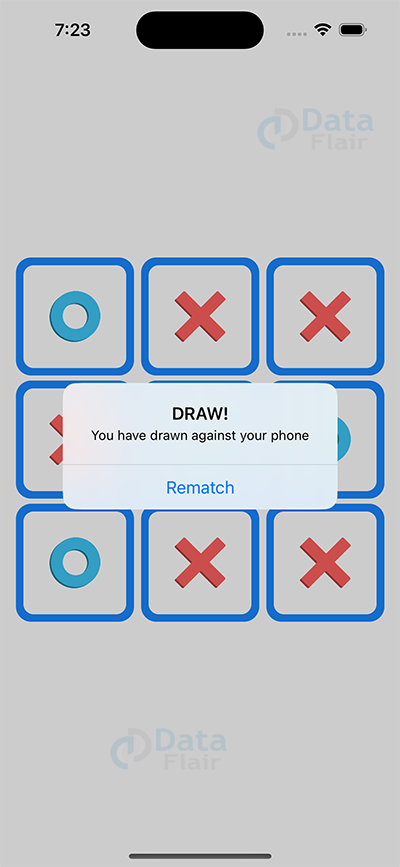
    static let draw = AlertItem(title: Text("DRAW!"),
                                message: Text("You have drawn against your phone"),
                                buttonTitle: Text("Rematch"))

}
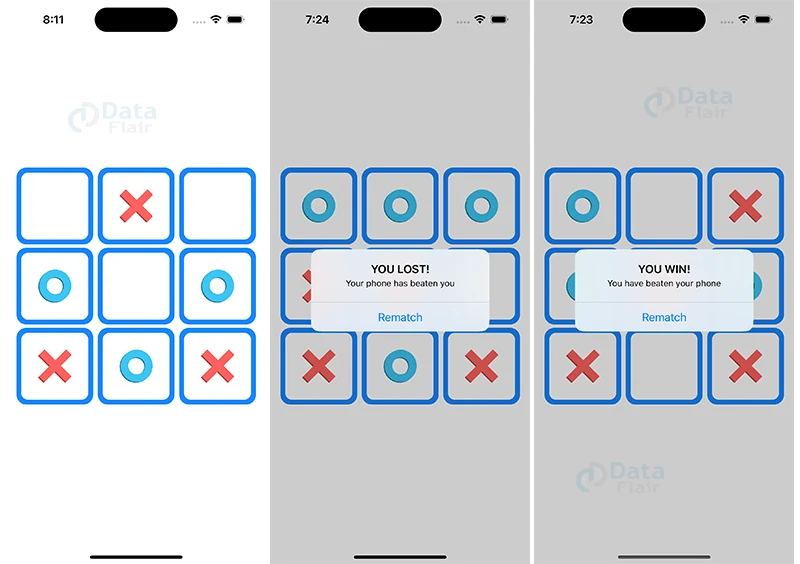
Now the app is ready to play.
Output:
Summary:
Congratulations! You have successfully created a Tic-Tac-Toe app using SwiftUI. You have learned how to implement the game logic and user interface and handle win/draw conditions. You can now run the app and enjoy playing Tic-Tac-Toe. However, this is not the end. You can further enhance the app by adding features such as a scoreboard and different game modes. The possibilities are endless, and you can customize the app according to your needs and creativity.