


Master Python with 70+ Hands-on Projects and Get Job-ready - Learn Python
In this project, we will create a weight converter using the Python library Tkinter. This project will have a GUI (Graphical User Interface) that allows the user to select the input and output weight units, enter a weight value, and convert it to the desired unit. This project will have the ability to convert between Kilogram, Gram, Pound, and Ounce units.
About Python Weight Converter
The objective of this project is to create a weight converter that can be used to convert between different weight units. This project will be covering the following topics:
- Importing libraries in Python
- Creating a GUI using tkinter
- Using the tkinter library to create labels, comboboxes, and entries
- Creating a function to convert the weight
Prerequisites for Weight Converter using Python
To follow along with this project, you should have a basic understanding of Python programming and the Tkinter library. You should also have a text editor or an IDE (Integrated Development Environment) installed on your machine.
You can install Tkinter library by typing the following command on the terminal
pip install tk
Download Python Weight Converter Project
Please download the source code of python Weight Converter project from the following link: Python Weight Converter Project Code
Steps to Create Weight Converter using Python
Following are the steps for developing the python Weight Converter project:
Step 1: Importing Libraries
In the first step we will be importing the necessary libraries. We will be using the tkinter library to create the GUI and the tkinter.font and tkinter.ttk libraries to create the font and combobox elements respectively. To import the libraries, add the following code at the top of your Python file.
# Importing the required libraries
import tkinter as tk
import tkinter.ttk as ttk
Step 2: Creating a Window
The next step is to create a window for the app. We will use the Tk() method of the tkinter library to create the window. We will also set the title of the window, the size of the window, and the background color of the window.
# Creating a window
root = tk.Tk()
root.title("DataFlair - Weight Convertor")


# Setting the size of the window,
# disable resizing the window
# and setting the background color
root.geometry("600x250")
root.resizable(width=False, height=False)
root.configure(background="#0b496d")
Step 3: Creating the GUI Elements
In this step, we will create the various GUI elements that make up the app. We will create a label to display the title of this project, two comboboxes to select the input and output weight units, and two entries to enter and display the weight values. To create these elements, add the following code to your Python file.
# Creating a label to display the title
title_label=tk.Label(root)
title_label.configure(background="#ff6b62", foreground="#ffd700", text="DataFlair - Weight Convertor", font="Arial 25", justify="center")
title_label.place(x=0,y=0,width=600,height=46)


# Creating a label to display "Select Input Weight Unit"
label_1=tk.Label(root)
label_1.configure(background="#0b496d", foreground="#ffffff", text="Select Input Weight Unit", font="Arial 16", justify="center")
label_1.place(x=10,y=60,width=273,height=31)


# Creating a combobox to select the input weight unit
input_combo=ttk.Combobox(root)
input_combo["values"] = ["Kilogram", "Gram", "Pound", "Ounce"]
input_combo.place(x=10,y=100,width=273,height=30)
input_combo.current(0)
input_combo.configure(state='readonly')


# Creating a label to display "Select Output Weight Unit"
label_2=tk.Label(root)
label_2.configure(background="#0b496d", foreground="#ffffff", text="Select Ouput Weight Unit", font="Arial 16", justify="center")
label_2.place(x=320,y=60,width=268,height=30)


# Creating a combobox to select the output weight unit
output_combo=ttk.Combobox(root)
output_combo["values"] = ["Kilogram", "Gram", "Pound", "Ounce"]
output_combo.place(x=320,y=100,width=268,height=30)
output_combo.current(0)
# output_combo.configure(state='readonly')

# Creating a label to display "Input Weight"
input_entry=tk.Entry(root)
input_entry.configure(background="#000000", foreground="#ffffff", font="Arial 26", justify="center")
input_entry.place(x=10,y=140,width=274,height=36)
# placing the cursor in the input_entry
input_entry.focus()


# Creating a label to display "Output Weight"
output_entry=tk.Entry(root)
output_entry.configure(background="#000000", foreground="#ffffff", font="Arial 26", justify="center", state='readonly')
output_entry.place(x=320,y=140,width=268,height=36)
Step 4: Adding the Function to Convert the Weight
In this step, we will add a function that will convert the weight according to the selected input and output units. The function will be triggered when the user clicks on the “Convert” button.
 #function to convert the weight
def convert():
   #get the input weight unit
   input_unit = input_combo.get()
   #get the output weight unit
   output_unit = output_combo.get()
   #get the input weight value and convert it to float
   input_weight = float(input_entry.get())


   #convert the input weight to kilogram
    if input_unit == "Kilogram":
        kilogram = input_weight
    elif input_unit == "Gram":
        kilogram = input_weight / 1000
    elif input_unit == "Pound":
        kilogram = input_weight * 0.453592
    elif input_unit == "Ounce":
        kilogram = input_weight * 0.0283495
    else:
        kilogram = 0


   #convert the input weight to output weight
    if output_unit == "Kilogram":
        output_weight = kilogram
    elif output_unit == "Gram":
        output_weight = kilogram * 1000
    elif output_unit == "Pound":
       output_weight = kilogram / 0.453592
   elif output_unit == "Ounce":
       output_weight = kilogram / 0.0283495
   else:
       output_weight = 0


   #set the output weight value
   output_entry.configure(state='normal')
   output_entry.delete(0, 'end')
   output_entry.insert(0, str(output_weight))
   output_entry.configure(state='readonly')
This function will get the selected input and output units, and the input weight value from the corresponding widgets. It will then convert the input weight to kilograms, and then to the selected output unit. Finally, it will display the output weight in the output_entry widget.
Step 5: Adding the Convert Button
In this step, we will add a button that will trigger the convert function when clicked. Add the following code to the bottom of your script, after the convert function:
# Creating a button to convert the weight
convert_button=tk.Button(root)
convert_button.configure(background="#ff7800", foreground="#000000", font="Arial 14", justify="center", text="Convert", command=convert)
convert_button.place(x=230,y=200,width=147,height=36)
This creates a button widget with the text “Convert” and assigns the convert function as its command. The button is placed at the specified location and dimensions.
Step 6: Running the Weight Converter Project
Finally, we will run the weight converter project by adding the following code at the bottom of the script:
# Running the mainloop
root.mainloop()
This code runs the Tkinter event loop, which will keep the weight converter running until the user closes the window.
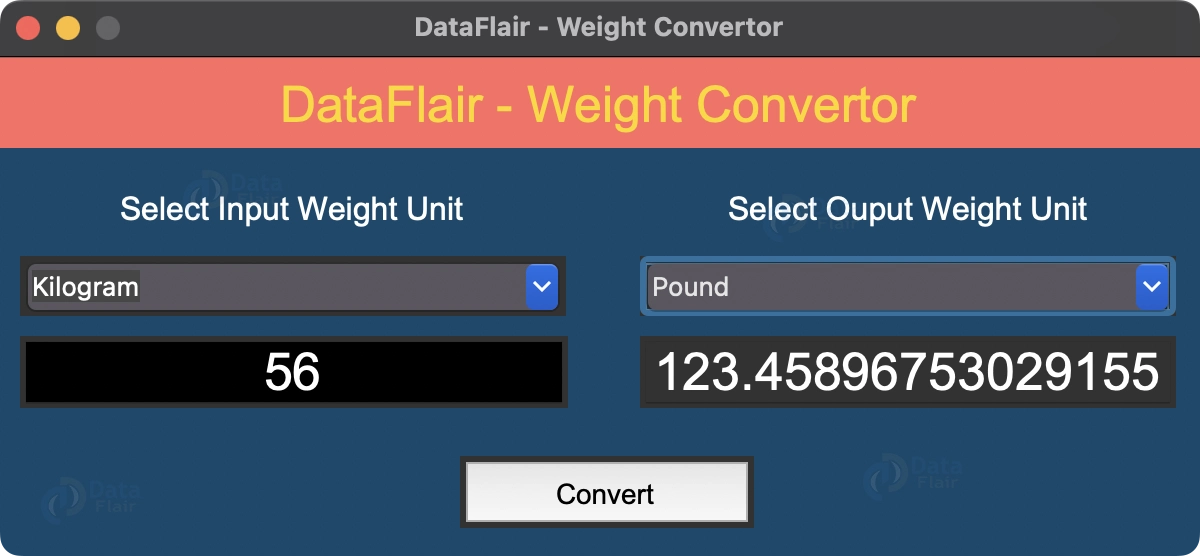
Now, run your script, you will be able to see the weight converter.
Python Weight Converter Output

Summary
Hooray! We have successfully created a weight converter using Python and Tkinter.
In this project, we have learned how to create a GUI project using Tkinter. We have also learned how to create a combobox, entry, and button using Tkinter. After creating the GUI, we have created a function to convert the weight. Now, you can convert the weight from one unit to another unit. However, this is a very basic weight converter.
You can add more features to this weight converter and make it more user-friendly and attractive according to your needs. I hope you have enjoyed this project. If you have any questions, feel free to ask in the comment section below.