


Machine Learning courses with 110+ Real-time projects Start Now!!
Have you ever wanted to watch a video in reverse? It can be a cool way to see things from a different perspective. In this project, we will learn how to play a video in reverse using OpenCV, a popular library for working with images and videos.
OpenCV provides powerful tools for computer vision tasks, and it allows us to create a Python program that can play a video in reverse mode. The process involves opening the video file, extracting each frame from the video, and then displaying these frames in a window in reverse order. This gives the illusion of the video playing backwards, starting from the last frame and going all the way to the first frame.
By the end of the project, you will have a Python program that can play any video in reverse, offering a fun and unique way to watch videos.
What is the core concept behind video creation?
The process of video production involves capturing a series of frames using a camera or recording device. These frames are later edited and enhanced to improve the visual quality and create a seamless storyline. Audio tracks are incorporated and synchronized with the visuals. Finally, the video is exported into a compressed format that combines the frames and audio into a single file. Videos have a wide range of uses in entertainment, education, marketing, and communication, including movies, TV shows, ads, and social media.
Prerequisites For Play A Video in Reverse Mode Using OpenCV
It is important to have a solid understanding of the Python programming language and the OpenCV library. Apart from this, you should have the following system requirements.
- Python 3.7 (64-bit) and above
- Any Python editor (VS code, Pycharm)
Download OpenCV Play A Video in Reverse Mode Project
Please download the source code of OpenCV Play A Video in Reverse Mode Project: OpenCV Play A Video in Reverse Mode Project Code.
Installation
Open Windows cmd as administrator
1. To install the opencv library, run the command from the cmd.
pip install opencv-python
Let’s Implement
To implement this, follow the below steps.
1. We need to import some libraries that will be used in our implementation.
import cv2
2. Define the function named reverse_video.
def reverse_video(video_path):
3. It creates two named windows and resizes them. The first window is named ‘DataFlair (Original Video)’, and the second window is named ‘DataFlair (Reversed Video)’. The cv2.resizeWindow() function is then used to adjust the size of each window to a width of 500 pixels and a height of 600 pixels.
cv2.namedWindow('DataFlair (Original Video)', cv2.WINDOW_NORMAL)
cv2.resizeWindow('DataFlair (Original Video)', 500, 600)
cv2.namedWindow('DataFlair (Reversed Video)', cv2.WINDOW_NORMAL)
cv2.resizeWindow('DataFlair (Reversed Video)', 500, 600)
4. It opens a video file and retrieves the total number of frames in the video.
cap = cv2.VideoCapture(video_path)
frames_total = int(cap.get(cv2.CAP_PROP_FRAME_COUNT))
5. It uses a loop to iterate over each frame in the video
for frame_index in range(frames_total):
6. The code sets the frame index for the video and reads the corresponding frame using OpenCV’s video capture object.
cap.set(cv2.CAP_PROP_POS_FRAMES, frame_index)
ret, frame = cap.read()
7. The code displays the original frame of the video if it’s successfully read. It then calculates the reversed frame index to play the video in reverse. By setting the frame position to the reversed index, the reversed frame is obtained. If the reversed frame is successfully read, it’s displayed in a named window.
if ret:
            cv2.imshow('DataFlair (Original Video)', frame)
            reversed_frame_index = frames_total - frame_index - 1
            cap.set(cv2.CAP_PROP_POS_FRAMES, reversed_frame_index)
            ret, reversed_frame = cap.read()
8. If the reversed frame is successfully read (ret is True), the reversed frame is displayed in a named window using cv2.imshow().
if ret:
            cv2.imshow('DataFlair (Reversed Video)', reversed_frame)
Note:- This is if you have to write under the 7th step of the block.
9. It checks for a key press while the video is playing. If the pressed key is ‘q’, the program exits the loop and stops playing the video.
if cv2.waitKey(1) & 0xFF == ord('q'):
           break
Note:- You have to write steps 6-9 under the 5th step for the loop.
10. It ensures the proper release of resources and the closure of windows, bringing the video playback to a complete and clean end.
cap.release()
cv2.destroyAllWindows()
Note:- You have to write steps 3-10 under 2nd step function.
11. To use the ‘reverse_video’ function, you need to set the path of the video file to the ‘video_path’ variable. After setting the path, you can call the ‘reverse_video’ function and pass the ‘video_path’ variable as an argument. This will initiate the process of playing the video in reverse.
video_path = 'cricket.webm'
reverse_video(video_path)
Play A Video In Reverse Mode Using OpenCV Output
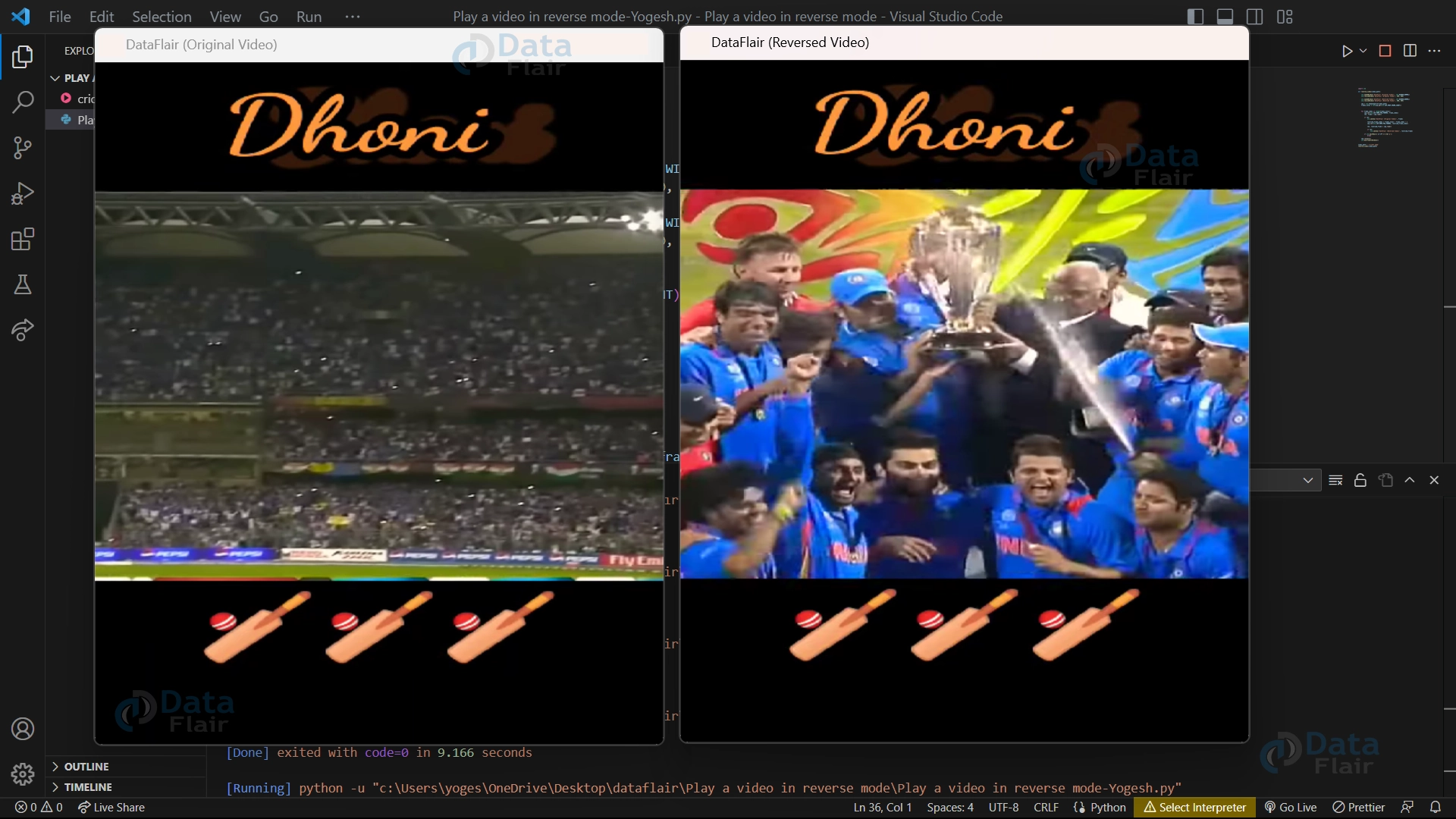
Play A Video In Reverse Mode Using OpenCV Video Output

Conclusion
In conclusion, playing a video in reverse using OpenCV involves reading the input video, creating an output video file, iterating through each frame in reverse order, and writing them to the output file. After processing all frames, the video capture and writer objects are released, ensuring proper cleanup. This technique can be beneficial for motion analysis and artistic effects in videos.