



Machine Learning courses with 110+ Real-time projects Start Now!!
When we watch a video, we see a continuous stream of images that create the illusion of movement. In computer vision and image processing, it is sometimes necessary to work with these individual frames instead of the video as a whole.
OpenCV is a popular library that provides powerful tools to extract individual frames from a video and save them as separate image files. This process has many applications, such as analyzing a video to detect specific objects or patterns or using the frames to train machine learning models.
In this project, we will learn how to use OpenCV and Python to extract frames from a video and explore some of the ways this technique can be used.
Background
OpenCV is a tool that helps with image and video processing. It provides a wide range of functions that allow you to manipulate and analyze images and videos. It is commonly used for tasks such as extracting frames from videos.
To extract frames from a video using OpenCV, you need to first use a function called VideoCapture to read the video file. Once you have done this, you can loop through the frames using another function called read. For each frame, you can use a function called imwrite to save it as a separate image file. This process is simple and can be applied to many different situations where you need to extract frames from a video.
Understanding Video Frames
Video frames are the individual pictures that make up a video. A video is made by playing these frames quickly to create the illusion of motion. Each frame is a picture that contains information about color and brightness. OpenCV can be used to extract these frames from a video and save them as image files. However, these frames can take up a lot of storage space, so it’s important to consider storage requirements when extracting frames from a video.
MetaData
Metadata refers to the information that describes or provides context to a piece of data. In the context of extracting frames from a video, metadata can be used to identify and locate specific frames within the video. This can include information such as the timecode of each frame, the resolution of the video, the video format, and more. By leveraging metadata, it is possible to efficiently extract specific frames from a video without having to manually search through the entire video file. This can be useful in a variety of applications, such as video editing, computer vision, and machine learning.
How to Extract MetaData From Video?
Installation
Open windows cmd as administrator
1. To install the moviepy library run the command from the cmd.
pip install moviepy
Let’s Extract
1. We need to import some libraries that will be used in our implementation.
from moviepy.video.io.VideoFileClip import VideoFileClip
2. Then give/ write the path of the Video file and store it in the video_path variable.
video_path = 'C:/Users/yoges/OneDrive/Desktop/dataflair/Extract frames using OpenCV/Cricket_Demo.webm'
3. This line creates a VideoFileClip object called clip that represents the video file located at the file path specified by the video_path variable.
clip = VideoFileClip(video_path)
4. This line extracts Metadata fields like duration, width, height, fps, size, and rotation angle that provide helpful information about a video. For example, duration tells you how long the video is in seconds, width and height indicate its size in pixels, fps tells you how many images the video displays in one second, and rotation angle indicates if the video has been rotated and by how much.
print("Duration:- ",clip.duration)
print("Width:- ",clip.w)
print("Height:- ",clip.h)
print("FPS:- ",clip.fps)
print("Size:- ",clip.size)
print("Rotation:- ",clip.rotation)
How to Extract Frames From Video?
Prerequisites for Extract Frames Using OpenCV
It is important to have a solid understanding of the Python programming language and the OpenCV library. Apart from this, you should have the following system requirements.
1. Python 3.7 (64-bit) and above
2. Any Python editor (VS code, Pycharm)
Download OpenCV Extract Frames from Video Project.
Please download the source code of OpenCV Extract Frames from Video Project: OpenCV Extract Frames from Video Project Code.
Installation
Open windows cmd as administrator
1. To install the opencv library run the command from the cmd.
pip install opencv-python
Let’s Implement
First, we will extract frames from the saved video.
5. We need to import some libraries that will be used in our implementation.
import cv2
6. By using the function of opencv (VideoCapture) we are passing the path of our saved video file.
cap = cv2.VideoCapture("Cricket_Demo.webm")
7. We are assigning the value of zero to the variable “i” to serve as a counter. This counter will be used to generate unique file names for a series of images that will be saved onto the system. Each file name will consist of a numerical value corresponding to the current value of the counter, followed by the file extension “.jpg”. For example, the first image will be saved as “0.jpg”, the second image as “1.jpg”, and so on.
i=0
8. Start the while loop.
while True:
9. cap.read() function returns two values, the first is stored in ‘ret’ which is a boolean value The function cap.read() reads the frame and returns two values: ret (a boolean indicating if the frame was successfully read) and frame (an array of pixel values in the captured frame). These values can be used to process or display the image.
ret,frame = cap.read()
10. This code uses OpenCV library in Python to save a captured frame as a JPEG image file. The function cv2.imwrite() writes the image data to the specified file path and name, using a format string to include the frame number in the file name. The image data to be saved is provided as the second argument. By this line, we are saving the extracted frame in the specified folder path.
cv2.imwrite("C:/Users/yoges/OneDrive/Desktop/dataflair/Extract frames using OpenCV/Frames/%d.jpg"% i, frame)
11. We are increasing our counter by 1.
i=i+1
12. The function cv2.imshow() displays the image data in the named window specified by the first argument, which is ‘DataFlair’ in this case. The image data to be displayed is provided as the second argument, which is a frame.
cv2.imshow('DataFlair', frame)
13. The cv2.waitKey() function waits for user input from the keyboard for a certain amount of time (in this case, 1 millisecond). If no key is pressed during that time, it returns -1. The if statement checks if the key pressed is the letter ‘q’ by comparing its ASCII code to the key code returned by cv2.waitKey(). If the key pressed is ‘q’, the program exits the loop and terminates, allowing the user to quit the program by pressing the ‘q’ key.
cv2.waitKey(1)
   if cv2.waitKey(1) & 0xFF == ord('q'):
       break
Note:- Steps 5-9 must be under the while loop.
14. cap.release() frees the resources used to capture the video or camera stream, allowing them to be used by other applications. cv2.destroyAllWindows() closes all OpenCV windows, freeing system resources and ensuring the program ends cleanly.
cap.release()
cv2.destroyAllWindows()
OpenCV Extracting Video Frames Output

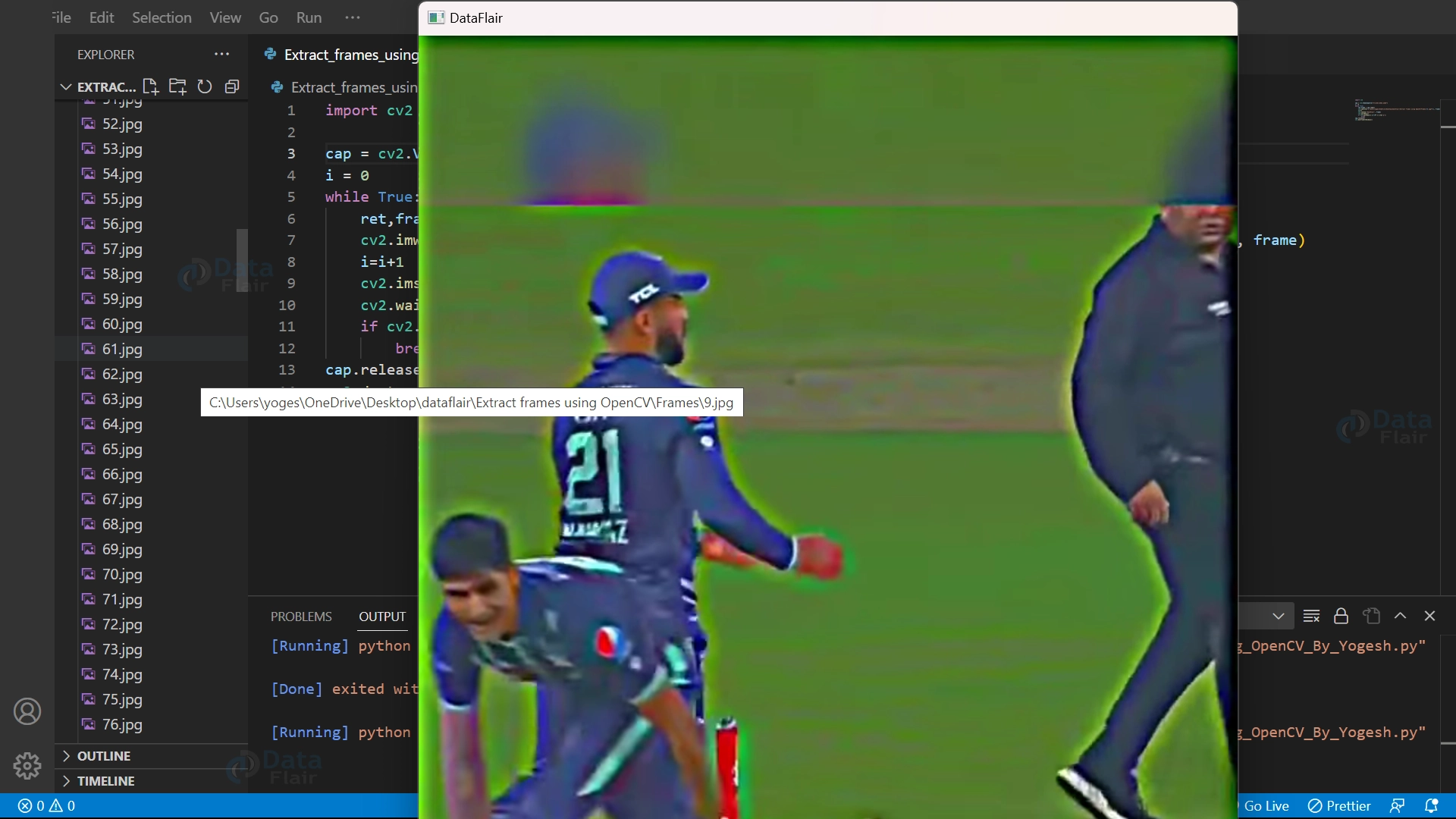
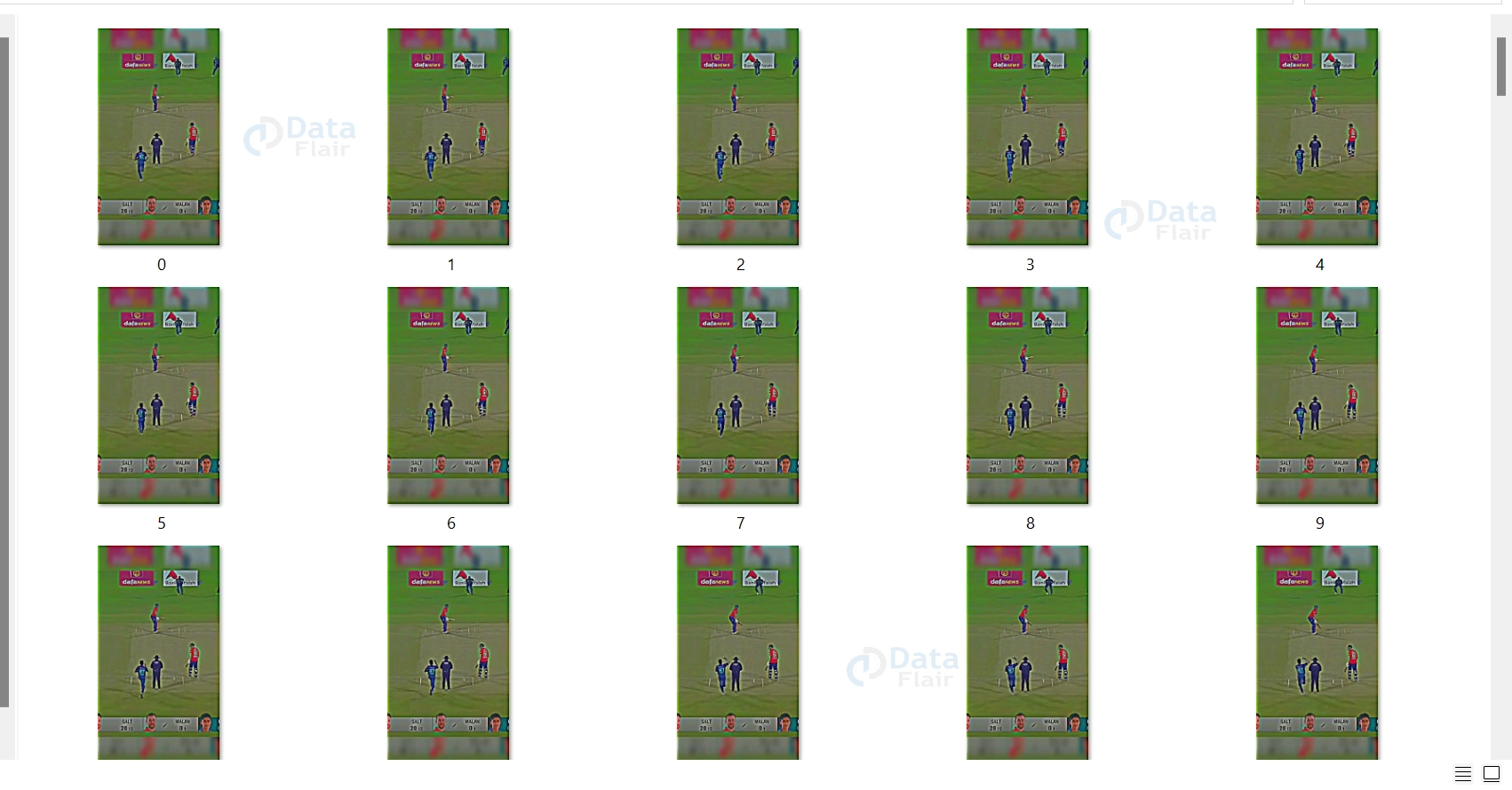
Now, we will extract frames from live video captured by webcam.
To modify the code to capture video from a webcam instead of a video file, you can change the argument passed to the cv2.VideoCapture() function from the file path of the video to 0. This will indicate that you want to capture video from the default camera, which is usually the built-in webcam on most computers.
cap = cv2.VideoCapture(0)
Output:-
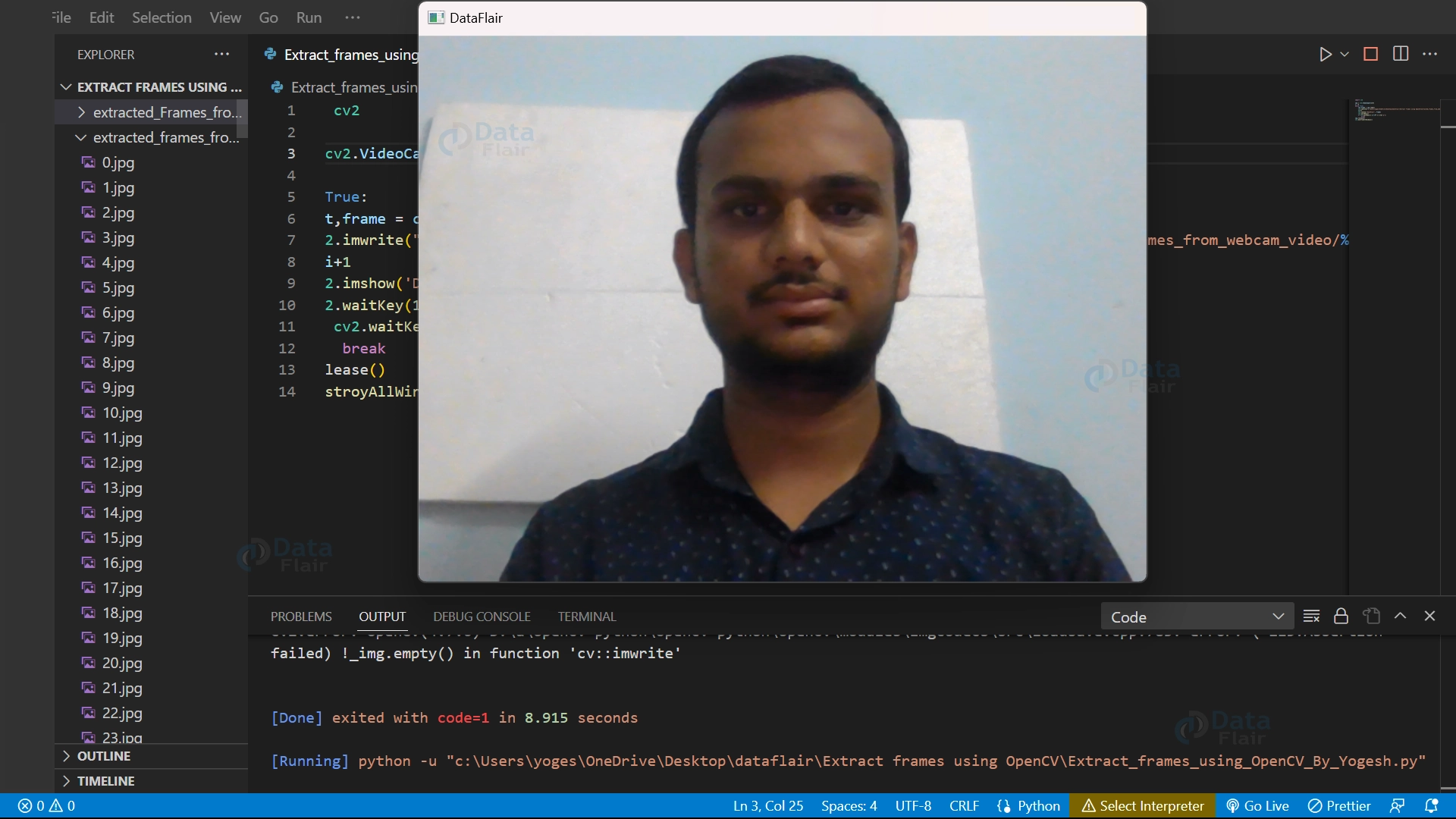
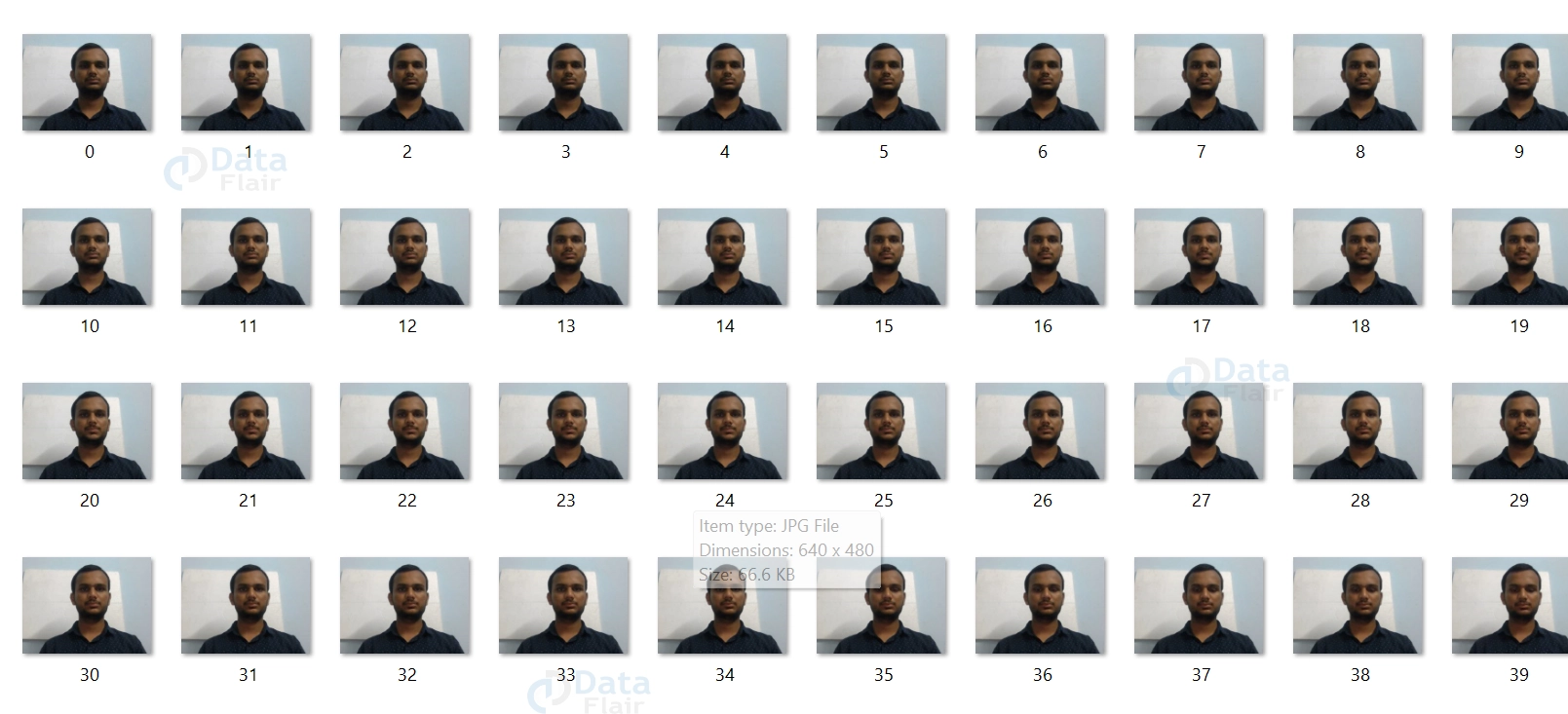
Brief Of Code
This is a Python code that uses the OpenCV library to capture frames from a video stream. The default camera on the computer is used to capture the frames. The script saves each captured frame as a separate JPEG image file on the computer’s local disk. The images are saved in a specific directory and numbered sequentially.
The script also displays the captured frames in a window with the title “DataFlair”. The program will continue to capture and save frames until the user presses the ‘q’ key. Once the user presses the key, the video capture stops and the display window is closed. This code can be useful for various computer vision or machine learning applications where individual frames from a video are required for analysis.
Conclusion
Extracting frames from a video using OpenCV in Python can be a useful technique for a variety of applications, such as object detection, motion analysis, or video editing. The process involves reading frames from a video stream or file, saving them as images, and displaying them in a window.
The OpenCV library provides several functions to facilitate this process, such as cv2.VideoCapture() for capturing video frames, cv2.imshow() for displaying frames in a window, and cv2.imwrite() for saving frames as image files. By combining these functions in a Python script, it is possible to extract frames from a video and use them for further analysis or processing.