


Hello there, Android enthusiasts! Today we will look at and learn how to develop an Android project that is a Weather application in Android Studio. In this article, we’ll learn about the entire project’s development.
An Android application that displays the weather of a given place together with the minimum and maximum temperatures is developed in Kotlin. An effective and dependable programming language called Kotlin makes it possible to create apps for Android devices.
About Android Kotlin Weather App
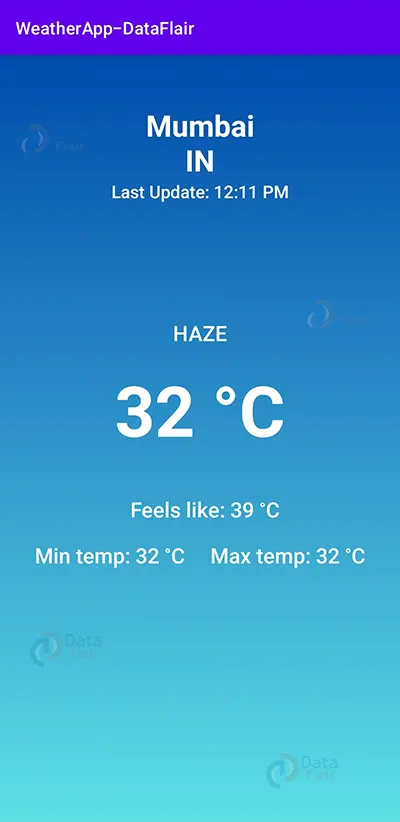
This is a simple project for those just learning the fundamentals of developing Android applications. This Android app’s user interface contains a bunch of text views that display the city’s name, the time at which the weather report was last updated, temperature, and minimum as well as maximum temperatures.
Details about the user interface are as follows :
1. The location is shown in a text view at the top of the user interface.
2. The time when the weather report was last updated is displayed below the location.
3. The current temperature, as well as the minimum and highest values, are displayed beneath the time.
Prerequisites For Weather App Using Android Kotlin
To develop this Android Weather Application, the requirements and prerequisites are as follows:
1. Kotlin: You must first familiarize yourself with Kotlin programming. It is essential because Kotlin, a programming language, will be used to create the app’s code.
2. XML: Another crucial component of our Android application is XML. The application’s user interface will be made using it.
3. Android Studio: The foundation of our application is Android Studio because that is how we will make it. Android Studio also offers a virtual Android device that can be used to test an application’s functionality.
Download Android Kotlin Weather App Project
Please download the source code of Android Kotlin Weather App Project: Android Kotlin Weather App Project Code.
Develop an Android Kotlin Weather Application in Android Studio
We’ll now start working on developing an Android Weather application. Before actually implementing and executing the code, we will learn about its inner workings.
In order to make this Android Weather application, you must follow a set of instructions. We are here to guide you through each step of creating an app.
1. At the location of your choice, extract all the files from the downloaded zip file.
2. Launch Android Studio.
3. Open by selecting File.
4. Locate and choose the extracted folder, then select OK.
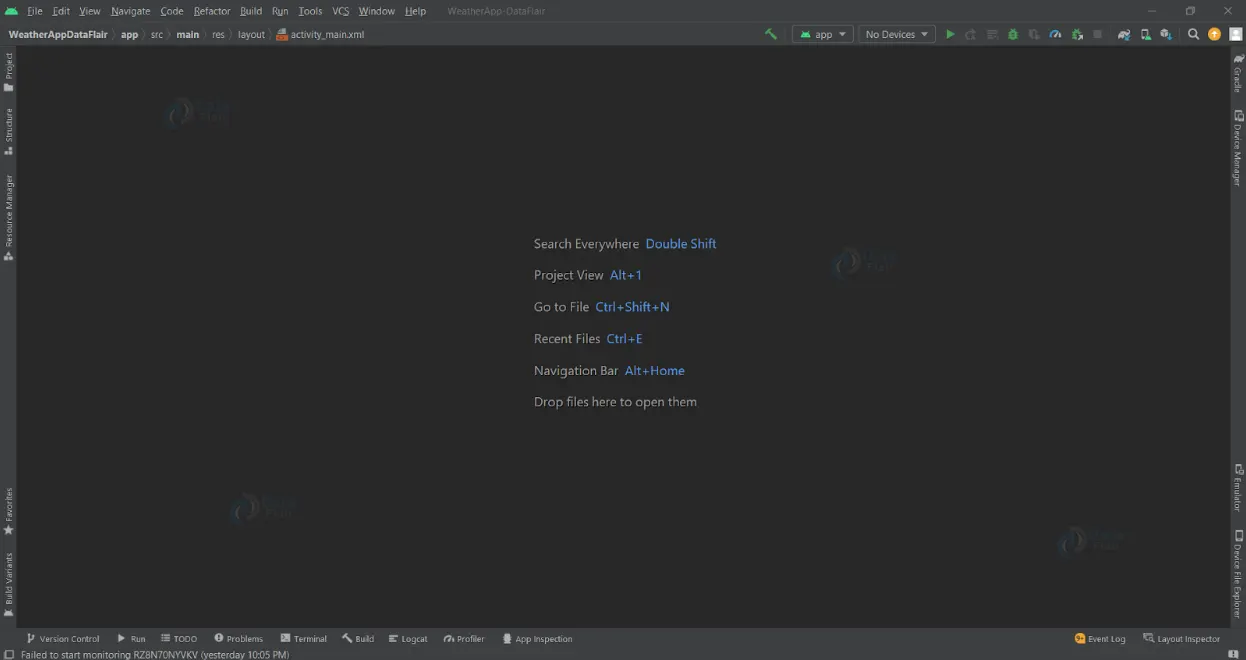
The Android Weather application’s source code has been successfully opened in Android Studio.
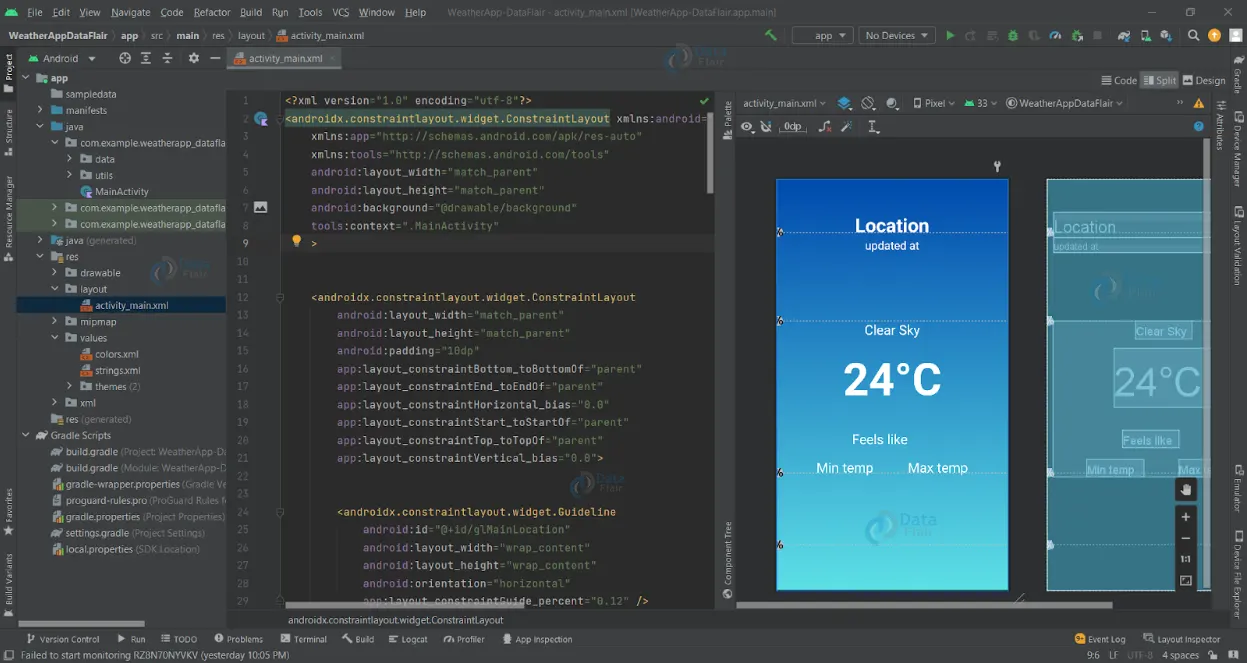
1. ‘activity_main.xml’ is an XML file that is responsible for creating the user interface of the home screen of our Android application.
- The code defines a constraint layout with two child layouts: a linear layout and a constraint layout.
- The linear layout contains two TextViews, one for the location and one for the update time.
- The ConstraintLayout contains four TextViews, one for the weather status, one for the temperature, one for the minimum temperature, and one for the maximum temperature.
- The code uses guidelines to position the child layouts and TextViews.
<?xml version="1.0" encoding="utf-8"?>
<androidx.constraintlayout.widget.ConstraintLayout xmlns:android="http://schemas.android.com/apk/res/android"
   xmlns:app="http://schemas.android.com/apk/res-auto"
   xmlns:tools="http://schemas.android.com/tools"
   android:layout_width="match_parent"
   android:layout_height="match_parent"
   android:background="@drawable/background"
   tools:context=".MainActivity"
   >


   <androidx.constraintlayout.widget.ConstraintLayout
       android:layout_width="match_parent"
       android:layout_height="match_parent"
       android:padding="10dp"
       app:layout_constraintBottom_toBottomOf="parent"
       app:layout_constraintEnd_toEndOf="parent"
       app:layout_constraintHorizontal_bias="0.0"
       app:layout_constraintStart_toStartOf="parent"
       app:layout_constraintTop_toTopOf="parent"
       app:layout_constraintVertical_bias="0.0">


       <androidx.constraintlayout.widget.Guideline
           android:id="@+id/glMainLocation"
           android:layout_width="wrap_content"
           android:layout_height="wrap_content"
           android:orientation="horizontal"
           app:layout_constraintGuide_percent="0.12" />


       <LinearLayout
           android:id="@+id/linearLayout"
           android:layout_width="0dp"
           android:layout_height="wrap_content"
           android:layout_marginStart="1dp"
           android:layout_marginEnd="1dp"
           android:gravity="center_horizontal"
           android:orientation="vertical"
           app:layout_constraintBottom_toTopOf="@+id/glMainLocation"
           app:layout_constraintEnd_toEndOf="parent"
           app:layout_constraintStart_toStartOf="parent"
           app:layout_constraintTop_toTopOf="@+id/glMainLocation">


           <TextView
               android:id="@+id/tv_location"
               android:layout_width="match_parent"
               android:layout_height="wrap_content"
               android:gravity="center_horizontal"
               android:text="@string/location"
               android:textColor="@color/white"
               android:textSize="34sp"
               android:textStyle="bold" />


           <TextView
               android:id="@+id/tv_update_time"
               android:layout_width="match_parent"
               android:layout_height="wrap_content"
               android:gravity="center_horizontal"
               android:text="@string/updated_at"
               android:textColor="@color/white"
               android:textSize="20sp" />


       </LinearLayout>


       <androidx.constraintlayout.widget.Guideline
           android:id="@+id/glMainTemp"
           android:layout_width="wrap_content"
           android:layout_height="wrap_content"
           android:orientation="horizontal"
           app:layout_constraintGuide_percent="0.34" />


       <androidx.constraintlayout.widget.ConstraintLayout
           android:id="@+id/constraintLayout"
           android:layout_width="0dp"
           android:layout_height="wrap_content"
           app:layout_constraintBottom_toBottomOf="parent"
           app:layout_constraintEnd_toEndOf="parent"
           app:layout_constraintHorizontal_bias="0.578"
           app:layout_constraintStart_toStartOf="parent"
           app:layout_constraintTop_toBottomOf="@+id/glMainTemp"
           app:layout_constraintVertical_bias="0.0">


           <TextView
               android:id="@+id/tv_status"
               android:layout_width="wrap_content"
               android:layout_height="wrap_content"
               android:text="@string/clear_sky"
               android:textColor="@color/white"
               android:textSize="24sp"
               app:layout_constraintEnd_toEndOf="parent"
               app:layout_constraintHorizontal_bias="0.5"
               app:layout_constraintStart_toStartOf="parent"
               app:layout_constraintTop_toTopOf="parent" />


           <TextView
               android:id="@+id/tv_temp"
               android:layout_width="wrap_content"
               android:layout_height="wrap_content"
               android:layout_marginTop="16dp"
               android:text="@string/_24_c"
               android:textColor="@color/white"
               android:textSize="80sp"
               android:textStyle="bold"
               app:flow_horizontalAlign="center"
               app:layout_constraintEnd_toEndOf="parent"
               app:layout_constraintHorizontal_bias="0.5"
               app:layout_constraintStart_toStartOf="parent"
               app:layout_constraintTop_toBottomOf="@+id/tv_status" />


           <TextView
               android:id="@+id/tv_min_temp"
               android:layout_width="wrap_content"
               android:layout_height="wrap_content"
               android:text="@string/min_temp"
               android:textColor="@color/white"
               android:textSize="24sp"
               app:layout_constraintBottom_toBottomOf="parent"
               app:layout_constraintEnd_toStartOf="@+id/tv_max_temp"
               app:layout_constraintHorizontal_bias="0.5"
               app:layout_constraintStart_toStartOf="parent"
               app:layout_constraintTop_toTopOf="@+id/tv_max_temp" />


           <TextView
               android:id="@+id/tv_max_temp"
               android:layout_width="wrap_content"
               android:layout_height="wrap_content"
               android:layout_marginTop="18dp"
               android:text="@string/max_temp"
               android:textColor="@color/white"
               android:textSize="24sp"
               app:layout_constraintEnd_toEndOf="parent"
               app:layout_constraintHorizontal_bias="0.5"
               app:layout_constraintStart_toEndOf="@+id/tv_min_temp"
               app:layout_constraintTop_toBottomOf="@+id/tv_feels_like" />


           <TextView
               android:id="@+id/tv_feels_like"
               android:layout_width="wrap_content"
               android:layout_height="wrap_content"
               android:layout_marginStart="16dp"
               android:layout_marginTop="40dp"
               android:text="@string/feels_like"
               android:textColor="@color/white"
               android:textSize="24sp"
               app:flow_horizontalAlign="center"
               app:layout_constraintStart_toStartOf="@+id/tv_temp"
               app:layout_constraintTop_toBottomOf="@+id/tv_temp" />


       </androidx.constraintlayout.widget.ConstraintLayout>


       <androidx.constraintlayout.widget.Guideline
           android:id="@+id/glMainCard"
           android:layout_width="wrap_content"
           android:layout_height="wrap_content"
           android:orientation="horizontal"
           app:layout_constraintGuide_percent="0.72" />
       <androidx.constraintlayout.widget.Guideline
           android:id="@+id/glMainForecastBtn"
           android:layout_width="wrap_content"
           android:layout_height="wrap_content"
           android:orientation="horizontal"
           app:layout_constraintGuide_percent="0.90" />


   </androidx.constraintlayout.widget.ConstraintLayout>


</androidx.constraintlayout.widget.ConstraintLayout>
2. A pact between the client and the server is laid down in the kotlin file “ApiInterface.kt.” The current weather in a specified city can be obtained by the client using the getCurrentWeather() method.
- The code defines an interface called ApiInterface.
- The interface declares a method called getCurrentWeather().
- The getCurrentWeather() method takes three parameters: city, units, and apiKey.
- The getCurrentWeather() method returns a Response object of type CurrentWeather.
- The @GET annotation tells Retrofit that the getCurrentWeather() method should make a GET request to the weather endpoint.
- The @Query annotations tell Retrofit that the city, units, and apiKey parameters should be encoded as query parameters in the GET request.
3. ’RetrofitInstance.kt’ is a Kotlin file that is responsible for the following functions:
- The code creates a Retrofit object that is configured to use the GsonConverterFactory.
- The Retrofit object is used to create an ApiInterface object.
- The ApiInterface object is used to make HTTP requests to the weather API.
- The Retrofit object is created using the Retrofit.Builder() class. The Builder class takes several parameters, including the base URL of the API and the converter factory that will be used to convert the JSON response from the API into Java objects.
- The GsonConverterFactory is a converter factory that can be used to convert JSON into Java objects.
4. ‘MainActivity.kt’ is a Kotlin file that is responsible for the functioning of our Android weather application.
- The getCurrentWeather() method makes an HTTP request to the weather API using the RetrofitInstance.api object.
- The getCurrentWeather() method catches any IOException or HttpException exceptions that may be thrown.
- The getCurrentWeather() method uses the withContext() function to run the code on the main thread.
- The getCurrentWeather() method updates the UI with the weather information.
class MainActivity : AppCompatActivity() {
   private lateinit var binding: ActivityMainBinding
   override fun onCreate(savedInstanceState: Bundle?) {
       super.onCreate(savedInstanceState)
       binding = ActivityMainBinding.inflate(layoutInflater)
       setContentView(binding.root)


       getCurrentWeather()


   }


   private fun getCurrentWeather() {
       GlobalScope.launch(Dispatchers.IO){
           val response = try {
               RetrofitInstance.api.getCurrentWeather("mumbai","metric", "xxxx")
           }catch (e:IOException){
               Toast.makeText(applicationContext,"{${e.message}}",Toast.LENGTH_SHORT).show()
               return@launch
           }catch(e:HttpException){
               Toast.makeText(applicationContext,"{${e.message}}",Toast.LENGTH_SHORT).show()
               return@launch
           }


           if(response.isSuccessful && response.body()!=null){
               withContext(Dispatchers.Main){
                   val data = response.body()!!
                   binding.apply {
                       tvStatus.text = data.weather[0].description.uppercase()
                       tvLocation.text = "${data.name}\n${data.sys.country}"
                       tvTemp.text = "${data.main.temp.toInt()}°C"
                       tvFeelsLike.text = "Feels like: ${data.main.feels_like.toInt()}°C"
                       tvMinTemp.text = "Min temp: ${data.main.temp_min.toInt()}°C"
                       tvMaxTemp.text = "Max temp: ${data.main.temp_max.toInt()}°C"
                       tvUpdateTime.text = "Last Update: ${
                           SimpleDateFormat(
                               "hh:mm a",
                               Locale.ENGLISH
                           ).format(data.dt * 1000)
                       }"
                   }
               }
           }
       }
   }
}
Android Kotlin Weather App Output:
Summary
So in this Android Kotlin Weather App Project, we learned how to utilize Android Studio to create an application that shows the weather in a specific area. This Android project is appropriate for beginners since it will strengthen your capacity to create user interfaces that meet the requirements of the application and incorporate fundamental functions using logical programming. We sincerely hope you enjoyed it, and we have no doubt that you will enjoy applying it.